

- PDF branding — your company name and logo in the footer of every PDF ShiftUp exports.
- Presentation decks — your company colors and logo placement for the slide decks ShiftUp generates.
- Meeting assistant — the display name and image the ShiftUp meeting assistant uses when it joins a customer meeting.
- Application logo — the logo shown for the ShiftUp and ShiftUp Mobile apps in the Salesforce App Launcher and navigation bar.
Prerequisites
- The ShiftUp Admin permission set is assigned to your user.
- For PDF branding: a hosted logo URL for your company logo (PNG or JPEG) available to all Salesforce users. See PDF Branding section for more info.
- For meeting branding: a JPEG image under 1.3 MB (1280 x 720 works best).
- For the application logo: the Customize Application permission in Salesforce, so you can edit apps in App Manager.
PDF branding
When sellers export an Account Plan, Strategy, or business case from ShiftUp, the generated PDF can include your company’s name and logo in the footer instead of the default ShiftUp branding. This makes exported documents feel like an extension of your own materials when shared with customers or stakeholders.Configure PDF branding
1
Open ShiftUp Admin
In Salesforce, open the ShiftUp Admin app and select Application Setup.
2
Open the Branding section
In the left-hand accordion, select Branding.
3
Enter your company name
Set Company Name to the name you want to appear in PDF footers and other branded surfaces.
4
Add your logo URL
Paste your logo’s URL into the Logo URL field.
- Accepted formats: PNG and JPEG.
- The URL must be reachable from the running Salesforce session.
- Square or wide landscape logos work best in the PDF footer.
5
Enable logos in PDF exports
Select Include logo in PDF exports to use your custom logo on every PDF ShiftUp generates.When this toggle is off, exported PDFs use the default ShiftUp logo in the footer.
6
Save your settings
Select Save Settings. The next PDF export will use your branding.
Where your PDF branding appears
Your company logo is embedded in the footer of every PDF generated by ShiftUp, including:- Account Plan exports
- Strategy exports
- Business case exports
- Account Strategies exports
- Seller Profile exports
Presentation deck branding
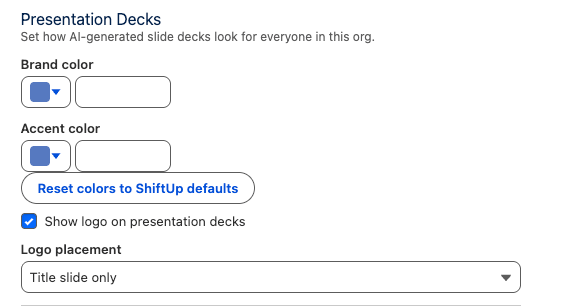
The Presentation Decks section controls how the slide decks generated by Chat look for everyone in your org. Set a brand color and accent color used across slide backgrounds, headers, and accents, and choose whether your company logo appears on decks and where.Configure presentation deck branding
1
Open the Branding section
In ShiftUp Admin → Advanced, select Branding. Scroll to Presentation Decks.
2
Set your brand and accent colors
Use the Brand color and Accent color pickers, or paste a hex value into the field next to each swatch. Brand color drives primary surfaces; accent color drives highlights and secondary elements.Select Reset colors to ShiftUp defaults to revert both colors.
3
Show your logo on decks
Select Show logo on presentation decks to include your company logo on generated slides. This uses the same logo configured in PDF branding above.
4
Choose logo placement
Under Logo placement, choose where the logo appears:
- Title slide only — the logo appears only on the deck’s cover slide.
- Every slide — the logo appears on all slides.
5
Save your settings
Select Save Settings. The next deck generated by Chat will use the new branding.
Where your presentation branding appears
Brand and accent colors apply to every slide deck ShiftUp generates, and the logo follows your placement choice — the title slide only, or every slide. This includes decks built by Chat for deal prep, QBRs, pipeline reviews, and business cases. Branding is applied at generation time, so existing exported.pptx files aren’t updated retroactively.
Meeting assistant branding
The Meeting Assistant section of the Branding panel controls how the ShiftUp assistant introduces itself when it joins a customer meeting. You can set the display name shown in the participant list and upload an image used on the meeting tile. This section only appears when ShiftUp Meetings is enabled for your org.Configure the meeting assistant
1
Open the Branding section
In ShiftUp Admin → Application Setup, select Branding. Scroll to Meeting Assistant.
2
Set the Assistant Name
In Assistant Name, enter the name you want to display when the assistant joins a meeting (for example,
Acme Notes or Acme AI Assistant). Up to 80 characters. Leaving it blank uses the default ShiftUp assistant name.3
Upload an assistant image
Under the image control, select Choose Image and upload a JPEG.
- Format: JPEG only.
- Size: under 1.3 MB.
- Recommended dimensions: 1280 x 720, with a centered, high-contrast logo and text for the best meeting tile quality.
4
Save your settings
Select Save Settings. The next meeting the assistant joins will use the new name and image.
Where your meeting branding appears
The Assistant Name and image are used everywhere your customer sees the ShiftUp assistant in a live meeting:- The participant name shown in the meeting attendee list.
- The tile shown for the assistant when its camera is off.
Application logo
The logo shown for the ShiftUp and ShiftUp Mobile apps — in the Salesforce App Launcher and at the top of the app’s navigation bar — is a Salesforce app setting, not part of the ShiftUp Branding panel. You change it in Salesforce Setup using App Manager.Change the application logo
1
Open App Manager
In Salesforce, select the gear icon and open Setup. In the Quick Find box, search for
App Manager and select it under Apps.2
Edit the app
Find the app you want to update — ShiftUp (developer name 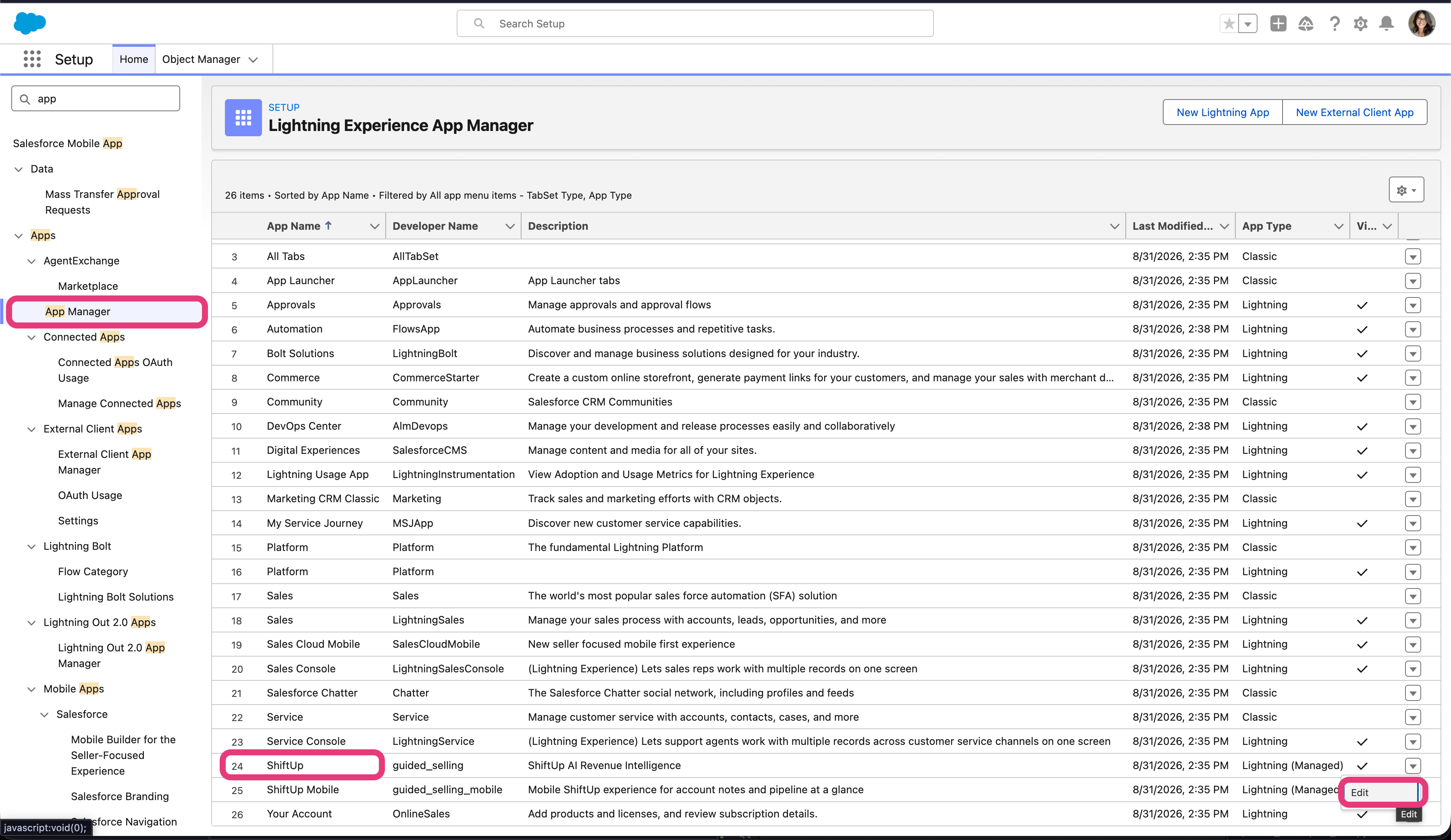
guided_selling) or ShiftUp Mobile (developer name guided_selling_mobile). Select the dropdown arrow at the end of the row, then select Edit.3
Clear the current logo
Under App Branding, select Clear below the current image to remove it.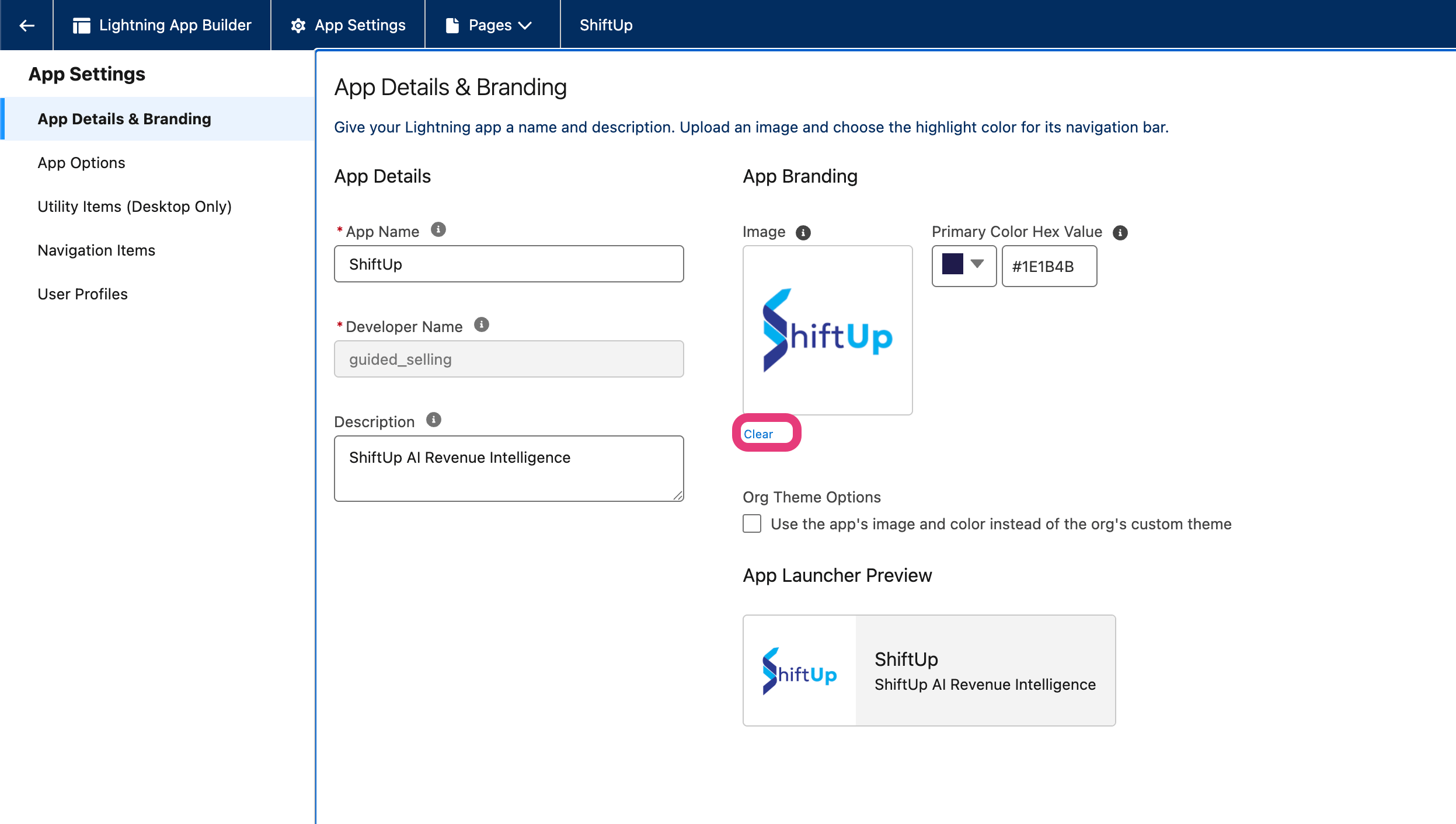
4
Upload your logo
Select Upload in the Image box and choose your logo file. You can also set the Primary Color Hex Value to match your brand — it controls the highlight color of the app’s navigation bar.The App Launcher Preview at the bottom of the page shows how the logo will appear next to the app name.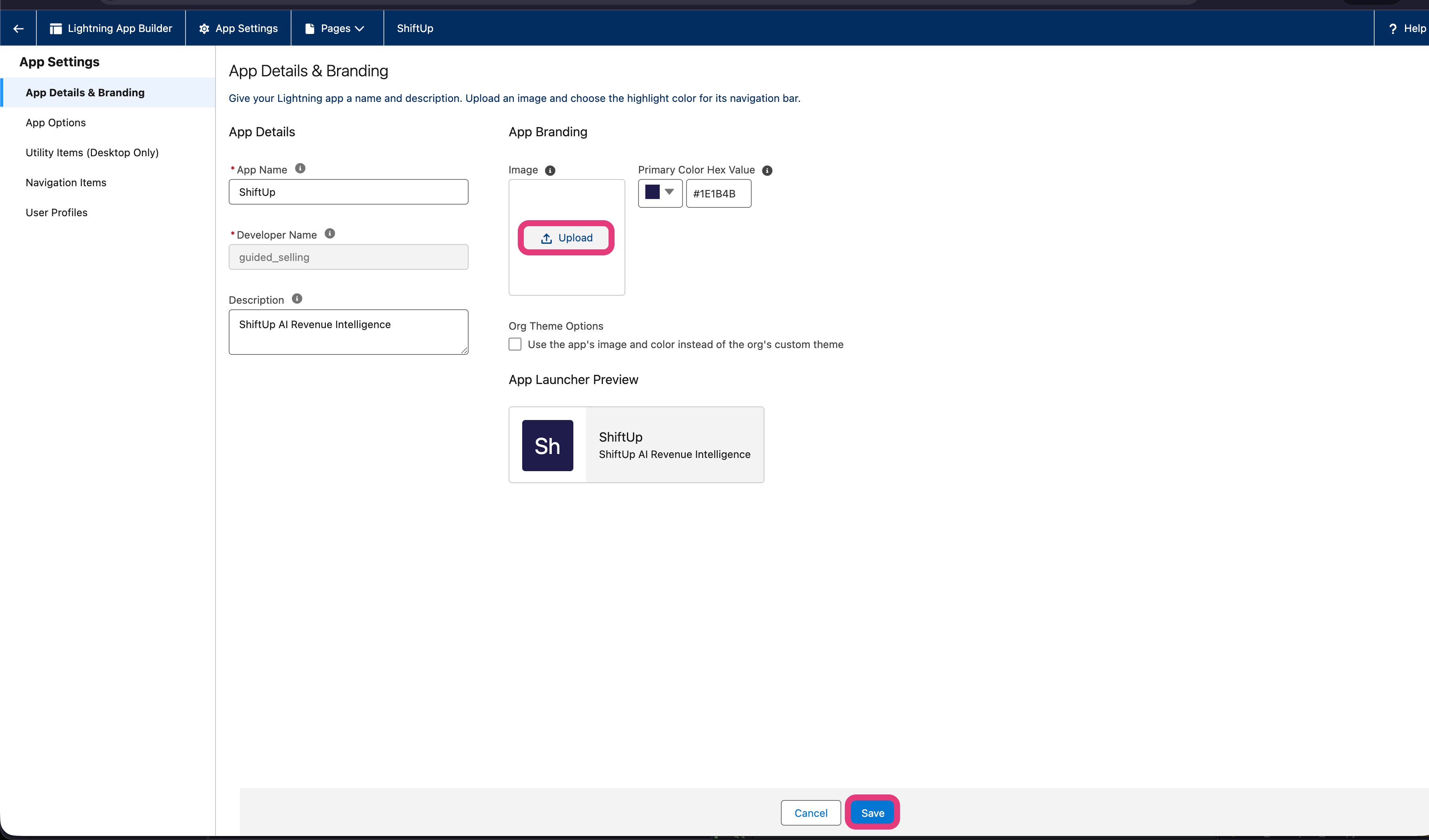
5
Save
Select Save. The new logo appears in the App Launcher and the app’s navigation bar.
6
Repeat for the other app
ShiftUp and ShiftUp Mobile are branded separately. Repeat these steps for the other app so both use the same logo.
Troubleshooting
The logo isn't showing up in my PDF
The logo isn't showing up in my PDF
- Confirm Include logo in PDF exports is enabled in Branding.
- Open the Logo URL in a browser tab — if it doesn’t load there, Salesforce can’t reach it either.
- Verify the file is a PNG or JPEG. Other formats (SVG, WebP, GIF) are not supported.
- Re-save the Branding settings after fixing the URL.
The logo looks stretched or pixelated
The logo looks stretched or pixelated
Use a higher-resolution source image. The PDF generator preserves the embedded image’s aspect ratio but scales it to fit the footer, so very low-resolution logos will look soft.
I want to switch back to the default ShiftUp logo
I want to switch back to the default ShiftUp logo
Turn off Include logo in PDF exports in Branding and save. New PDF exports will use the default ShiftUp logo in the footer.
The Meeting Assistant section isn't visible
The Meeting Assistant section isn't visible
The Meeting Assistant section only appears when ShiftUp Meetings is enabled. Confirm the feature is on for your org, then reload Application Setup.
My assistant image was rejected
My assistant image was rejected
Uploads must be JPEG under 1.3 MB. PNG, WebP, and other formats are rejected. Re-export the image as JPEG and try again.
The new application logo isn't showing
The new application logo isn't showing
- Confirm you selected Save on the App Details & Branding page.
- Reload the browser tab or clear your browser cache — Salesforce can serve a cached copy of the old logo.
- ShiftUp and ShiftUp Mobile are branded separately. If only one app shows the new logo, repeat the steps for the other app.
I want to go back to the default assistant name and image
I want to go back to the default assistant name and image
In Branding → Meeting Assistant, clear the Assistant Name field and select Clear Image, then save. Future meetings will use the default ShiftUp assistant identity.