
Use a Salesforce Flow to set required fields and default values on Accounts created by ShiftUp. This helps new Accounts meet your Salesforce validation rules and follow your team’s conventions—for example, assigning an account type, record type, or custom classification before the record is saved. The ShiftUp Pipeline Account Before Create flow runs when a strategy candidate activation creates a new target Account or supporting parent Account. Each new Account passes through the flow separately. Existing Accounts reused during activation keep their current field values.

Before you begin

  • Confirm your installed ShiftUp version includes ShiftUp Pipeline Account Before Create under Salesforce Setup → Flows.
  • Use an administrator account with Manage Flow permission and access to the packaged flow.
  • Identify the fields and valid values your org requires, and confirm which user is your ShiftUp integration user.
  • Configure and test the override in a sandbox first.

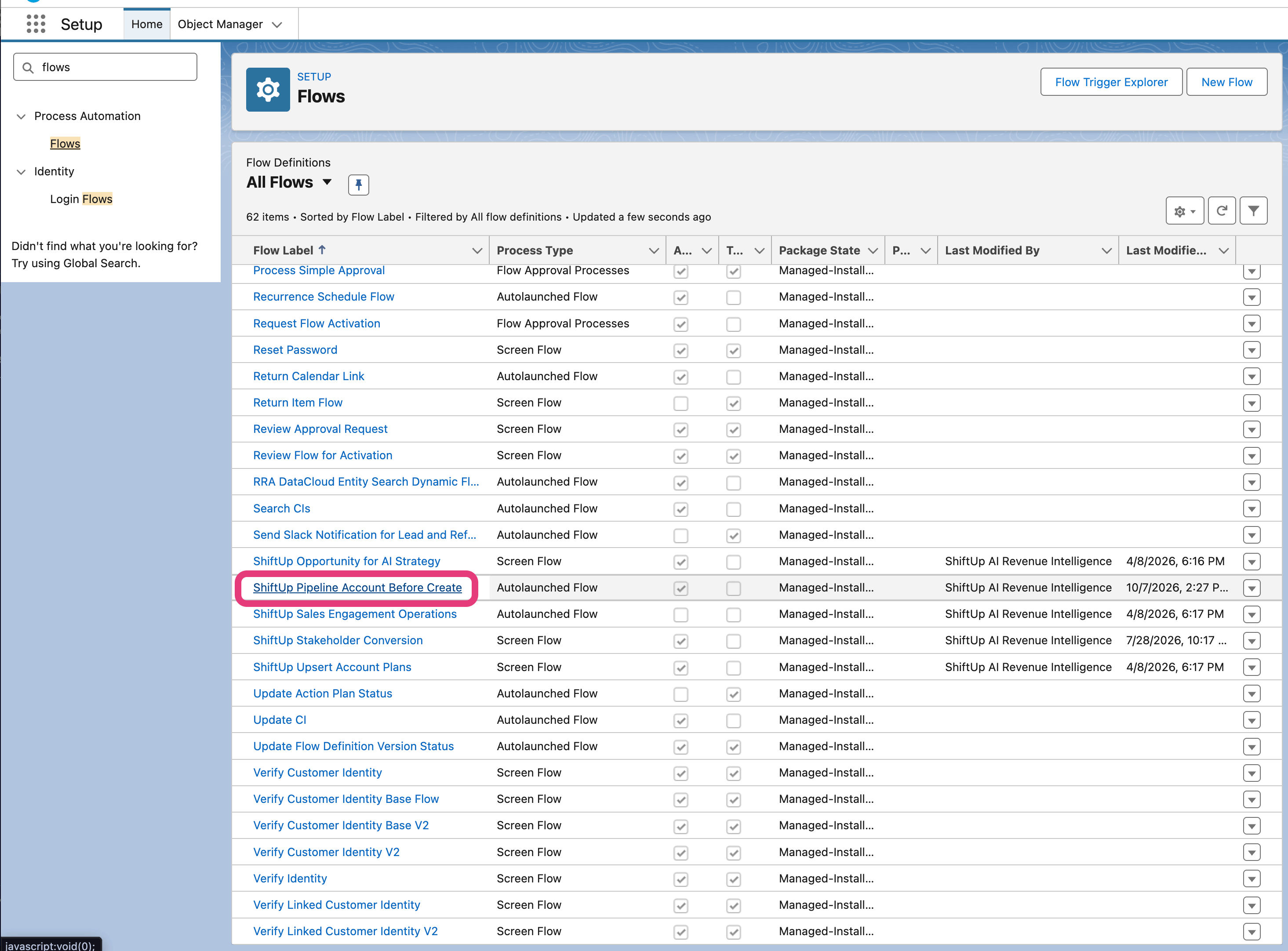
1. Open the packaged flow

In Salesforce Setup, enter Flows in Quick Find. Select Flows, then open ShiftUp Pipeline Account Before Create. Select Account Before Create Flow
2. Create your flow override

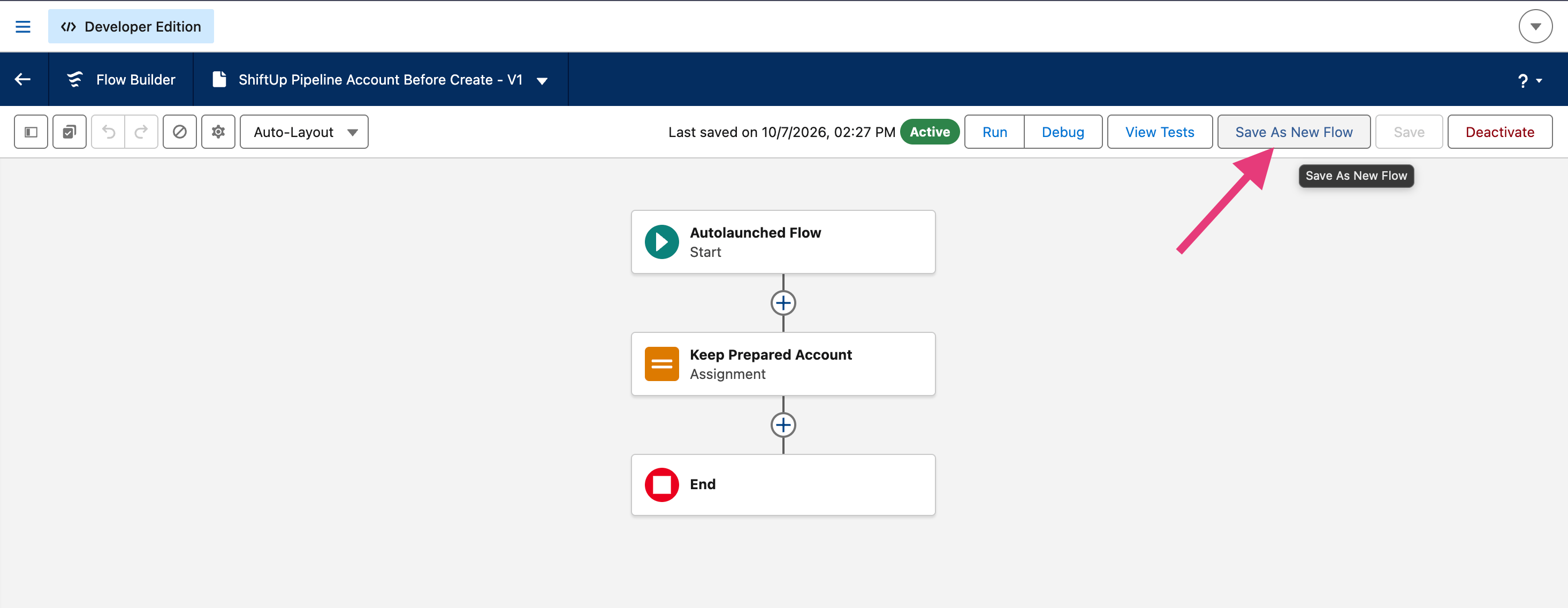
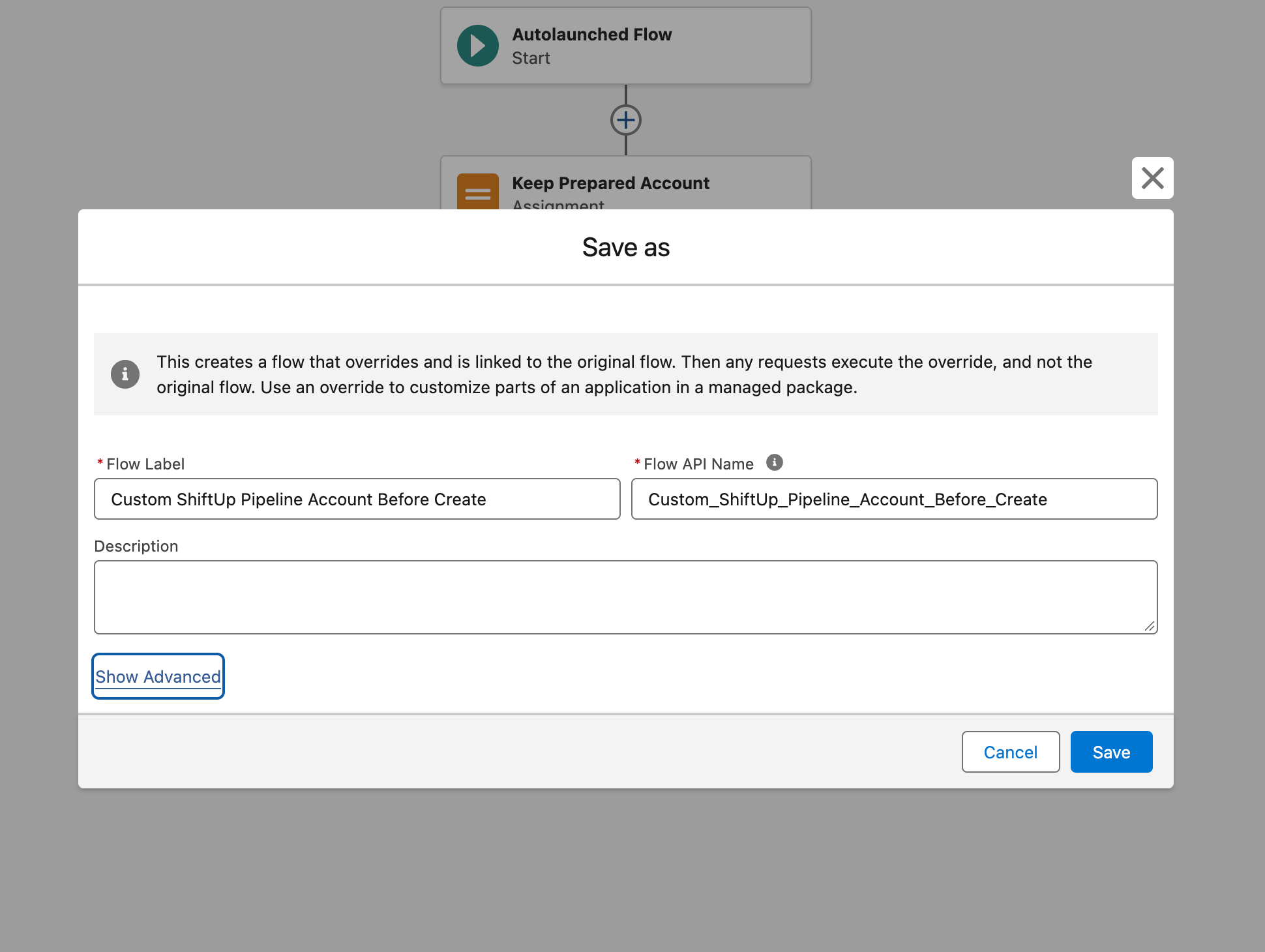
Click Save As New Flow. Save Shift Up Flow As A New Version For Edits Enter a descriptive label, such as Custom ShiftUp Pipeline Account Before Create, accept the generated API name, and click Save. The save dialog explains that the new flow overrides and remains linked to the packaged flow. Confirm the Override badge appears in Flow Builder. Create A New Flow Override For The Shift Up Flow Keep the inherited resources: The linked override is what makes Salesforce run your customization automatically when ShiftUp calls the packaged flow.
3. Assign your Account fields

Open the Keep Prepared Account Assignment element and rename it Set Account Fields. Add assignments to fields on the existing account variable, using the Equals operator. Configure Custom Account Field Assignments
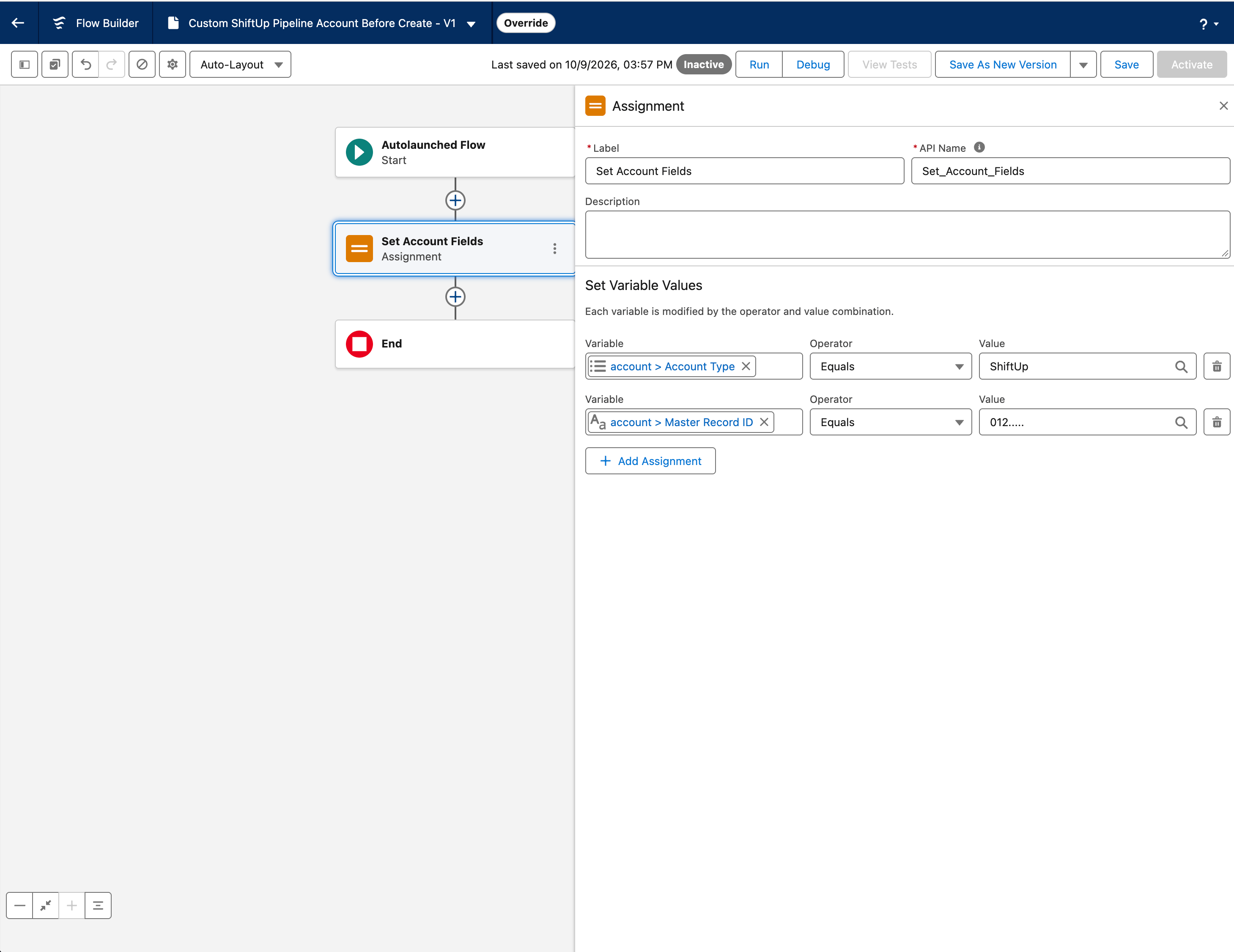
Record type correction: The screenshot’s second row selects Master Record ID. To assign a record type, select Record Type ID (RecordTypeId) instead. Use a valid ID from your org; 012… is only a placeholder.
Modify fields on the supplied Account so its prepared values are retained. Leave Name, OwnerId, ParentId, and tvggs__Pipeline_Materialization_Key__c unchanged, and leave Id empty. Use this flow to prepare field values. Do not add Create Records, Update Records, Delete Records, pauses, or asynchronous work; ShiftUp saves the returned Account after the flow finishes.

4. Add conditional defaults (optional)

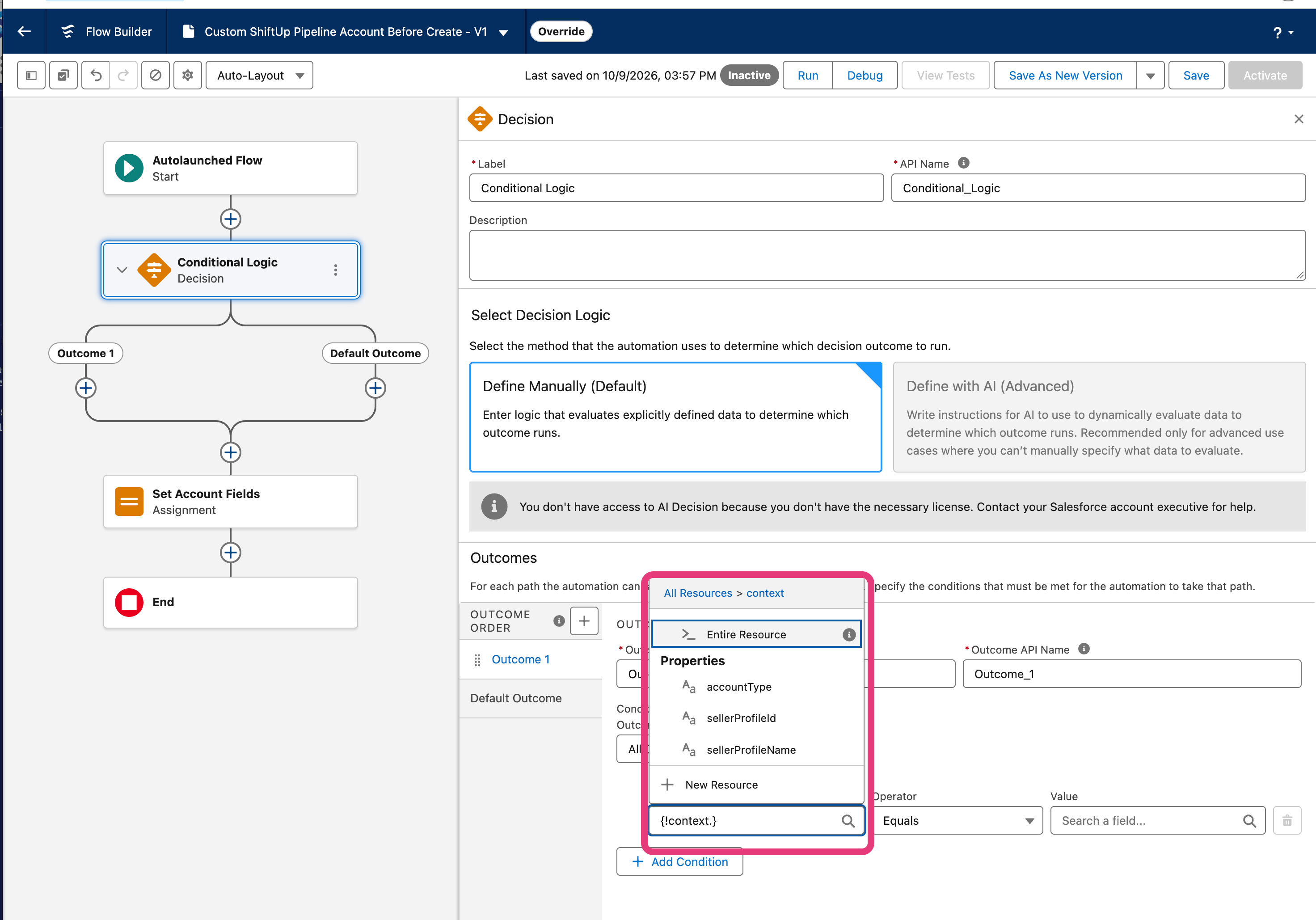
To apply different values by Account role or seller profile, add a Decision element and choose a property from the context resource. For example, test whether context.accountType equals Parent, then put a separate Assignment on each decision branch. You can also vary defaults by seller profile. Ensure every branch supplies any required fields. Explore Account Create Context Options context.accountType identifies the Account’s role in this creation process. The Salesforce Account Type field is a separate value that you assign on account.
5. Save and activate

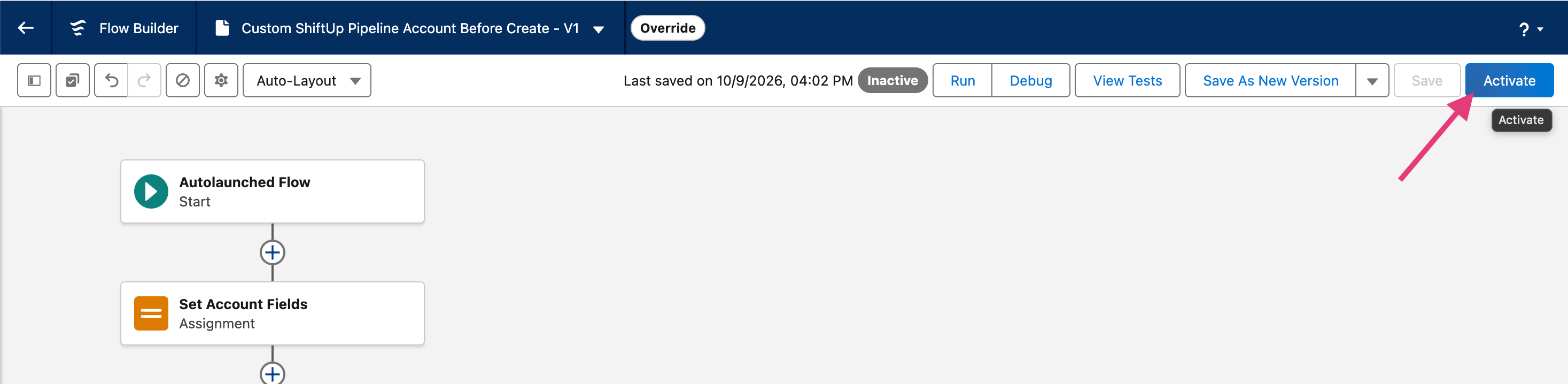
Click Save, then Activate. Confirm your custom flow shows Active and retains the Override badge. Activate Flow
6. (Optional) Give the integration user access

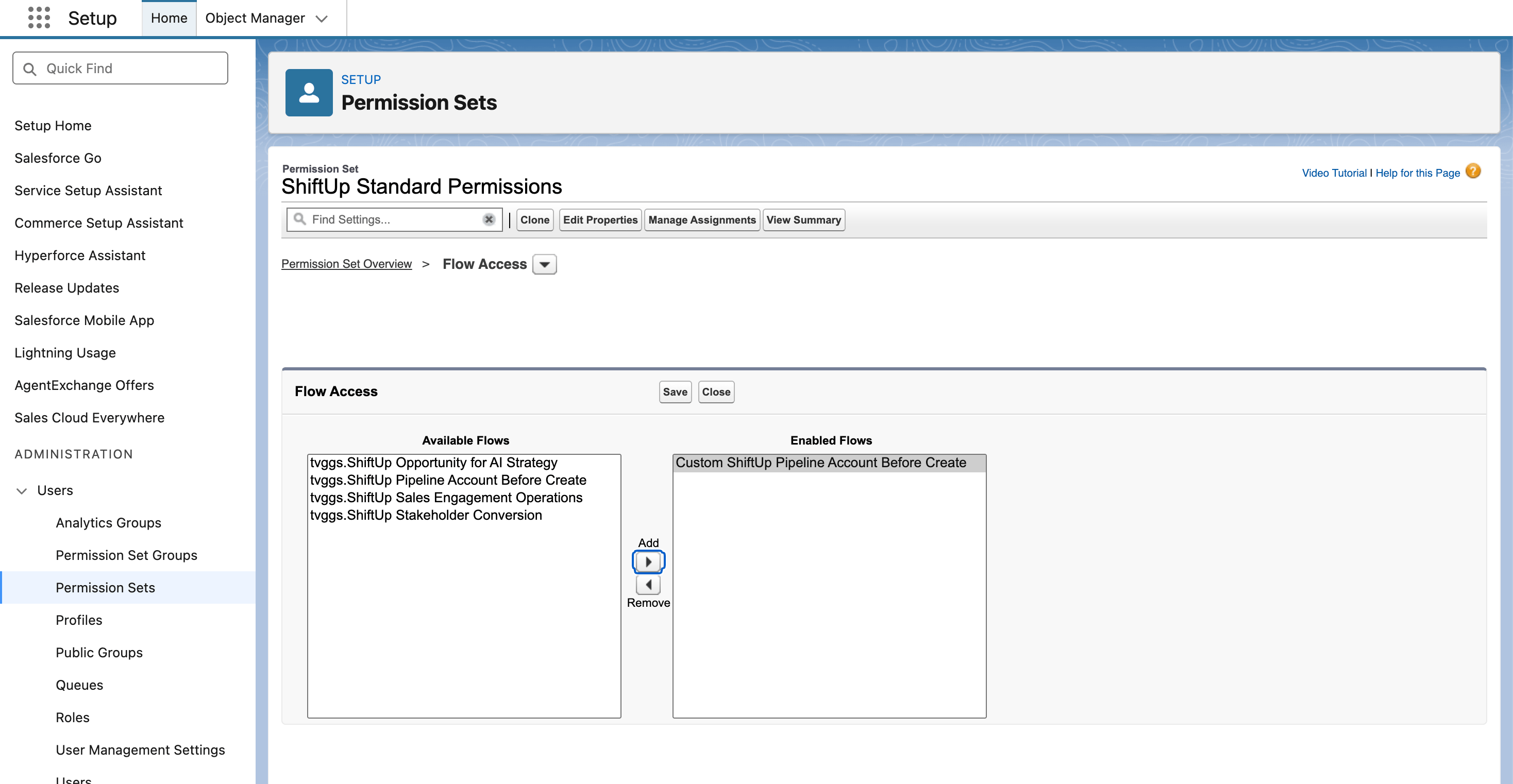
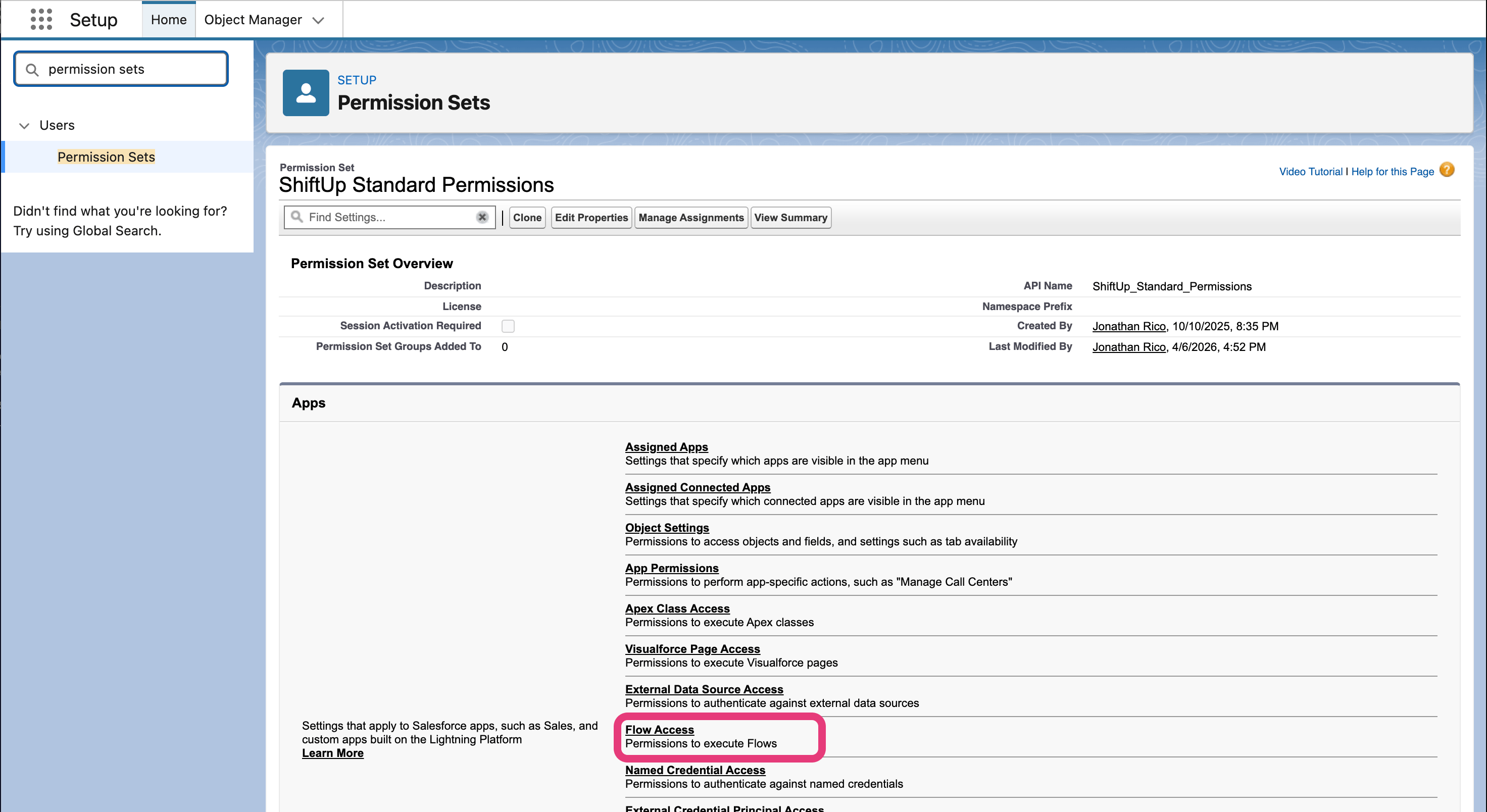
ShiftUp’s integration user runs the flow during account creation. If you have enabled restricted access to your custom flow then you must grant access to your custom override flow. In Setup → Permission Sets, open ShiftUp Standard Permissions, as shown below, or the editable permission set your org uses for the integration user. Integration User Standard Permission Set Under Apps, select Flow Access, then Edit. Integration User Standard Permission Set Flow Access Select Custom ShiftUp Pipeline Account Before Create, move it to Enabled Flows, and click Save. Integration User Standard Permission Set Enable Restricted Flow Use Manage Assignments to confirm this permission set is assigned to the integration user; add the user if needed. Also confirm the user has Run Flows, normally provided by ShiftUp’s integration permissions. If missing, enable it in an assigned permission set under App Permissions → Flow and Flow Orchestration. If the custom flow is missing from Available Flows, return to Setup → Flows, open its action menu, and choose Edit Access. Enable the option to restrict access to enabled profiles or permission sets, save, and return to Flow Access. Restricted flows require explicit access even for users with general flow permissions. See Salesforce’s flow access guidance.

Verify the result

Activate a strategy candidate that creates a new Account through ShiftUp, then check the resulting Account’s field values. If your setup creates a new parent too, check both Accounts. Reusing an existing Account should leave its fields unchanged. If creation fails, check the active override, integration-user access, required fields, and protected fields listed above. Correct the issue and retry. A failure in this flow stops Account creation and rolls back new records from that creation attempt. To return to ShiftUp’s default behavior, deactivate the custom override. This affects future creation attempts; Accounts already created keep their saved values.