

ShiftUp for Slack is in preview for select customers. If Enable Slack does not appear in ShiftUp Admin, your org is not in the preview yet. Contact ShiftUp Support to ask about joining it.
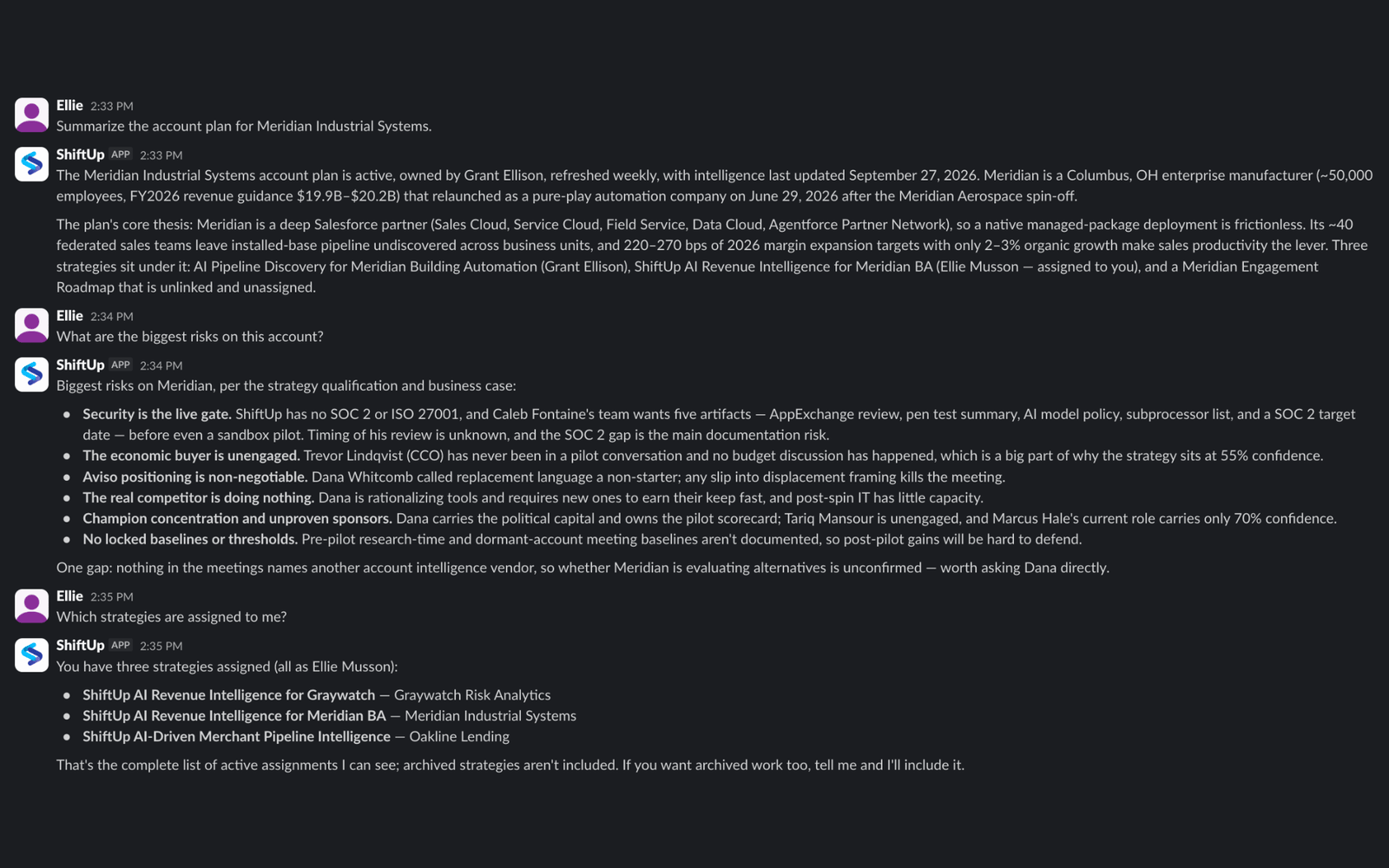
Ask for an account plan summary, then keep going with follow-up questions in the same conversation.
How ShiftUp works in Slack
1
An administrator connects your workspace
A ShiftUp administrator turns on Enable Slack in ShiftUp Admin and clicks Add to Slack. This connects one Slack workspace to your Salesforce org. See Install ShiftUp for Slack.
2
Each teammate links their own Salesforce account
Open the ShiftUp app in Slack. It greets you with a link to sign in to Salesforce and authorize your own account. See Link your Salesforce account.
3
Ask and follow up
Send a plain-text question that names an account or opportunity. ShiftUp answers from the intelligence your Salesforce user has access to, and keeps the conversation context for follow-up questions.
What you can ask
Replace Acme with one of your accounts:- “Summarize the account plan for Acme.”
- “What are the latest insights for Acme?”
- “Which strategies are assigned to me?”
- “Help me prepare for a meeting with Acme.”
- “Summarize the opportunity strategy for [opportunity name].”
- “What do ShiftUp’s pipeline agents do and how do they work?”
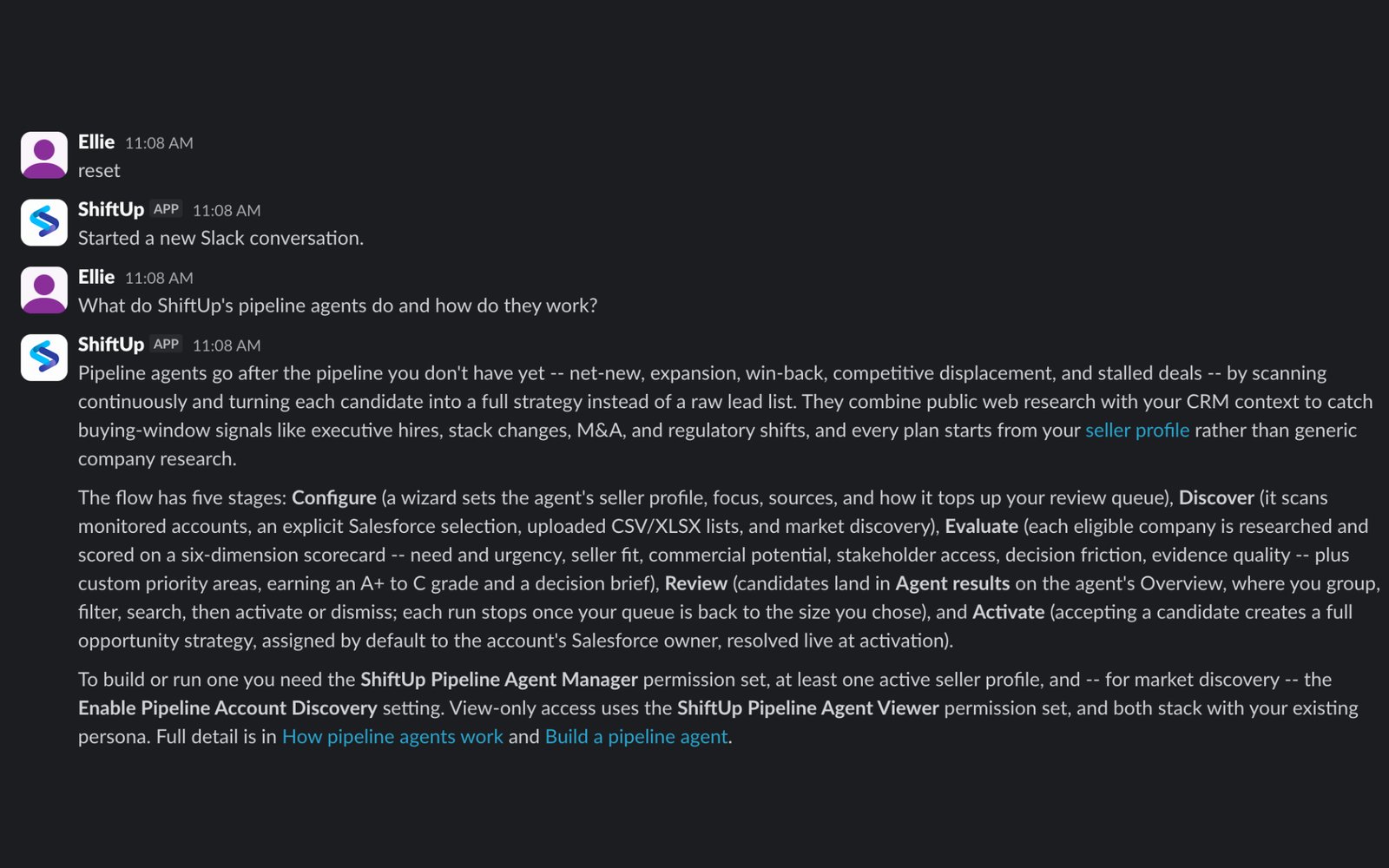
Send the word reset to start a fresh conversation, then ask a new question.
What the app does not do
- Read-only. ShiftUp answers from your Salesforce data but never creates or changes Salesforce records from Slack.
- Direct messages only. Channel mentions, group messages, and channel threads are not processed.
- Text only. Files and attachments are not accepted as chat input. Very long messages are rejected, and long answers are shortened to fit Slack.
Requirements
- ShiftUp is installed in your Salesforce org with an active subscription.
- The person installing the app has the ShiftUp Admin permission in Salesforce and permission to install apps in the Slack workspace.
- Each teammate has a Salesforce user in the connected org with access to the records they want to ask about.
- Each teammate’s Slack profile email matches their Salesforce user email. ShiftUp links the two accounts only when the emails match.
- One Slack workspace connects to exactly one Salesforce org. Enterprise Grid org-wide installation is not supported. Install into each workspace separately.
Install ShiftUp for Slack
Installation starts in Salesforce, not in Slack. The Add to Slack button lives in ShiftUp Admin so that the workspace is tied to your Salesforce org from the start.1
Open App Settings in ShiftUp Admin
Sign in to the Salesforce org where your organization uses ShiftUp with a user that has the ShiftUp Admin permission. Open the ShiftUp Admin tab, select Advanced, then App Settings.
2
Turn on Enable Slack
In the Communications section, turn on Enable Slack. The Add to Slack button appears under the setting. It stays disabled and reads Turning on Slack… until Salesforce applies the setting, then becomes available without a refresh.
3
Click Add to Slack
Slack opens in a new tab. Choose the workspace you want to connect, review the permissions ShiftUp requests, and click Allow.
4
Confirm the connection
The confirmation page reads “Slack workspace connected. You can close this tab and return to Slack.” Your workspace is now connected to this Salesforce org.
Each installation link is single-use and expires after 10 minutes. If you see “That link expired. Choose Add to Slack to try again,” click Add to Slack for a fresh link. If your browser blocks the new tab, click the Continue to Slack link that ShiftUp shows instead.
After installation
Installing connects the workspace to your org. It does not link individual users. To get your team started:- Tell teammates to open the ShiftUp app in Slack and go to its Messages tab.
- Each teammate links their own Salesforce account, as described below.
- Share a couple of the example questions above so they can try the app right away.
Link your Salesforce account
Every teammate completes this once per workspace, and again after logging out.1
Open the ShiftUp app
In Slack, open the ShiftUp app and go to its Messages tab. ShiftUp posts a welcome message with a Connect production org link. If your organization uses a sandbox or scratch org, reply sandbox to receive the Connect sandbox or scratch org link instead. If the link has expired, or you don’t see the welcome message, send any message to get a new link.
2
Sign in to Salesforce
Click the link, sign in to Salesforce with your own account, and approve the authorization. ShiftUp confirms that the Salesforce org matches the workspace’s installation and that your Salesforce email matches your Slack profile email.
3
Return to Slack and ask a question
On success, ShiftUp posts a “Salesforce linked” message in Slack with example questions. Messages sent before linking are not answered automatically, so send your question again.
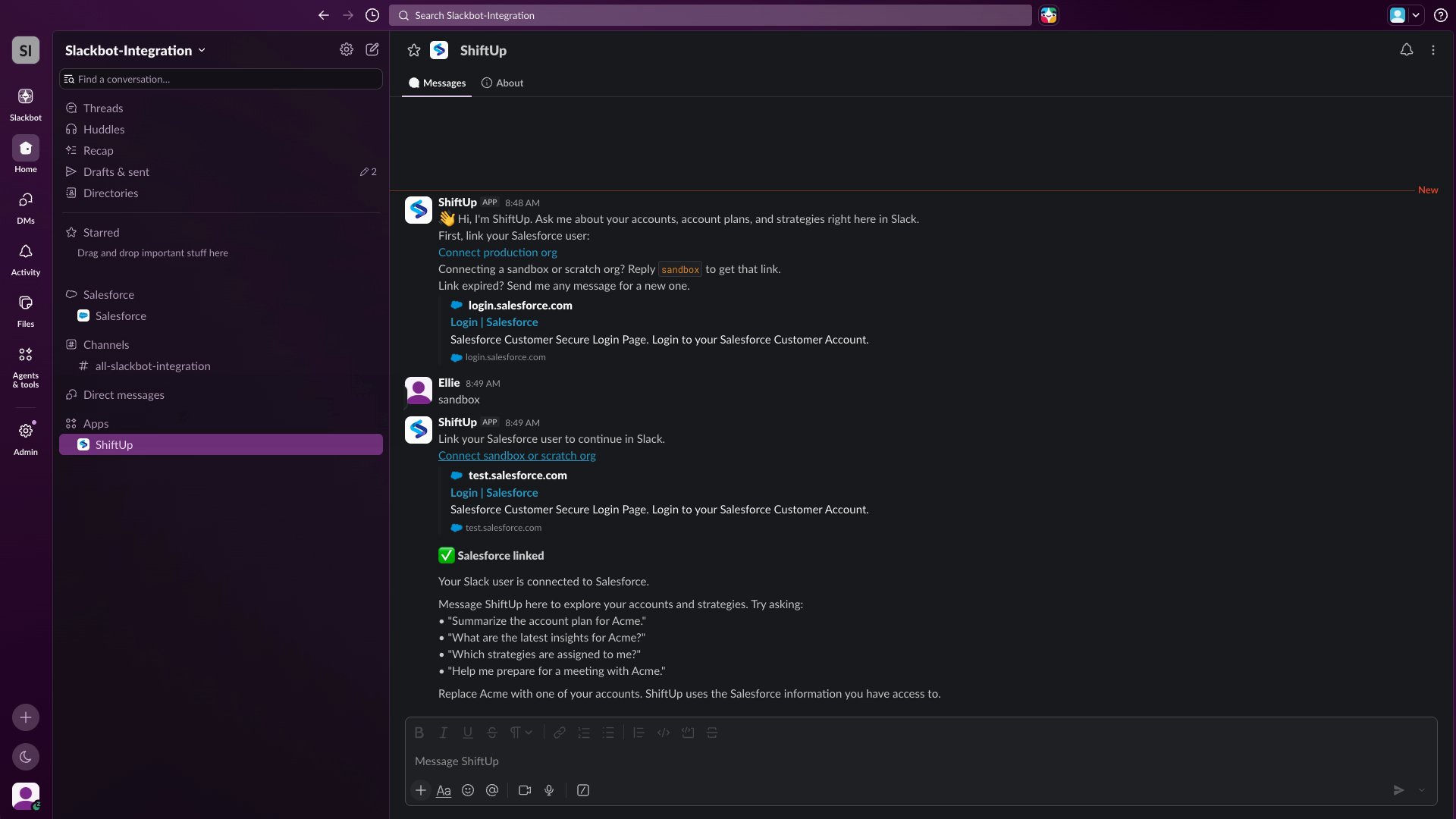
Linking a sandbox org and the confirmation ShiftUp posts once your Salesforce user is linked.
Start a new conversation
Send reset as a message by itself. ShiftUp replies “Started a new Slack conversation.” and stops using earlier messages as context. This does not delete previous messages or stored data.Log out of ShiftUp in Slack
Send logout as a message by itself. ShiftUp deletes the link between your Slack user and your Salesforce account for that workspace, including the stored Salesforce tokens it used to answer on your behalf, and replies “Your Salesforce link has been removed. Send a message when you want to link again.” Only your own link is affected. Other teammates stay connected, and the app stays installed in the workspace. Logging out works even if your administrator has turned off Enable Slack. If you are not linked and send logout, ShiftUp simply replies with the usual link prompt. What logging out does not do- It does not delete your conversation history. If you link the same Salesforce user again soon afterwards, ShiftUp may continue the earlier conversation. Send reset if you want a fresh start.
- It does not cancel a sign-in link you already requested. That link stays valid for 10 minutes and links your account again if you complete it.
- A question that was still being answered when you logged out does not receive an answer.
Troubleshooting
Remove ShiftUp from Slack
Removal happens on the Slack side. Removing the app disconnects the whole workspace from ShiftUp, for every teammate.- In Slack, click the workspace name and choose Tools & settings › Manage apps. (From the admin dashboard, the same list is under Apps & workflows.)
- Find ShiftUp in the installed apps list and click the ⋯ menu at the end of its row.
- Choose Uninstall, tick I want to uninstall ShiftUp from my team, and click Uninstall.
- Slack revokes the access it issued to ShiftUp for that workspace. ShiftUp can no longer read or send messages there.
- ShiftUp is notified, confirms the revocation with Slack, and then deletes every teammate’s Salesforce link for that workspace, including the stored Salesforce tokens used to answer on their behalf. It discards its stored copy of the workspace token, stops any questions still being processed, and records an audit entry.
- Past Slack conversations stored by ShiftUp are retained under the same terms as in-app chat. To request deletion of conversation history, email privacy@shiftupai.com.
- Nothing changes in Salesforce. ShiftUp in Salesforce keeps working, and the Enable Slack setting stays on until an administrator turns it off.
Privacy and data
ShiftUp uses the text you send the app and your authorized Salesforce context to prepare a response, and stores conversation context to support follow-up questions. During account linking, ShiftUp reads your Slack profile email only to verify that it matches your Salesforce user. ShiftUp does not use Slack data to train AI models.Support
Need help connecting a workspace, linking your Salesforce account, or with an answer the app gave you? You do not need to create an account to contact us.Email ShiftUp Support
- Your company name and the Salesforce org the workspace is connected to (production or sandbox).
- Your Slack workspace name.
- What you did, what you expected, and what happened instead.
- The exact text of the message ShiftUp posted in Slack, or a screenshot.
- Roughly when it happened, including your time zone.