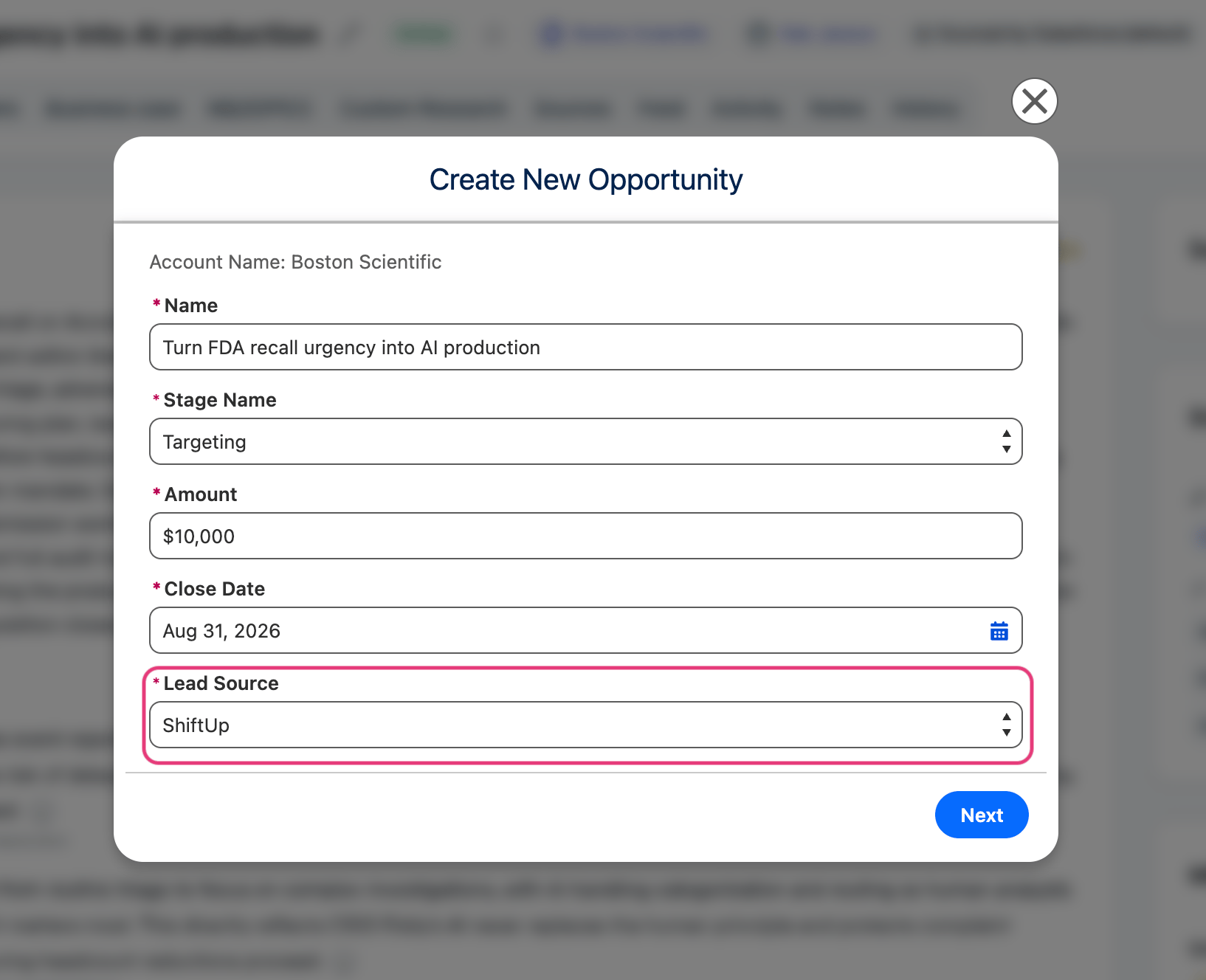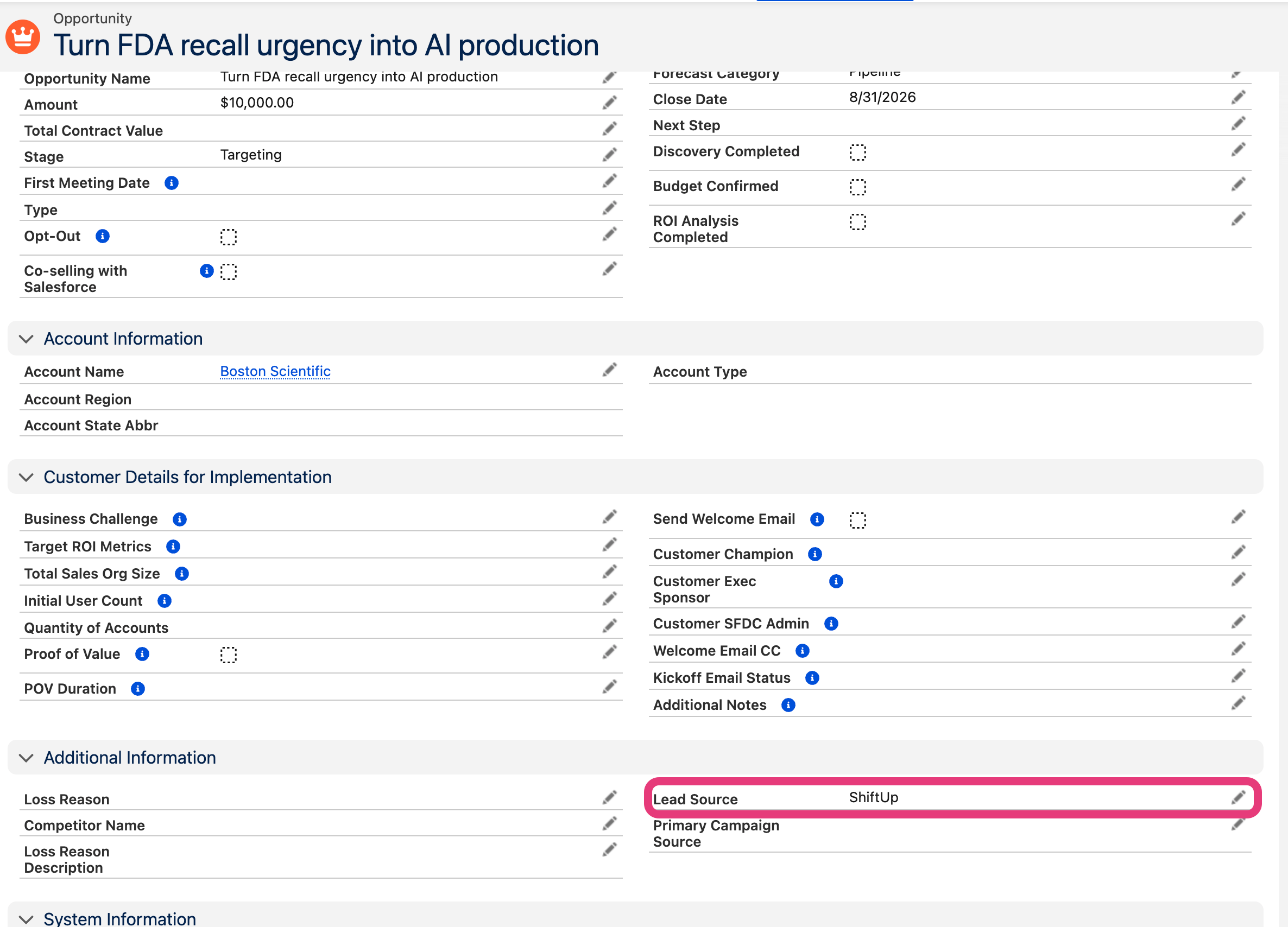

Lead Source field as an example. It assumes you are already familiar with Salesforce Flow Builder. For help building Screen Flows, see the Salesforce Screen Flow documentation.
Before you begin, confirm that you have permission to manage and activate flows. Users who convert Strategies must also have access to the custom flow and any fields it uses.
Clone the standard ShiftUp flow
In Salesforce Setup, go toProcess Automation > Flows.
Locate ShiftUp Opportunity for AI Strategy, then click its label to open it in Flow Builder.
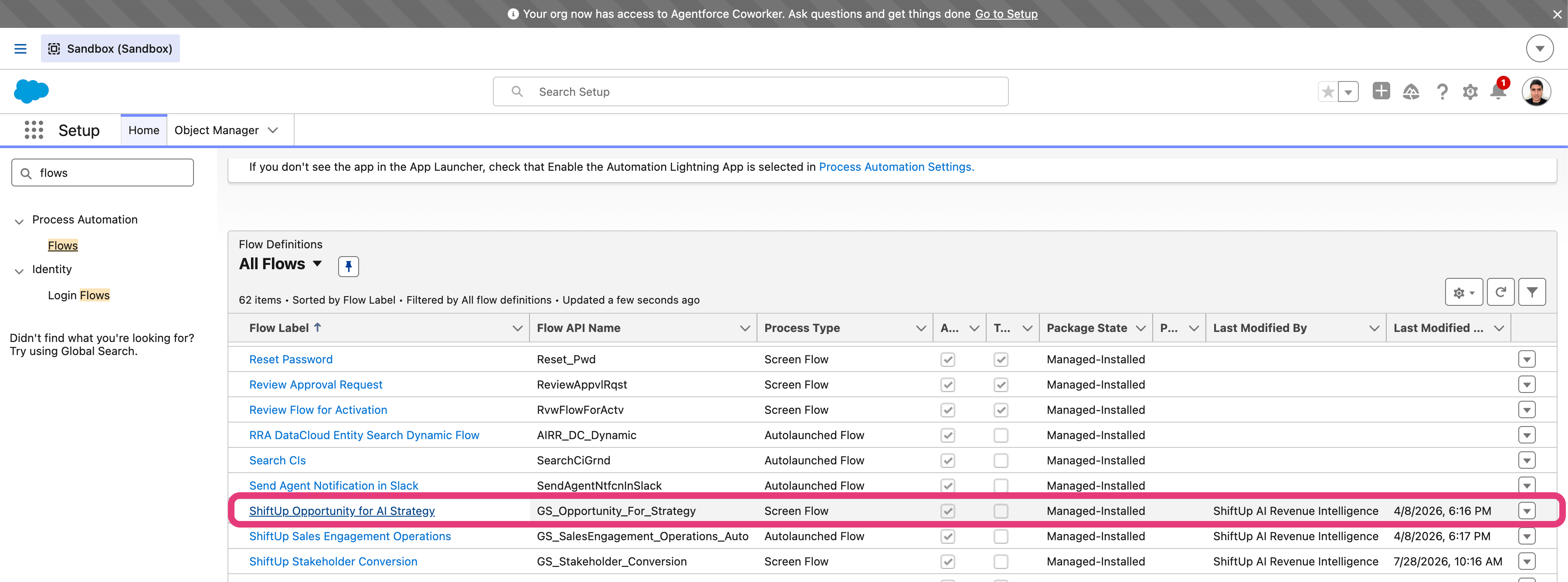
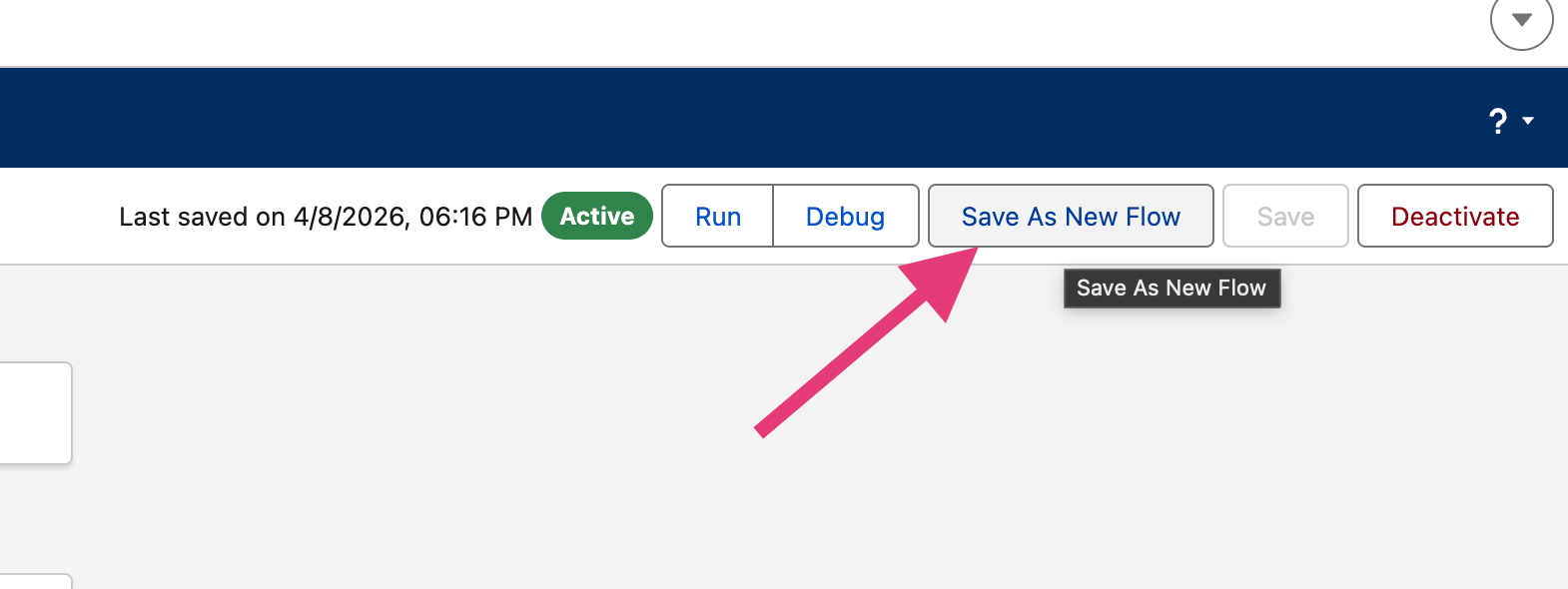
Save As New Flow.
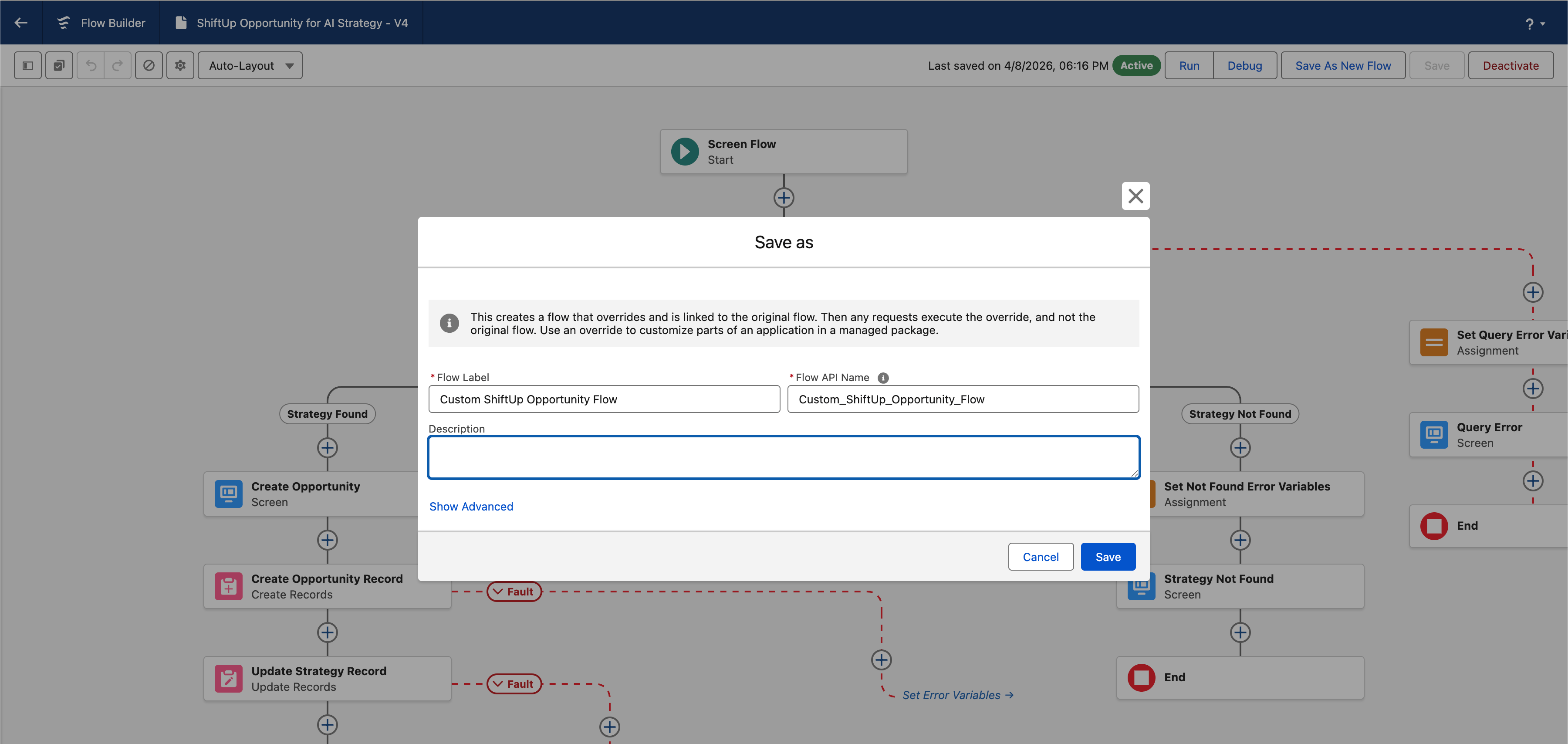
Keep the existing flow inputs, outputs, and conversion logic unless your customization specifically requires changing them. ShiftUp depends on this interface to start the conversion correctly.
Modify your custom screen based flow
Open the cloned flow and select theCreate Opportunity screen element.
In this example, add an input for Lead Source and configure its choices from the Opportunity Lead Source picklist.
For more info on how to use screen based flow you can reference salesforce documentation.
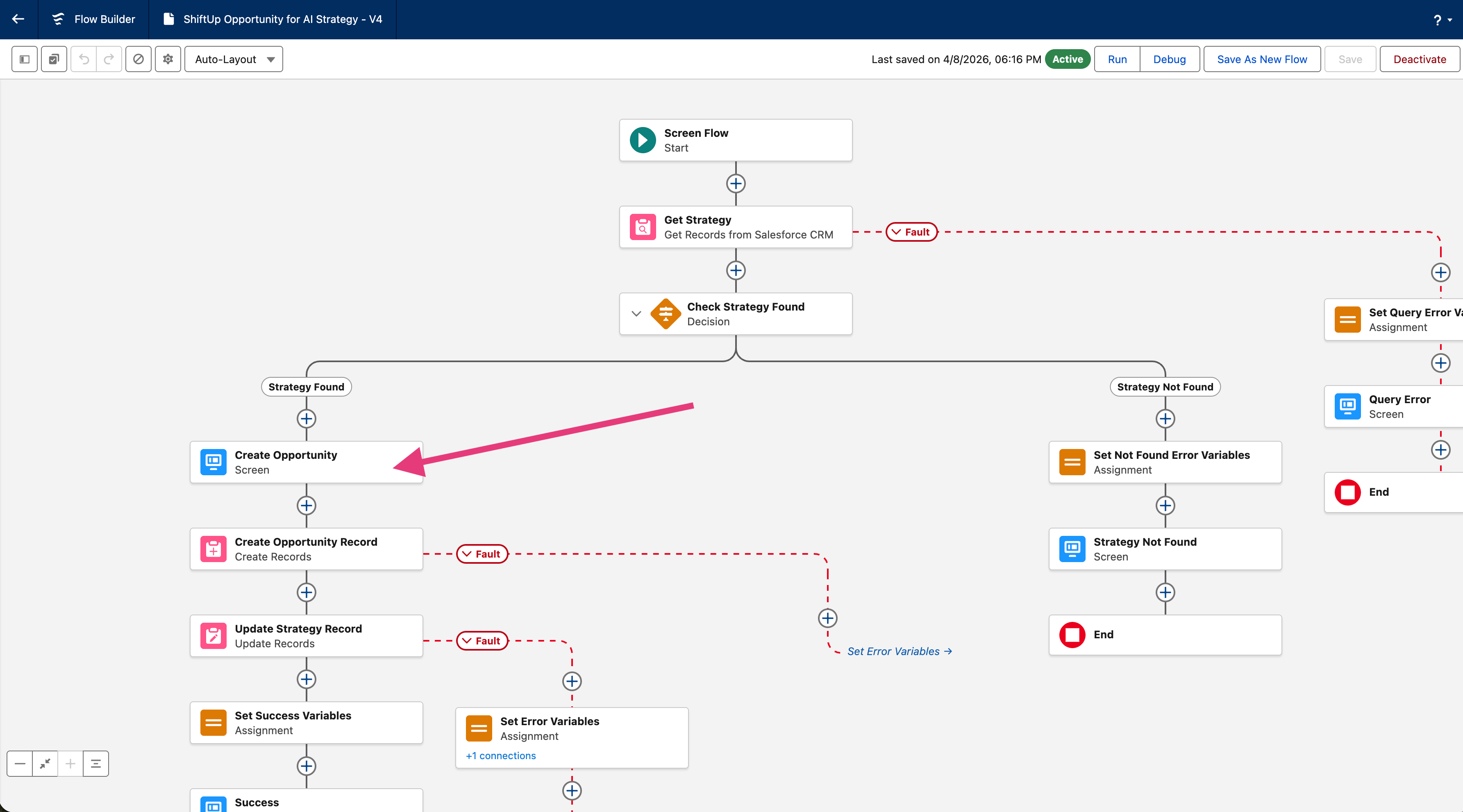
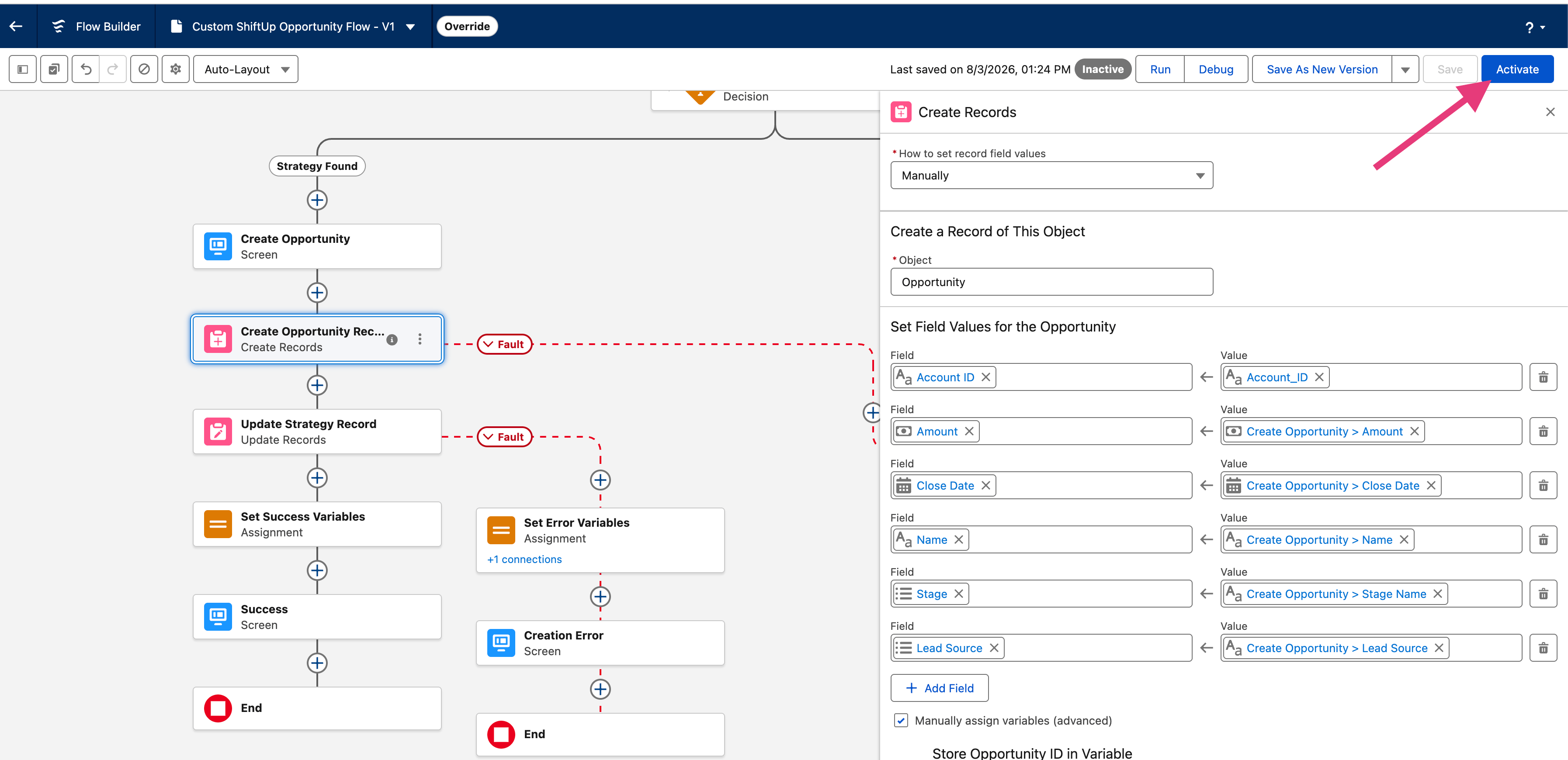
Create Opportunity Record element. Map the value entered on the screen to the Opportunity Lead Source field.
Clicking on the component will bring up the property editor for the screen component. For this example, we will add a new field called Lead Source which will import its choices from a picklist field also called Lead Source in the Opportunity object.
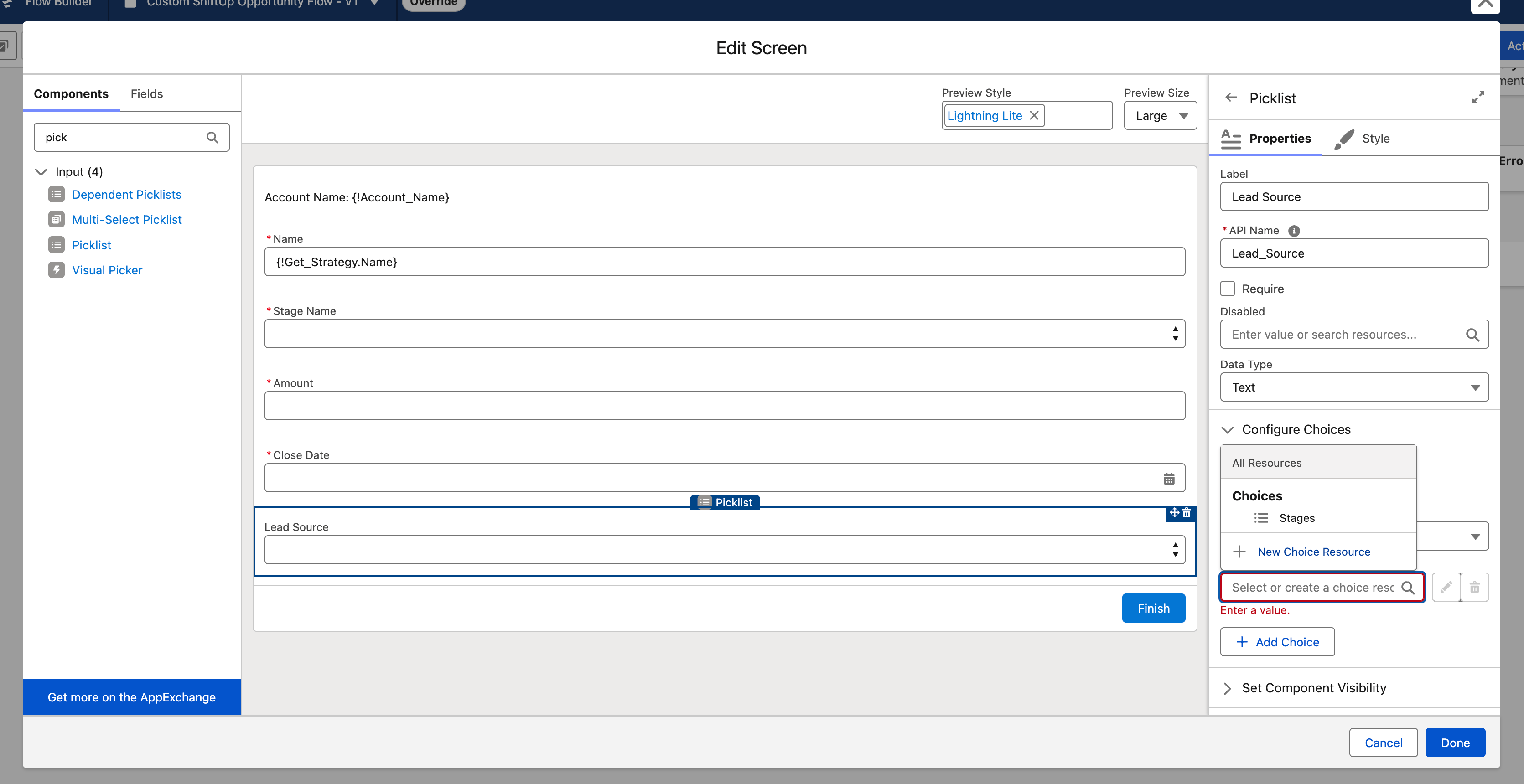
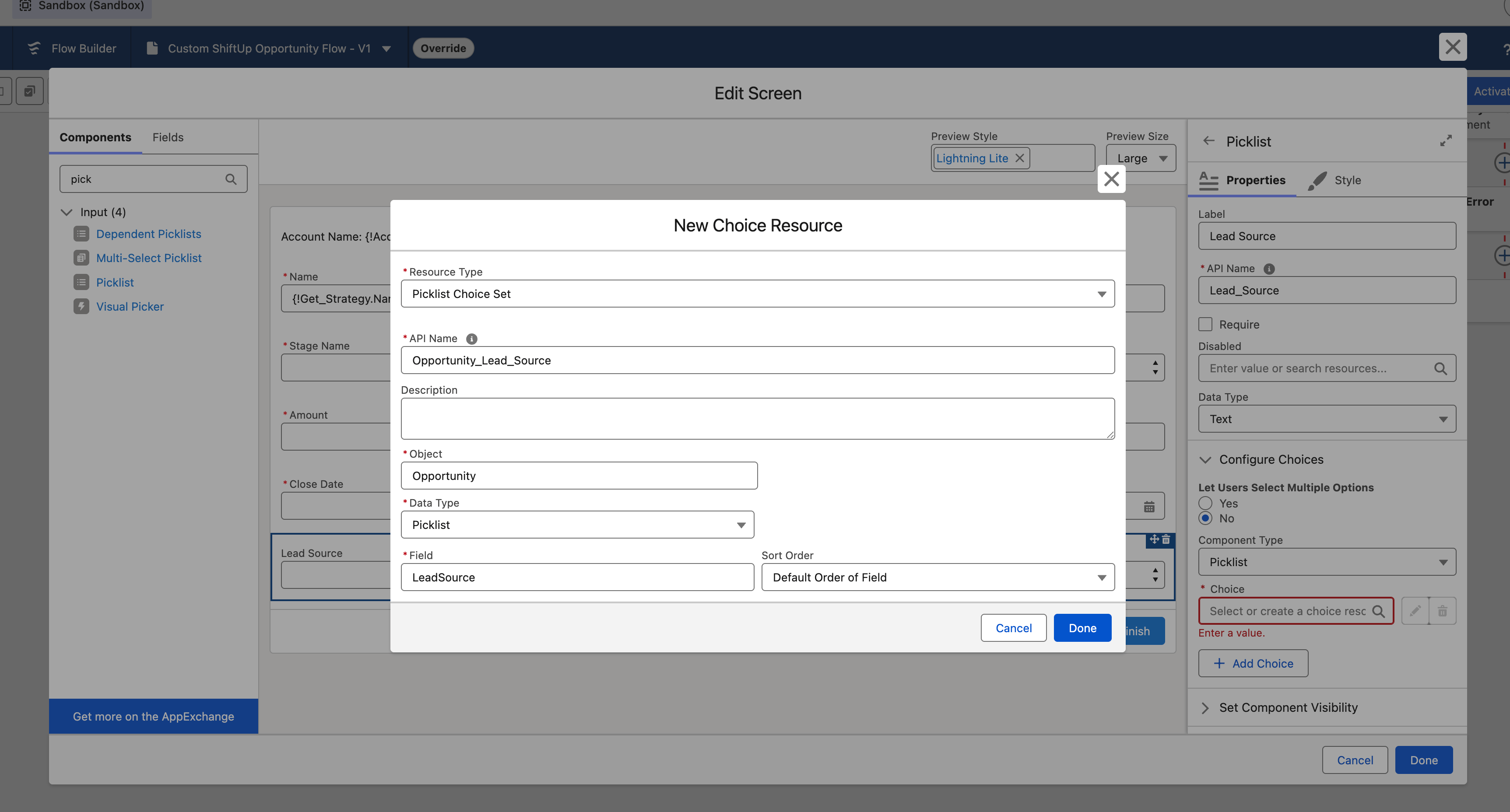
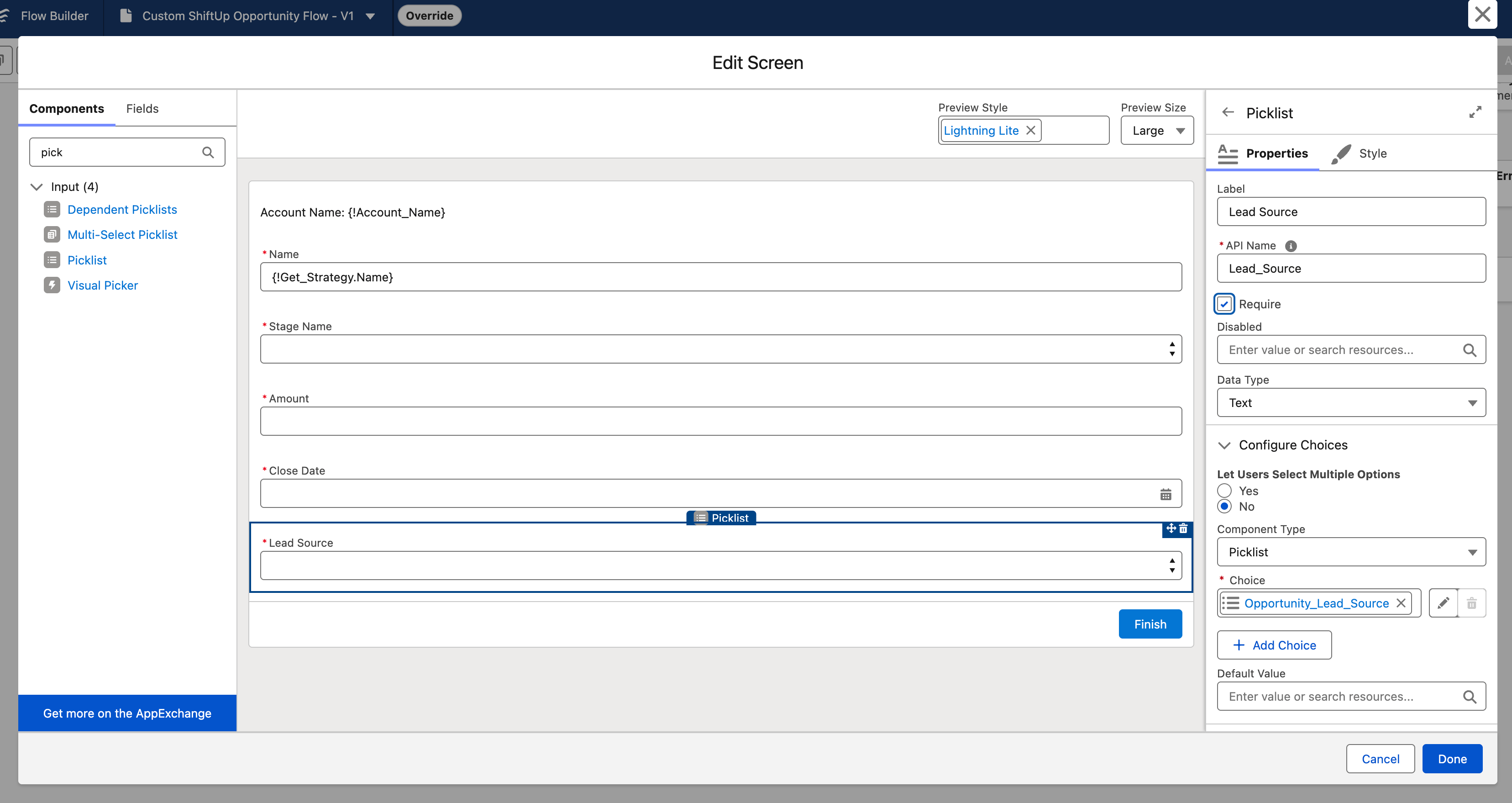
Create Opportunity Record action to map the new Lead Source field from the previous screen to the Lead Source field in the Opportunity record that will be created.
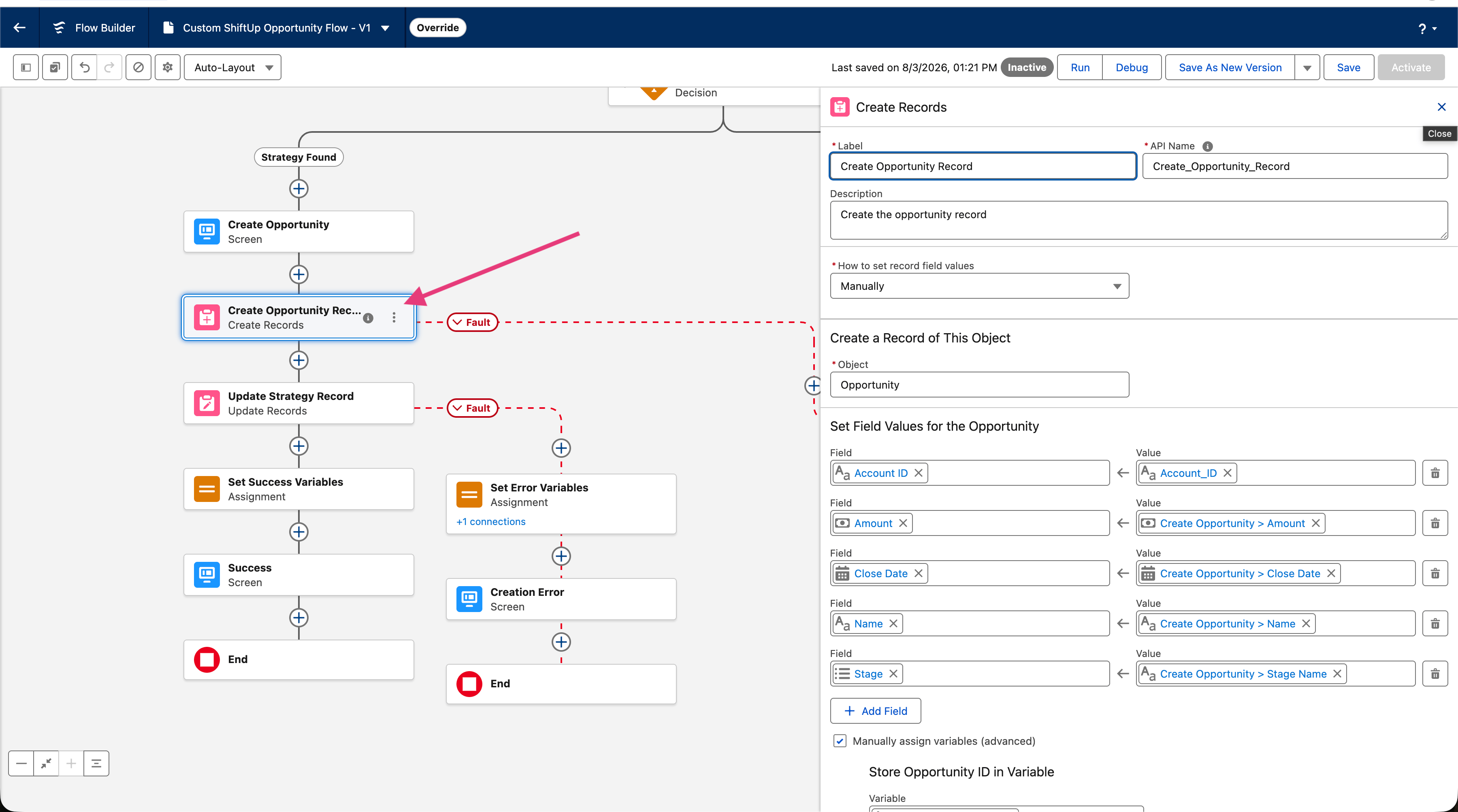
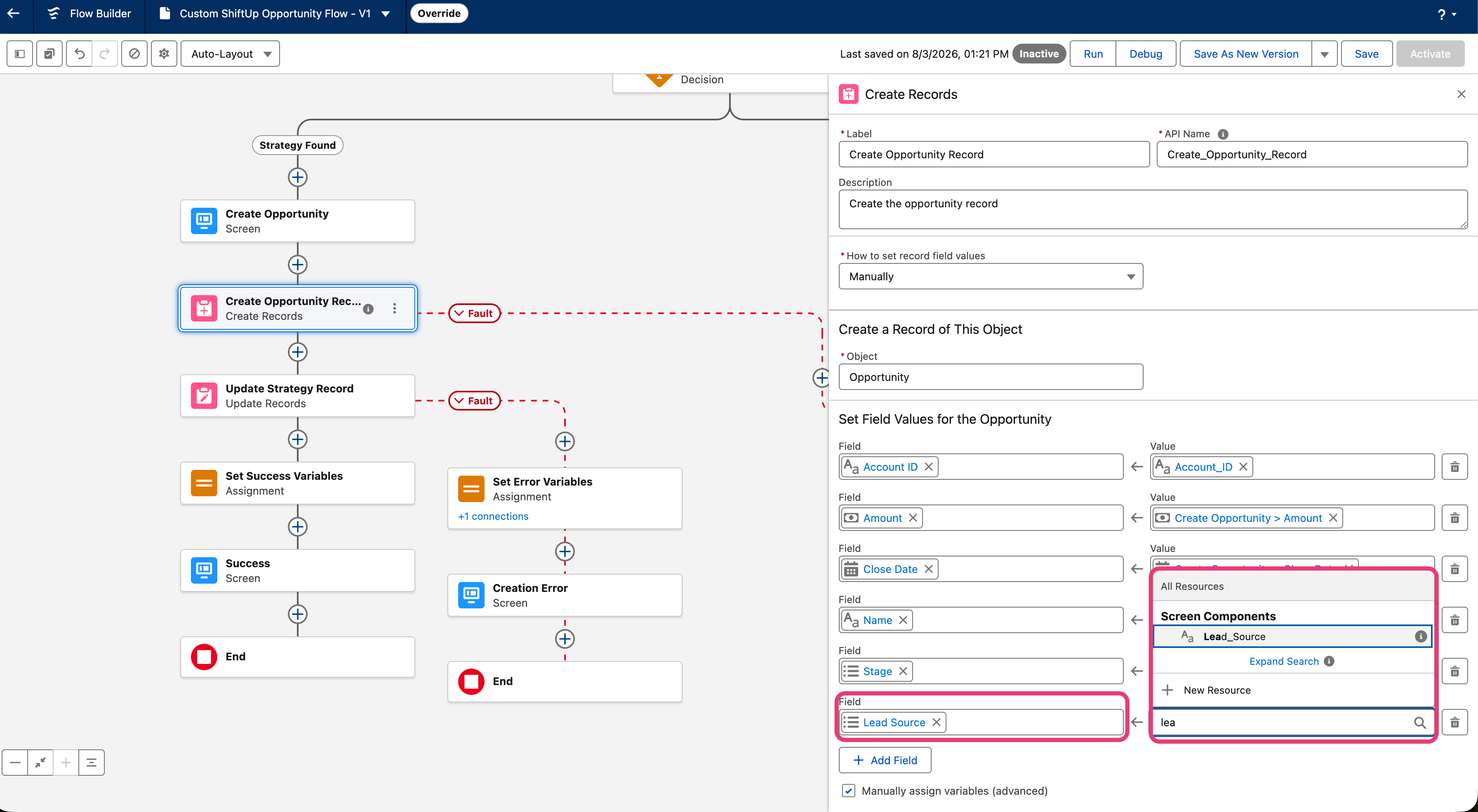
Activate your custom flow and validate
Finally, we will Activate the new flow by clicking theActivate button on the top right.
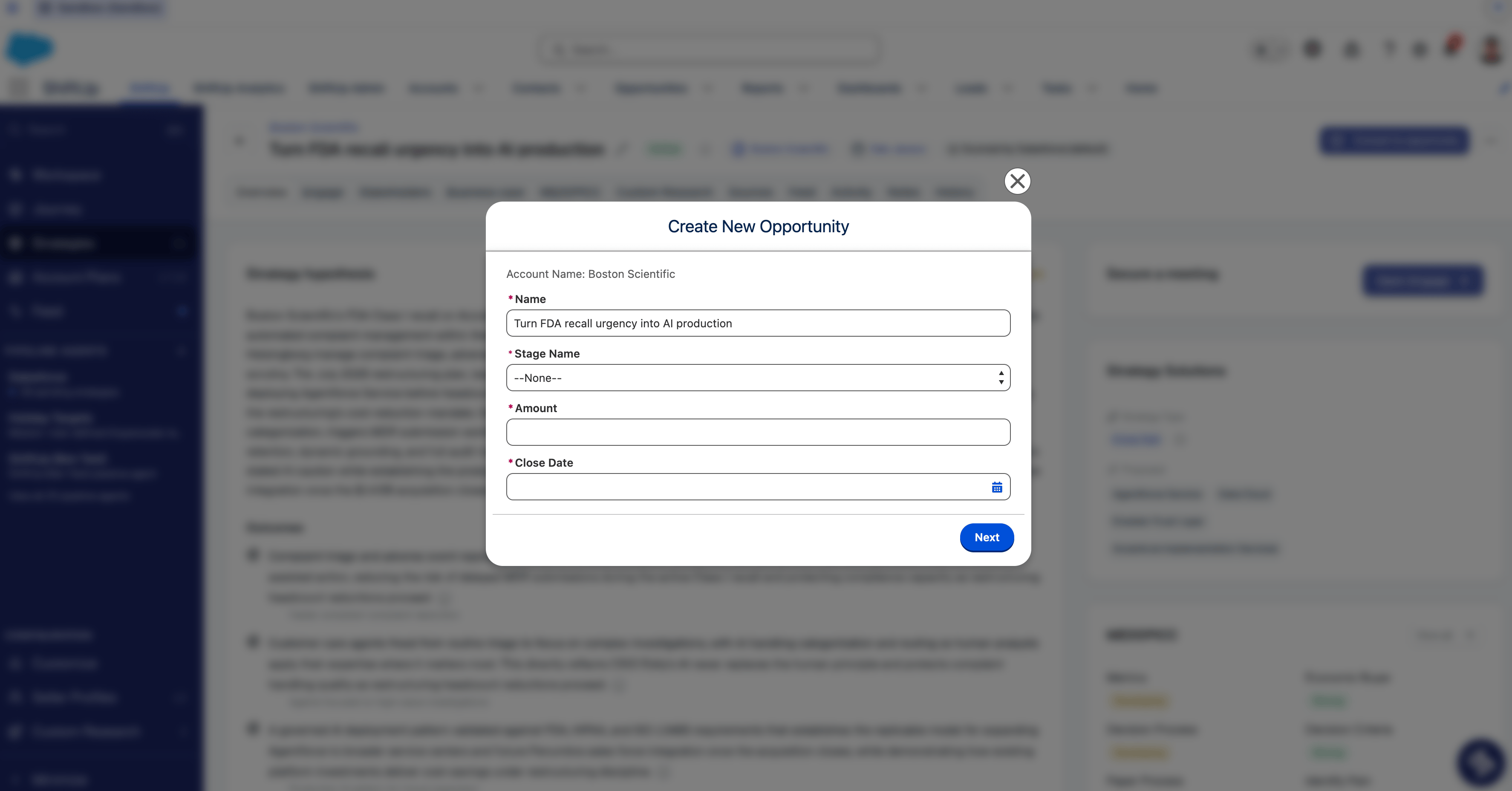
Convert to Opportunity record. Your new screen based flow should be displayed and work as expected.