

Where you’ll see updates
- Salesforce bell notifications — Account Plan and Strategy owners receive bell alerts with a summary of what changed and a direct link to the updated record.
- Strategy assignment notifications — When someone else creates a Strategy assigned to you, or reassigns an existing Strategy to you, you receive a Strategy assigned to you bell notification. Click it to open the Strategy in ShiftUp. ShiftUp doesn’t send this notification when you assign a Strategy to yourself, when the assignee is cleared, or when an edit leaves the assignee unchanged. Admins can turn off these notifications with the Disable Push Notifications setting in App Settings.
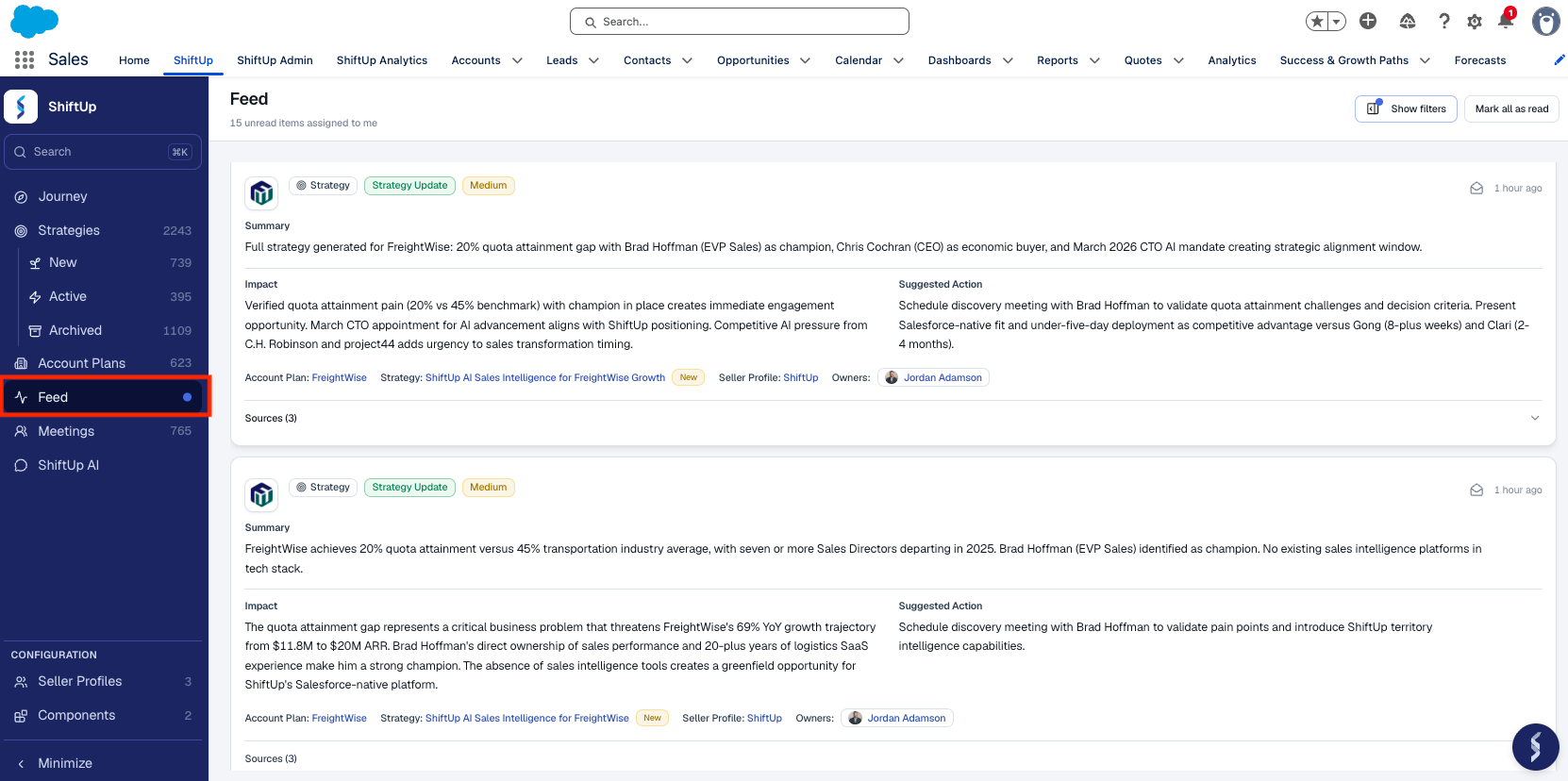
- Feed — A dedicated Feed view in the left-hand menu shows all updates across your Account Plans and Strategies. The header includes a count of unread items assigned to you.
- Record feed — Each Account Plan and Strategy has its own feed tab that shows the full update history for that record.
Reading the feed
The Feed page lists notifications newest-first and loads more as you scroll. Each notification shows:- Type — Account Plan or Strategy. Click to open the related record.
- Category — Intelligence Update or Strategy Update.
- Priority — High, Medium, or Low.
- Company Logo - Logo of the account plan or strategy company.
- Read state — Unread items are highlighted; read items are dimmed when included in the view.
- Age - Days since the notification was generated
- Feed Content - Every feed item includes three structured sections so you can triage without opening the record:
- Summary - Description of what’s changed
- Impact — Why the change matters and what it affects on the Account Plan or Strategy.
- Suggested action — A recommended next step you can take in response to the update.
- Account Plan / Strategy Name - Click to open related record.
Create as Task
Under the Suggested action, click Create as Task to turn the recommendation into a Salesforce Task without leaving the feed. A dialog opens with:- Title — defaults to the Account Plan name; editable.
- Description — defaults to the suggested action text; editable.
- Due date — defaults to tomorrow; pick any date from today onward.
- Relate to — when the feed item is tied to an opportunity, choose whether the Task links to the Account or the Opportunity. Account-only items skip this field and link to the Account.
The link between a feed item and its Task is private to you — only you see the View task pill on that card. The Task itself lives on the related Account or Opportunity and follows your org’s normal Task sharing, so it is visible on the record like any other Salesforce Task. If the Task is later deleted in Salesforce, the card clears the broken link and offers Create as Task again.
- Owner - The account plan or strategy owner
- Sources - The cited evidence that drove the update
Mark as read
- Mark a single item — Use the action on a notification to mark it read or unread.
- Mark all as read — Use Mark all as read in the page header to clear your unread queue in one click.
Filtering the feed
Click Show filters in the header to open the filter panel. The Feed supports filtering and search by:
Use Clear all to reset every filter at once. Your filter selections, date range, account-plan selection, and the “include read” toggle are persisted across sessions, so the Feed picks up exactly where you left off.