> ## Documentation Index
> Fetch the complete documentation index at: https://docs.shiftupai.com/llms.txt
> Use this file to discover all available pages before exploring further.
# Seller Profile Setup
After ShiftUp AI services activation, configure your first seller profile to provide context to ShiftUp on your company and Ideal customer profile.
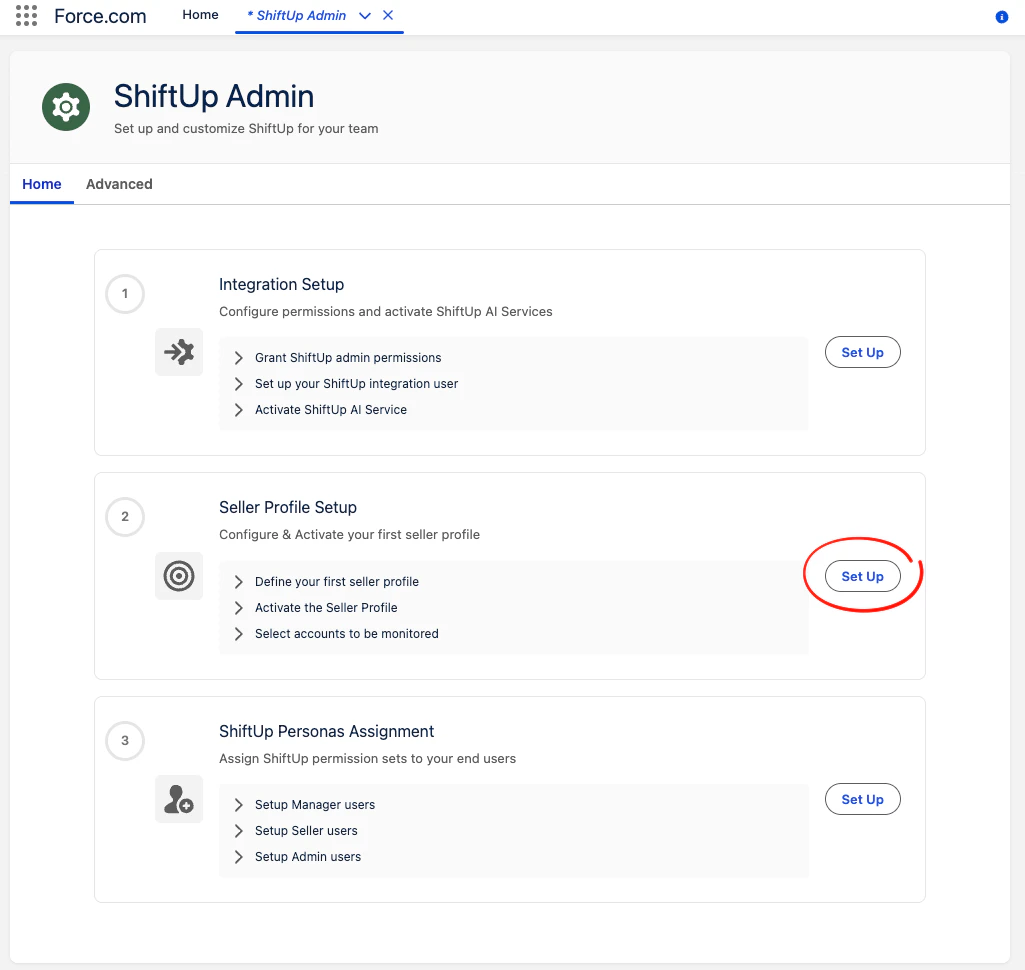
To begin, open the Seller Profile tab in the ShiftUp application by using one of the following:
Back in the ShiftUp Admin tab, click the `Set Up` button in the `Seller Profile Setup` section to go to the Seller Profile tab in ShiftUp app.
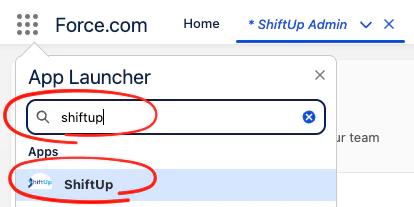
 Alternatively, you can open the ShiftUp app by clicking in the `App Launcher` and searching for `ShiftUp` here:
 ## Create a Seller Profile
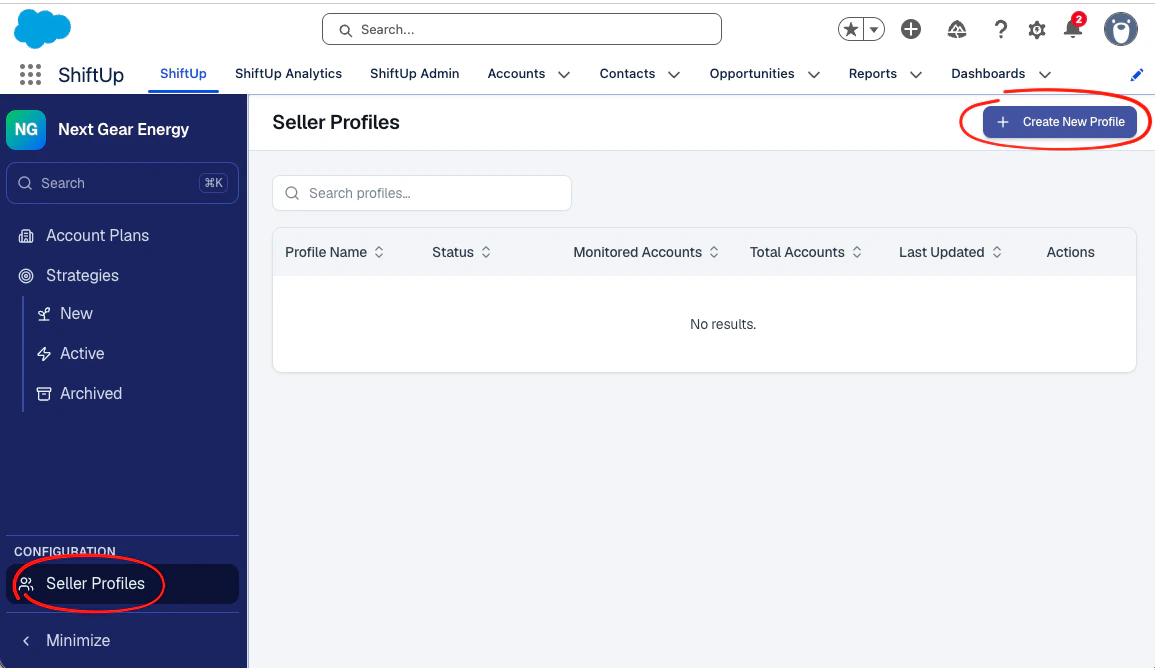
Click the `Create New Profile` button in the Seller Profiles tab of the ShiftUp app
## Create a Seller Profile
Click the `Create New Profile` button in the Seller Profiles tab of the ShiftUp app
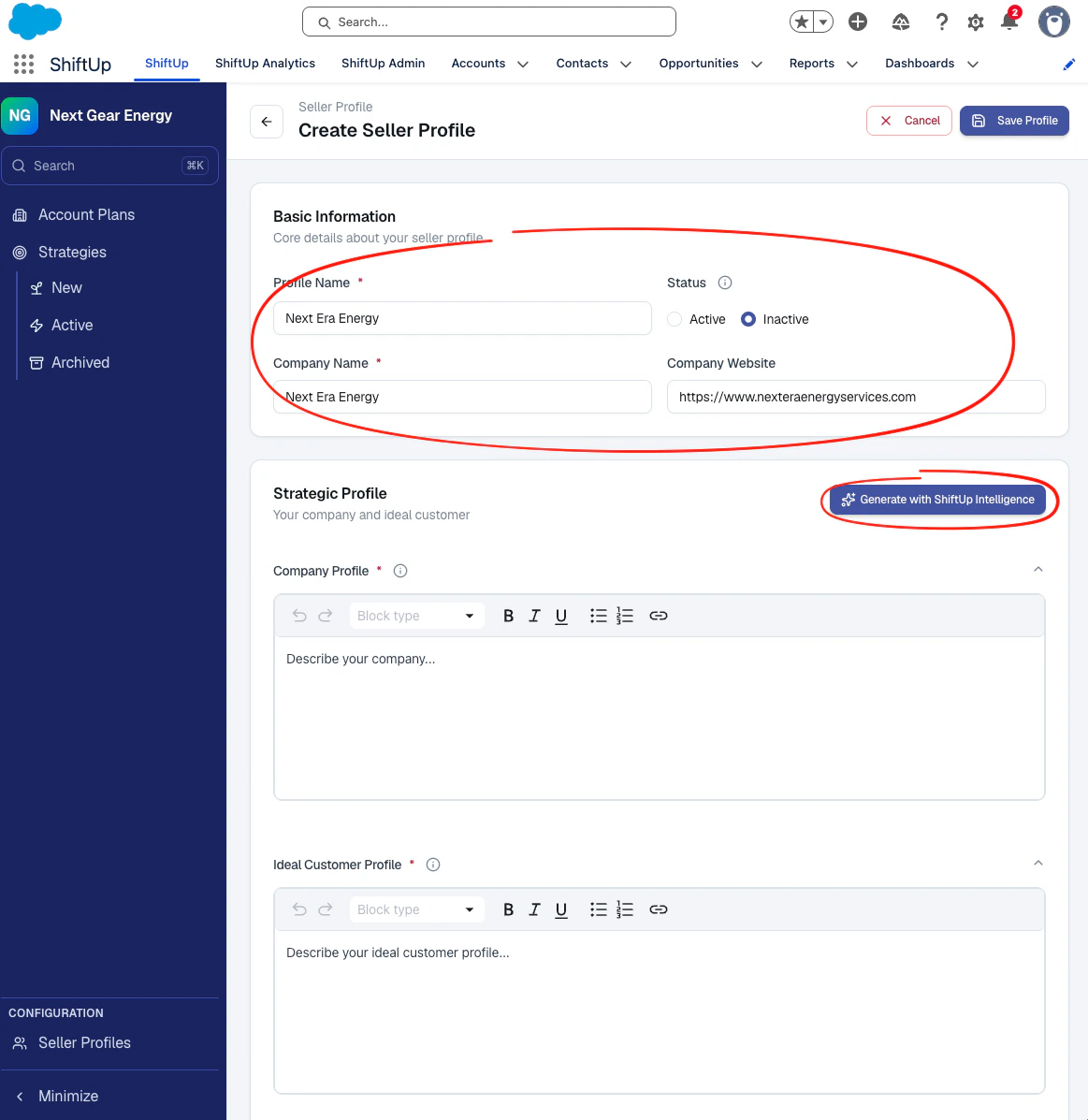
 Next, fill out the `Basic Information` section for your company. ShiftUp will research your company's website, but we still require some context around your `Company Profile` and `Ideal Customer Profile`. You can fill these out manually but we recommend ShiftUp generate this for you by using the `Generate with ShiftUp Intelligence` button.
 You can provide some custom instructions if you would like ShiftUp to focus on particular solutions and/or type of customers for your Seller Profile. Click `Generate Profile Content` when ready.
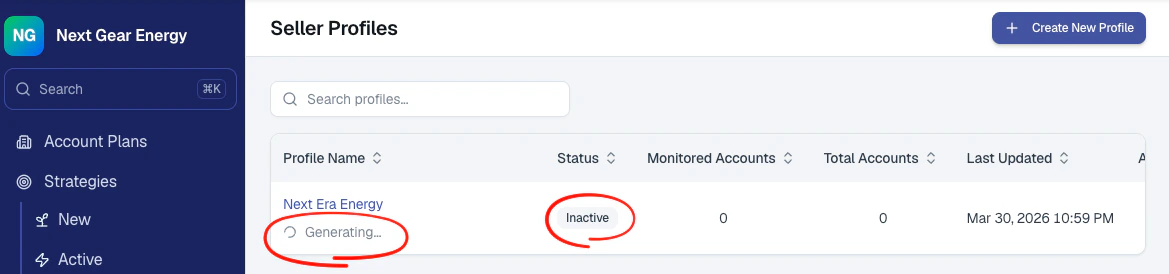
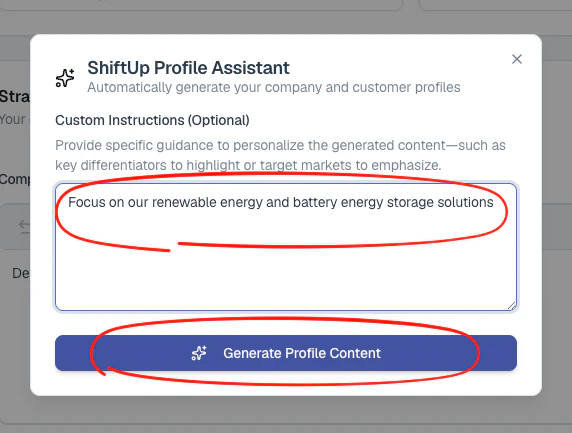 ShiftUp will begin researching your company and generate the Seller Profile info, this process can take up to 20-30 mins, the profile will be `Inactive` in the meantime.
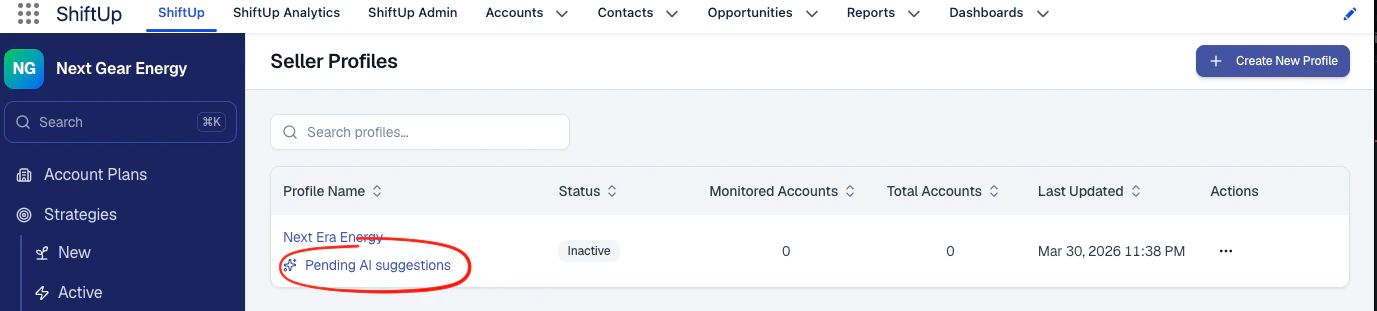
 When the seller profile suggestions are ready, you will see a message under the seller profile name. Click this message to review the suggestions.
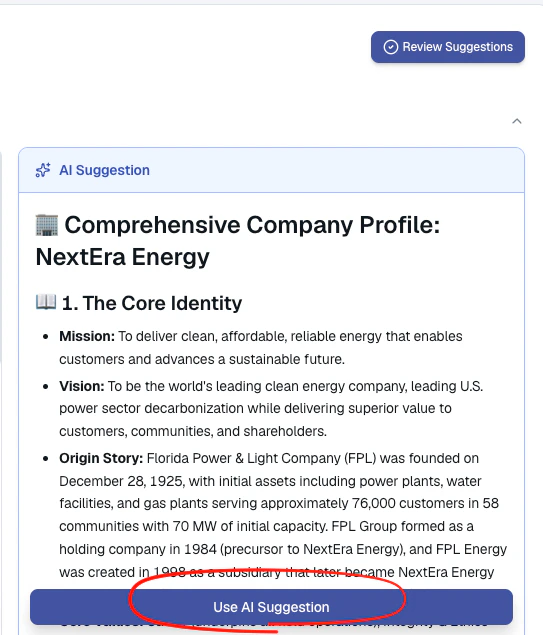
 Review each suggestions and click the `Accept` button to apply it, do this for both the `Company Profile` and `Ideal Customer Profile` fields. You can edit the suggestions at any option once you've applied them to the seller profile.
 ## Activate the Seller Profile
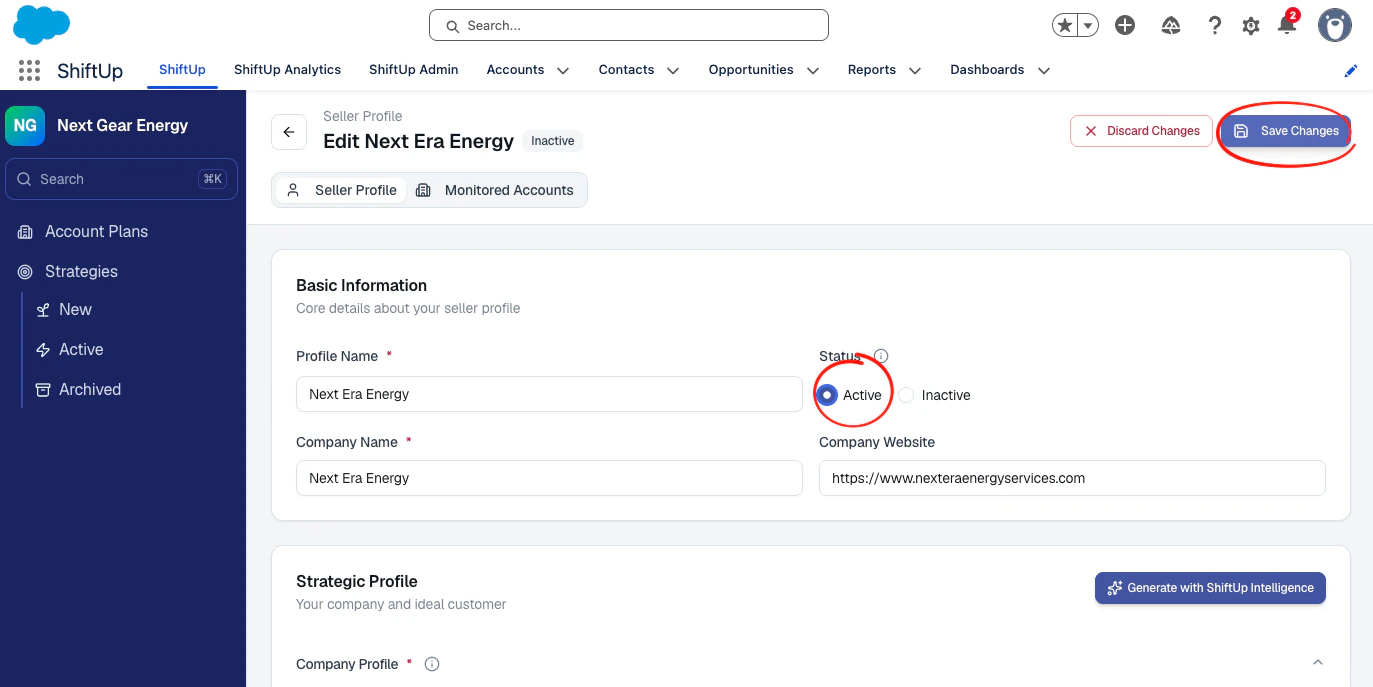
After accepting the suggestions, activate the seller profile and save changes.
## Activate the Seller Profile
After accepting the suggestions, activate the seller profile and save changes.
 ## Add accounts to the Seller Profile
The final step is to add accounts to your Seller Profile, this will signal ShiftUp to begin collecting intelligence and generate Account Plans and Opportunity Strategies for the selected accounts.
To add accounts, go to your Seller Profile, click `Monitored Accounts` and then click the `Manage Accounts` button.
## Add accounts to the Seller Profile
The final step is to add accounts to your Seller Profile, this will signal ShiftUp to begin collecting intelligence and generate Account Plans and Opportunity Strategies for the selected accounts.
To add accounts, go to your Seller Profile, click `Monitored Accounts` and then click the `Manage Accounts` button.
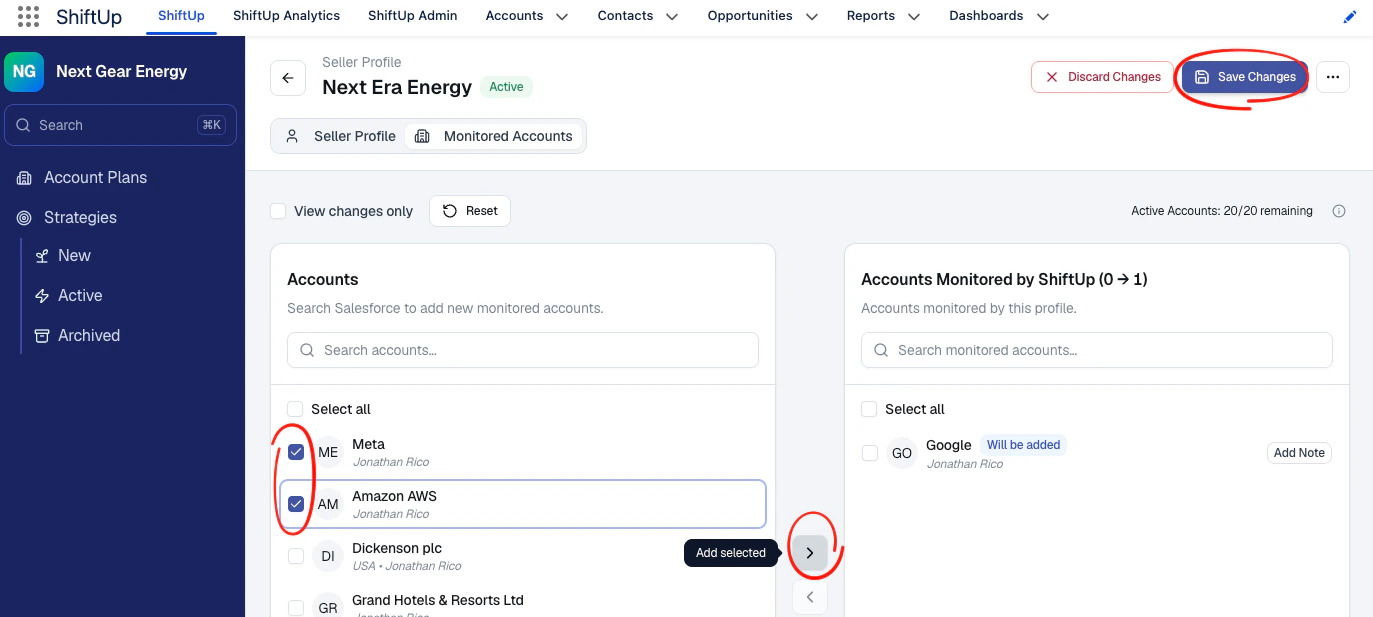
 Next, select the accounts from the left column and move them to the right column. Optionally, notes can be added on a particular account if you want to provide some account-specific context that is important for ShiftUp to be aware of.
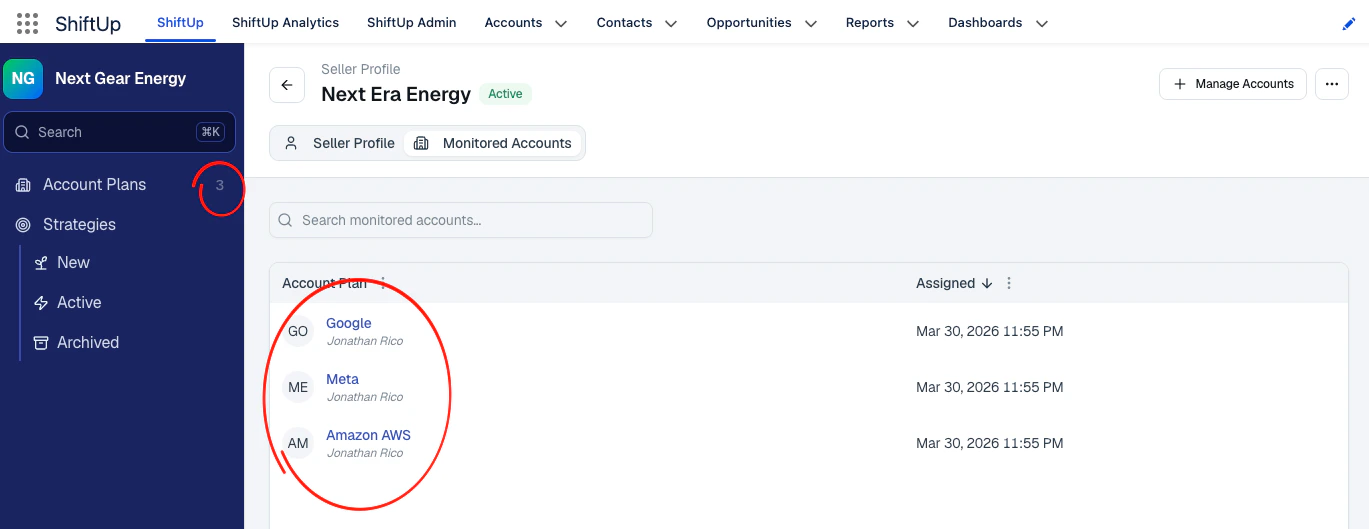
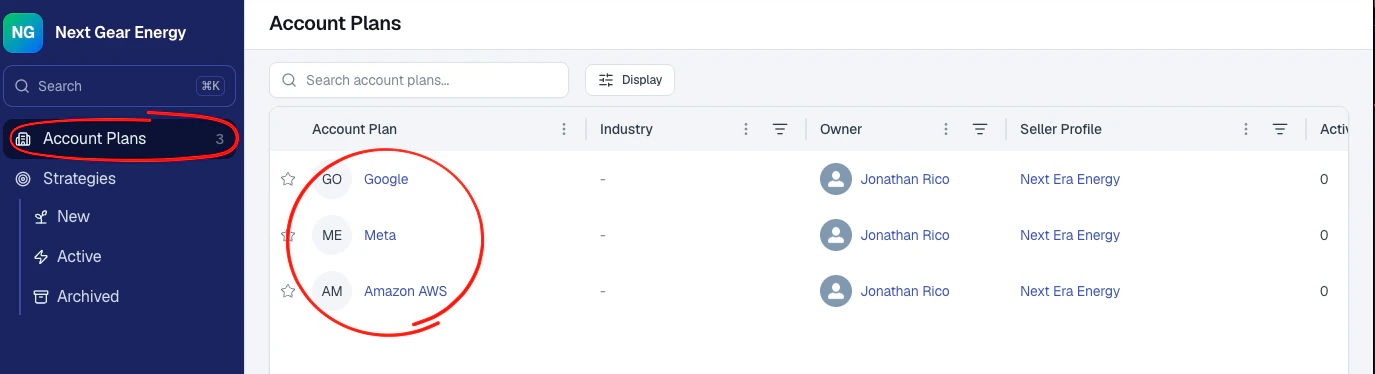
 Once accounts are added, the selected accounts will be displayed under the `Monitored Accounts` of the seller profile and the `Account Plans` tab will display the new records.
 Please note that account plan intelligence generation is a research intensive task that can take several minutes, we recommend to check back in an hour to see the results. For more info on how to use Account Plans and Strategies, we recommend visiting the [**Account Management**](/onboarding/account-management) module.
 ## Rollout Tips
* Start with a pilot group.
* Validate generated outputs and ownership behavior.
* Expand profile account coverage in phases.
## Rollout Tips
* Start with a pilot group.
* Validate generated outputs and ownership behavior.
* Expand profile account coverage in phases.