> ## Documentation Index
> Fetch the complete documentation index at: https://docs.shiftupai.com/llms.txt
> Use this file to discover all available pages before exploring further.
# Context Providers
By default, ShiftUp has minimal access to your CRM organization context, which limits its ability to gain a deeper understanding of your existing customers, interactions, and deployed solutions. CRM Context providers enable ShiftUp to retrieve additional context about the Accounts being analyzed and use it to create more accurate account- and sales-strategy intelligence.
Go to `ShiftUp Admin` > `Advanced` > `App Settings`
Enable the toggle under `CRM Context for Seller Profiles`
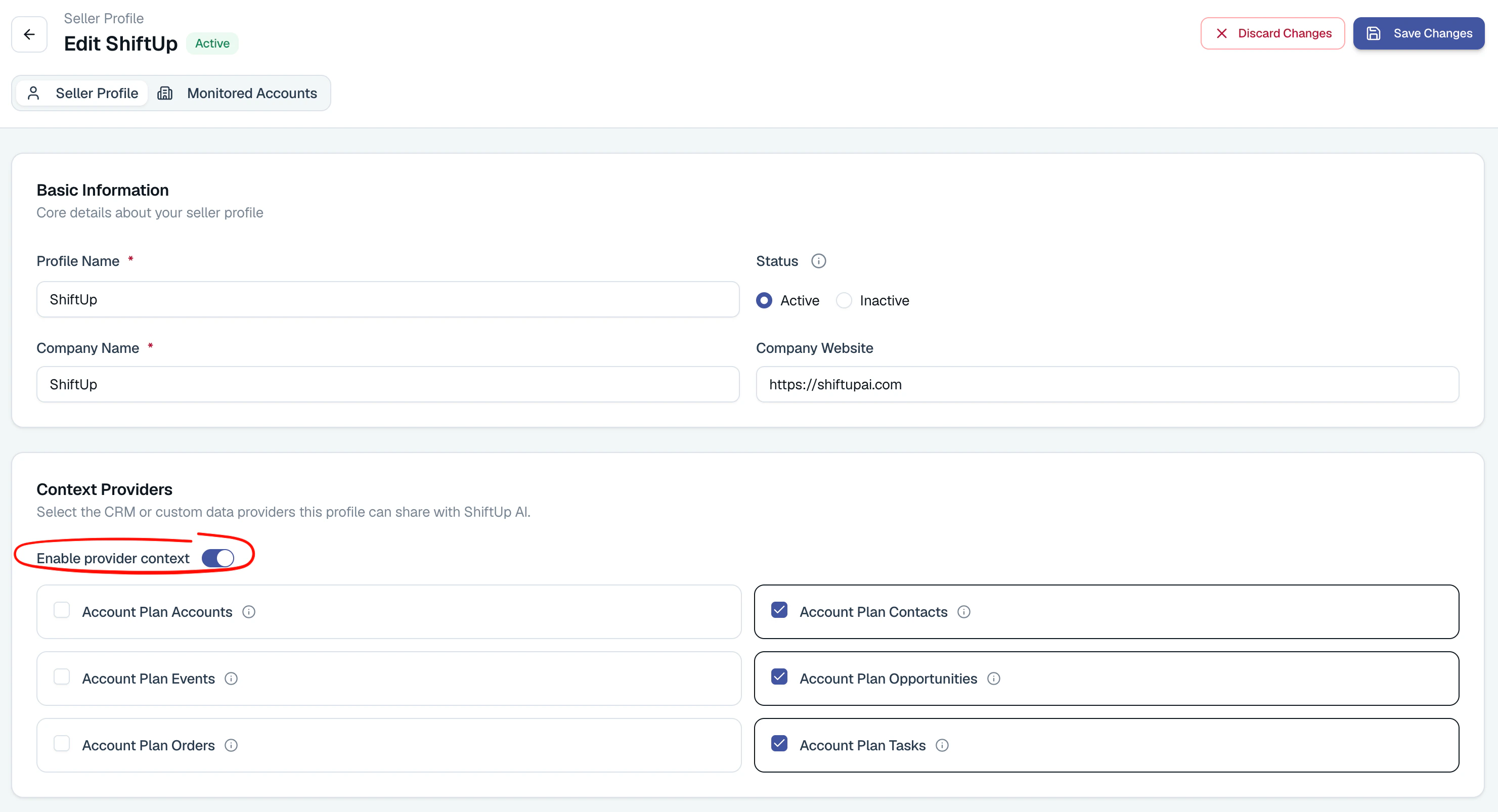
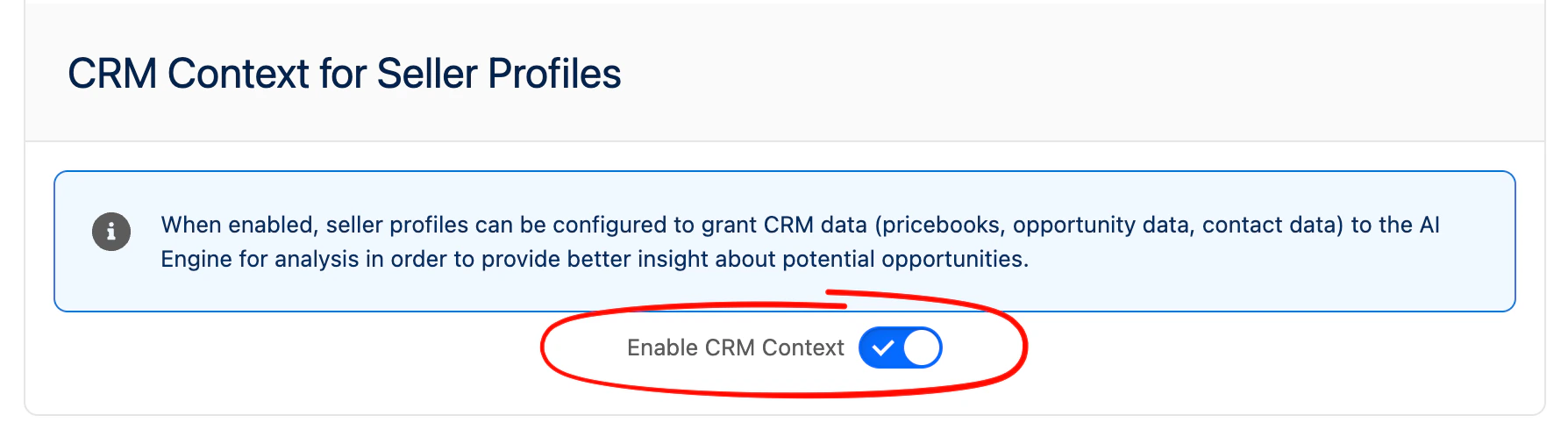 Once this setting has been enabled, you can go back to your Seller Profile, and a new section called CRM Context Providers will be available. Click `Edit` to one or more context providers you would like to enable.
> To learn more about the data each provider shares with ShiftUp, hover over the info action for each provider.
Once this setting has been enabled, you can go back to your Seller Profile, and a new section called CRM Context Providers will be available. Click `Edit` to one or more context providers you would like to enable.
> To learn more about the data each provider shares with ShiftUp, hover over the info action for each provider.
 ## Context Provider Permissions
Context providers are executed with the permissions of the configured Integration User for ShiftUp. So ShiftUp can only read fields for objects, fields, and records that the integration user has read access to. To enable additional access to objects and fields, go to the permission set assigned to the integration user where standard permissions have been granted and extend permissions as needed. We strongly recommend avoiding giving access to all fields; only select the fields that will contribute meaningful context.
## Context Provider Field Constraints
The following fields are ignored by context providers:
* Encrypted fields
* Lookup fields to custom objects
* Long Text Area fields
* Data Category Group Reference fields
* Deprecated/hidden fields
* Custom fields whose namespace prefix has been excluded from the `GS_App_Setting.Excluded_Context_Namespaces` custom metadata type.
## (Optional) Fields related to licensed Managed Packages
If your Salesforce Organization has a managed package that requires assigning licenses to your users and this package adds fields to your standard objects, you must either assign a license to the ShiftUp integration user or exclude these packages from the ShiftUp context provider.
**To add a license to the designated ShiftUp integration User**
Go to `Setup` > `Apps` > `Packaging` > `Installed Packages`
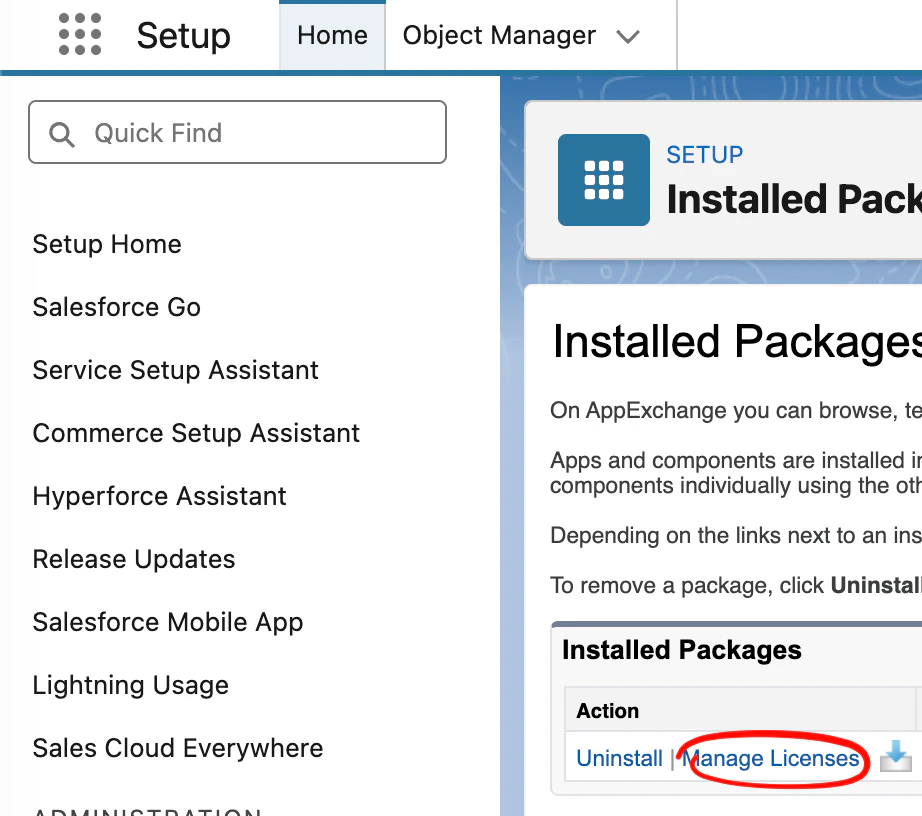
Click `Manage Licenses` on the package that requires user licenses
Ensure the ShiftUp Integration user has a license assigned to the Package
## Context Provider Permissions
Context providers are executed with the permissions of the configured Integration User for ShiftUp. So ShiftUp can only read fields for objects, fields, and records that the integration user has read access to. To enable additional access to objects and fields, go to the permission set assigned to the integration user where standard permissions have been granted and extend permissions as needed. We strongly recommend avoiding giving access to all fields; only select the fields that will contribute meaningful context.
## Context Provider Field Constraints
The following fields are ignored by context providers:
* Encrypted fields
* Lookup fields to custom objects
* Long Text Area fields
* Data Category Group Reference fields
* Deprecated/hidden fields
* Custom fields whose namespace prefix has been excluded from the `GS_App_Setting.Excluded_Context_Namespaces` custom metadata type.
## (Optional) Fields related to licensed Managed Packages
If your Salesforce Organization has a managed package that requires assigning licenses to your users and this package adds fields to your standard objects, you must either assign a license to the ShiftUp integration user or exclude these packages from the ShiftUp context provider.
**To add a license to the designated ShiftUp integration User**
Go to `Setup` > `Apps` > `Packaging` > `Installed Packages`
Click `Manage Licenses` on the package that requires user licenses
Ensure the ShiftUp Integration user has a license assigned to the Package
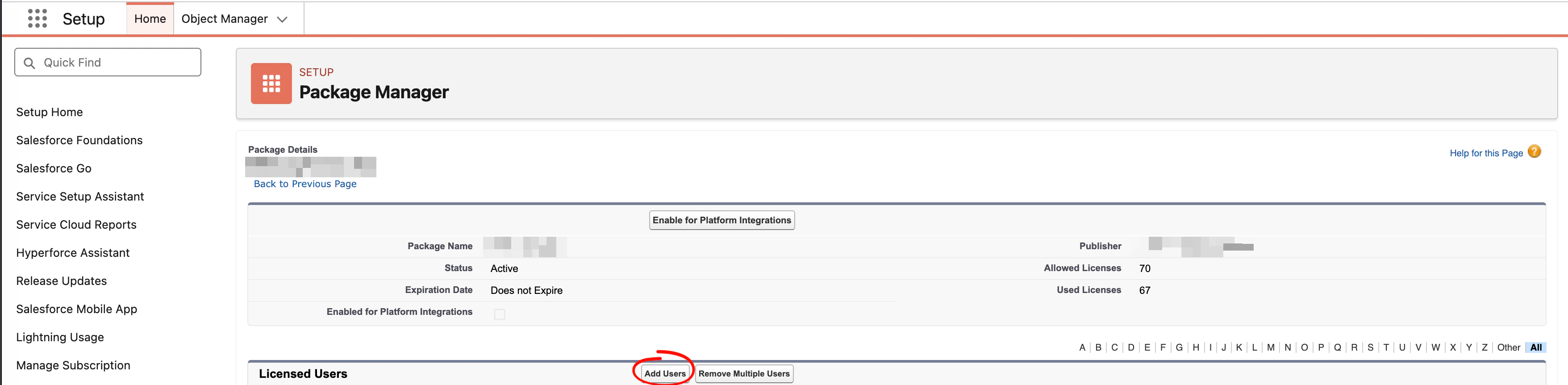
 Or click the `Add User` button and add the user, and save.
 **Exclude the package namespace for context providers**
If you do not want to assign a package license to the integration user, we need to exclude these package namespaces from the ShiftUp context providers by adding them to a list of excluded namespaces. To do this, perform the following steps:
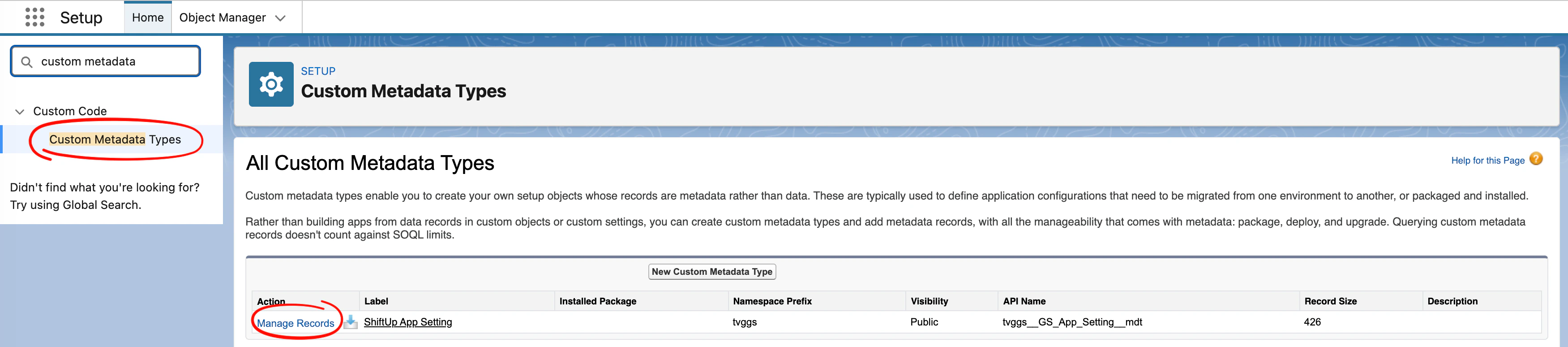
Go to `Setup` > `Custom Code` > `Custom Metadata Types`
Click `Manage Records` next to `ShiftUp App Setting`
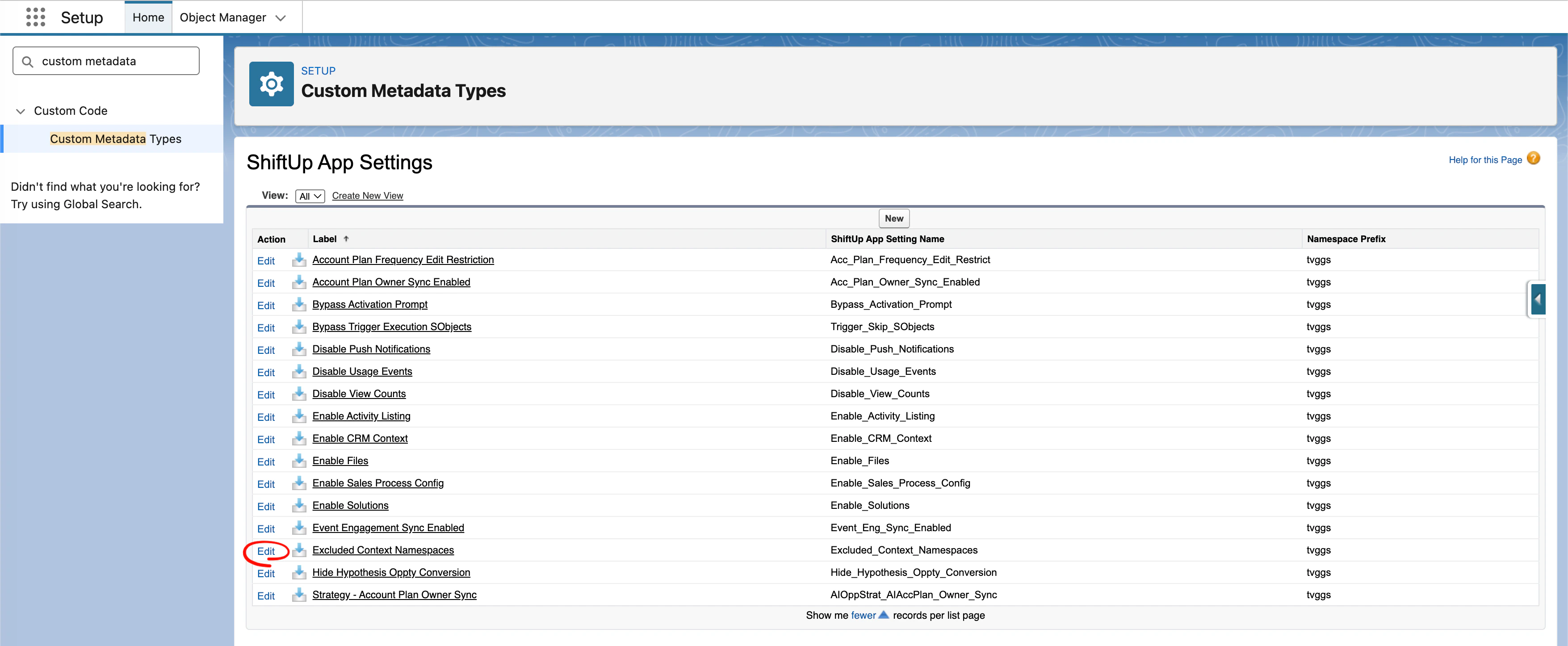
Click Edit on the "Excluded Context Namespaces" setting
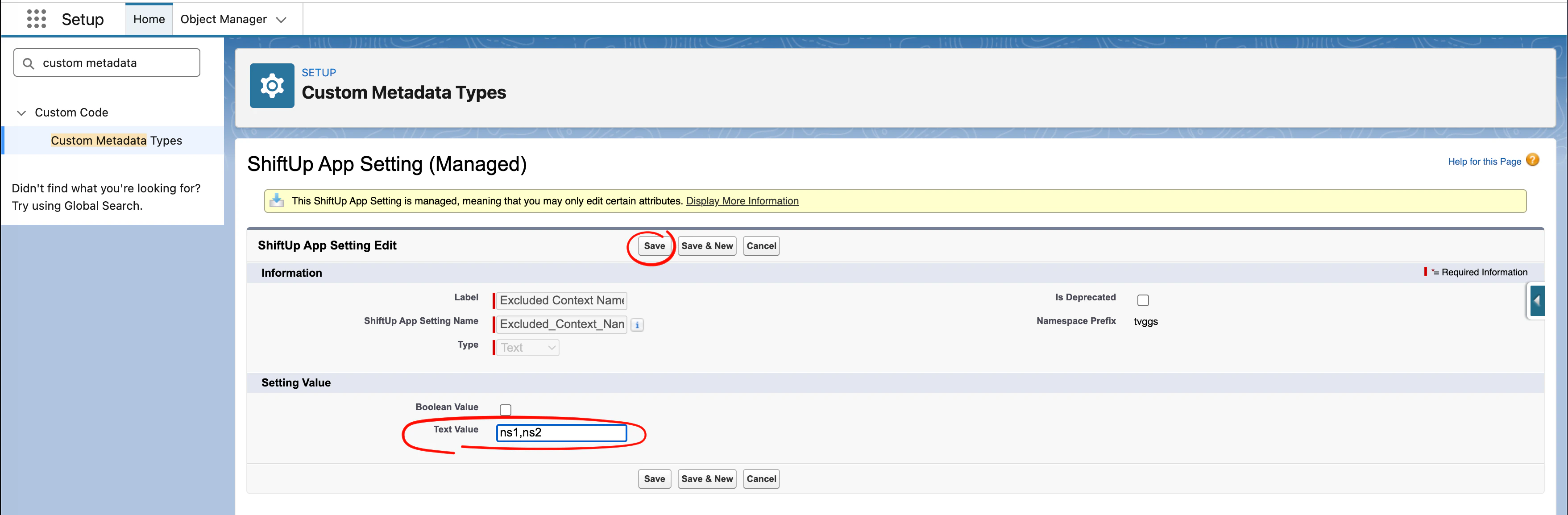
Add the list of licensed namespaces you would like to exclude and save
**Exclude the package namespace for context providers**
If you do not want to assign a package license to the integration user, we need to exclude these package namespaces from the ShiftUp context providers by adding them to a list of excluded namespaces. To do this, perform the following steps:
Go to `Setup` > `Custom Code` > `Custom Metadata Types`
Click `Manage Records` next to `ShiftUp App Setting`
Click Edit on the "Excluded Context Namespaces" setting
Add the list of licensed namespaces you would like to exclude and save