> ## Documentation Index
> Fetch the complete documentation index at: https://docs.shiftupai.com/llms.txt
> Use this file to discover all available pages before exploring further.
# Notifications and Feed
Never miss a critical update. ShiftUp's notification and feed system makes Account Plan and Strategy changes visible, filterable, and traceable — so you can quickly find what's new, who it's assigned to, and what's most important.
## Where you'll see updates
* **Salesforce bell notifications** — Account Plan and Strategy owners receive bell alerts with a summary of what changed and a direct link to the updated record.
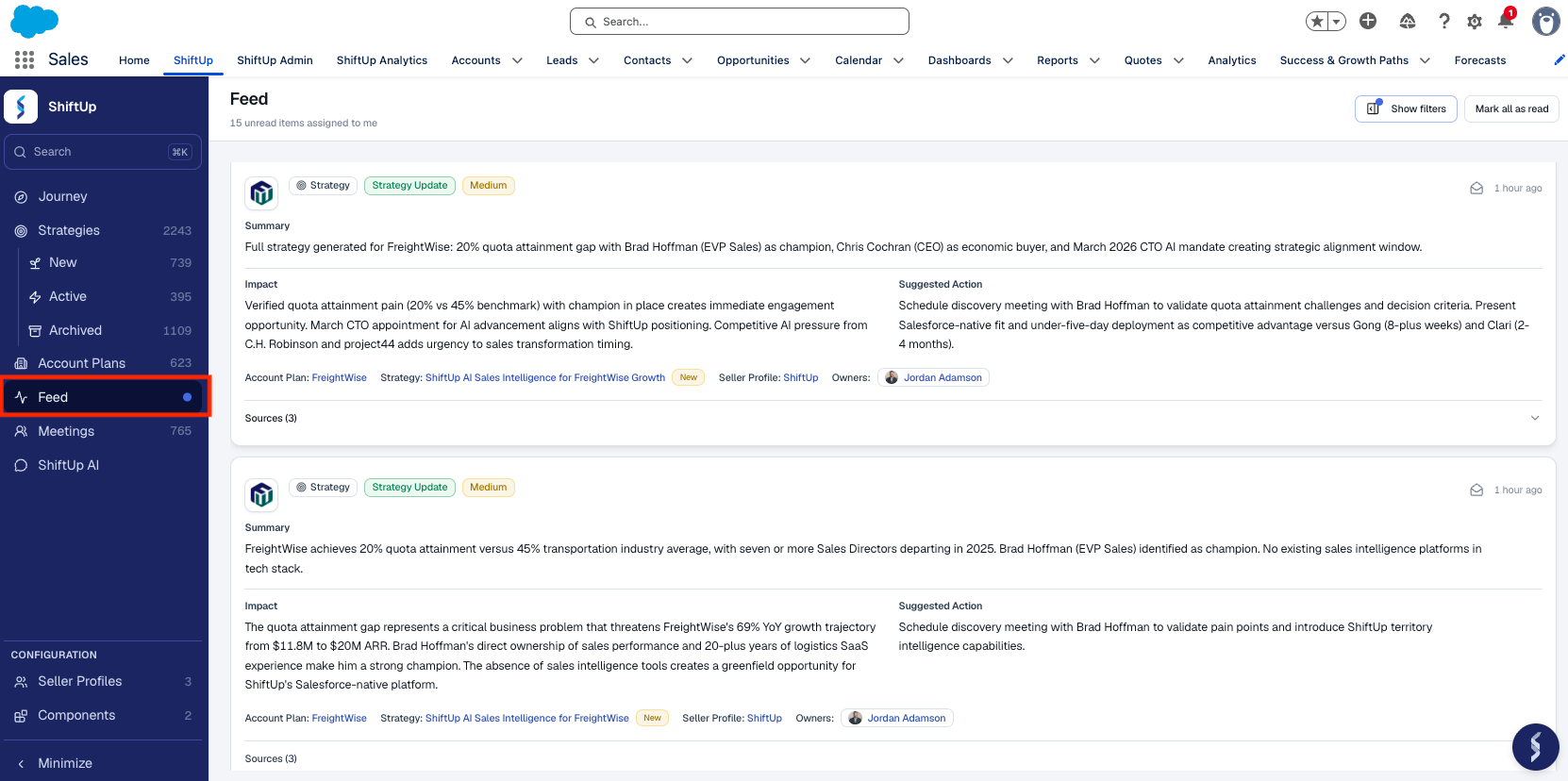
* **Feed** — A dedicated **Feed** view in the left-hand menu shows all updates across your Account Plans and Strategies. The header includes a count of unread items assigned to you.
 * **Record feed** — Each Account Plan and Strategy has its own feed tab that shows the full update history for that record.
## Reading the feed
The Feed page lists notifications newest-first and loads more as you scroll. Each notification shows:
* **Type** — Account Plan or Strategy. Click to open the related record.
* **Category** — Intelligence Update or Strategy Update.
* **Priority** — High, Medium, or Low.
* **Company Logo** - Logo of the account plan or strategy company.
* **Read state** — Unread items are highlighted; read items are dimmed when included in the view.
* **Age** - Days since the notification was generated
* **Feed Content -** Every feed item includes three structured sections so you can triage without opening the record:
* **Summary** - Description of what's changed
* **Impact** — Why the change matters and what it affects on the Account Plan or Strategy.
* **Suggested action** — A recommended next step you can take in response to the update.
* **Account Plan / Strategy Name** - Click to open related record.
* **Owner** - The account plan or strategy owner
* **Sources** - The cited evidence that drove the update
### Mark as read
* **Mark a single item** — Use the action on a notification to mark it read or unread.
* **Mark all as read** — Use **Mark all as read** in the page header to clear your unread queue in one click.
## Filtering the feed
Click **Show filters** in the header to open the filter panel. The Feed supports filtering and search by:
| Filter | Values |
| :------------------------- | :--------------------------------------------------------------- |
| **Assigned to / owned by** | Defaults to you; switch to any user to see what's on their plate |
| **Show read items** | Toggle on to see read items alongside unread ones |
| **Type** | Account Plan, Strategy |
| **Category** | Intelligence Update, Strategy Update |
| **Priority** | High, Medium, Low |
| **Date range** | Pick a start and/or end date |
| **Account Plan** | Search for and select a specific Account Plan |
Use **Clear all** to reset every filter at once. Your filter selections, date range, account-plan selection, and the "include read" toggle are **persisted across sessions**, so the Feed picks up exactly where you left off.
By default, the Global Feed is scoped to the unread items assigned to you. Switch the **Assigned to / owned by** filter to another user to triage what's queued up for your team.
## Per-record feed
Inside any Account Plan or Strategy, open the **Feed** tab to see only that record's update history. This is the fastest way to answer "what's changed on this account?" without scrolling the global Feed.
* **Record feed** — Each Account Plan and Strategy has its own feed tab that shows the full update history for that record.
## Reading the feed
The Feed page lists notifications newest-first and loads more as you scroll. Each notification shows:
* **Type** — Account Plan or Strategy. Click to open the related record.
* **Category** — Intelligence Update or Strategy Update.
* **Priority** — High, Medium, or Low.
* **Company Logo** - Logo of the account plan or strategy company.
* **Read state** — Unread items are highlighted; read items are dimmed when included in the view.
* **Age** - Days since the notification was generated
* **Feed Content -** Every feed item includes three structured sections so you can triage without opening the record:
* **Summary** - Description of what's changed
* **Impact** — Why the change matters and what it affects on the Account Plan or Strategy.
* **Suggested action** — A recommended next step you can take in response to the update.
* **Account Plan / Strategy Name** - Click to open related record.
* **Owner** - The account plan or strategy owner
* **Sources** - The cited evidence that drove the update
### Mark as read
* **Mark a single item** — Use the action on a notification to mark it read or unread.
* **Mark all as read** — Use **Mark all as read** in the page header to clear your unread queue in one click.
## Filtering the feed
Click **Show filters** in the header to open the filter panel. The Feed supports filtering and search by:
| Filter | Values |
| :------------------------- | :--------------------------------------------------------------- |
| **Assigned to / owned by** | Defaults to you; switch to any user to see what's on their plate |
| **Show read items** | Toggle on to see read items alongside unread ones |
| **Type** | Account Plan, Strategy |
| **Category** | Intelligence Update, Strategy Update |
| **Priority** | High, Medium, Low |
| **Date range** | Pick a start and/or end date |
| **Account Plan** | Search for and select a specific Account Plan |
Use **Clear all** to reset every filter at once. Your filter selections, date range, account-plan selection, and the "include read" toggle are **persisted across sessions**, so the Feed picks up exactly where you left off.
By default, the Global Feed is scoped to the unread items assigned to you. Switch the **Assigned to / owned by** filter to another user to triage what's queued up for your team.
## Per-record feed
Inside any Account Plan or Strategy, open the **Feed** tab to see only that record's update history. This is the fastest way to answer "what's changed on this account?" without scrolling the global Feed.