> ## Documentation Index
> Fetch the complete documentation index at: https://docs.shiftupai.com/llms.txt
> Use this file to discover all available pages before exploring further.
# Override the Convert Opportunity Screen
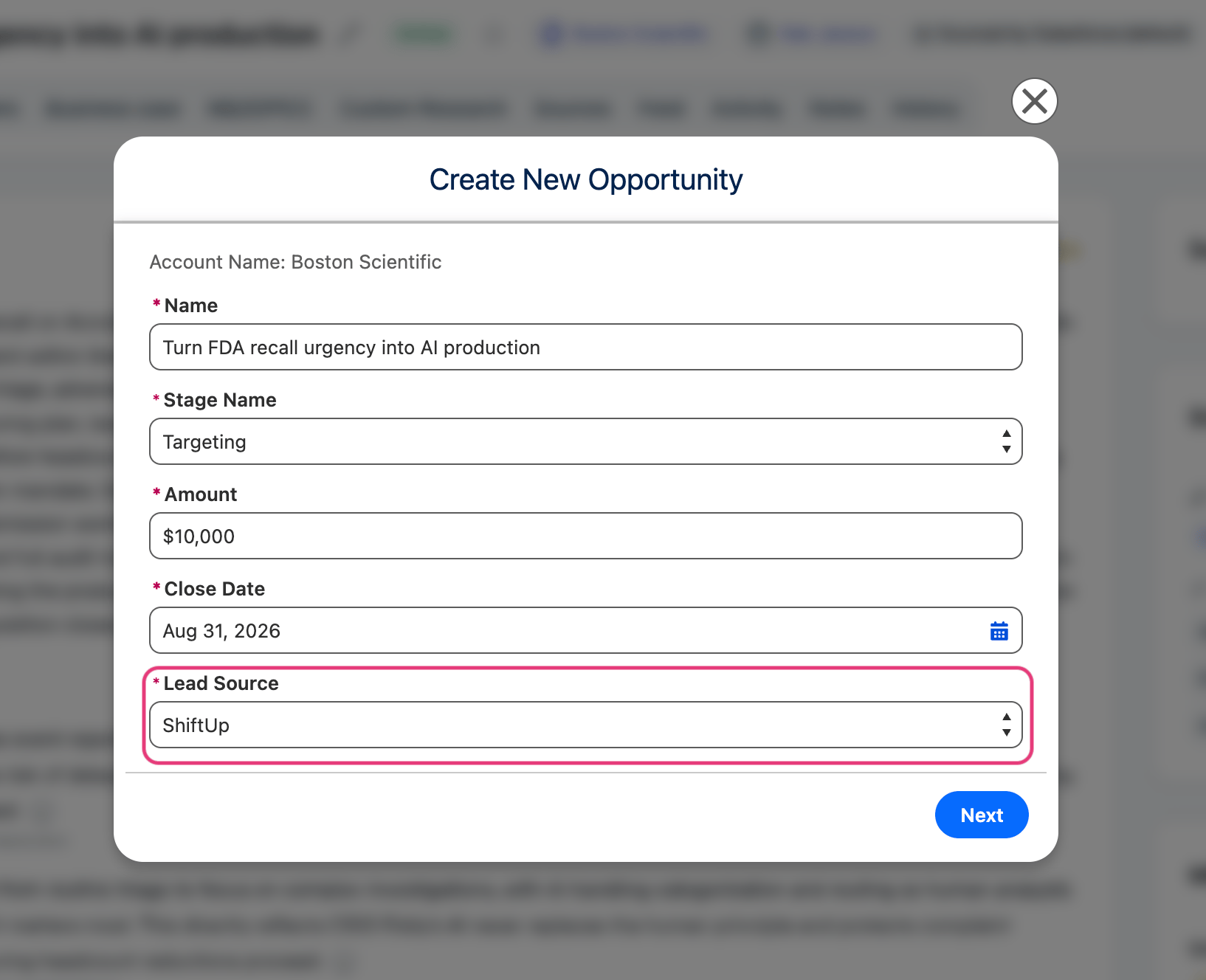
When a ShiftUp Strategy is converted to an Opportunity, ShiftUp displays a form for entering Opportunity details.
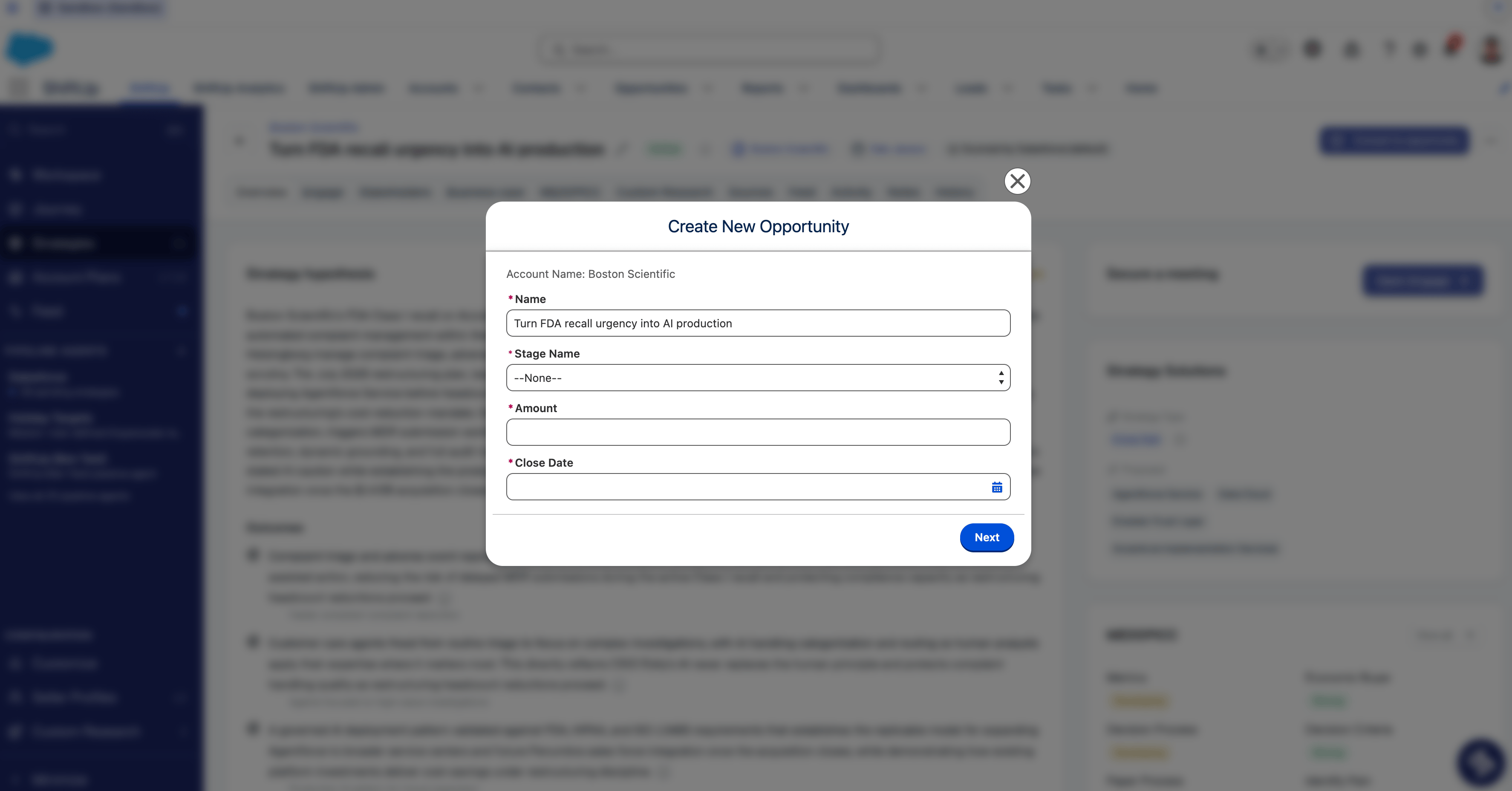 This form is implemented as a Salesforce Screen Flow. You can override the standard ShiftUp flow with a custom flow to support additional Opportunity fields or business requirements.
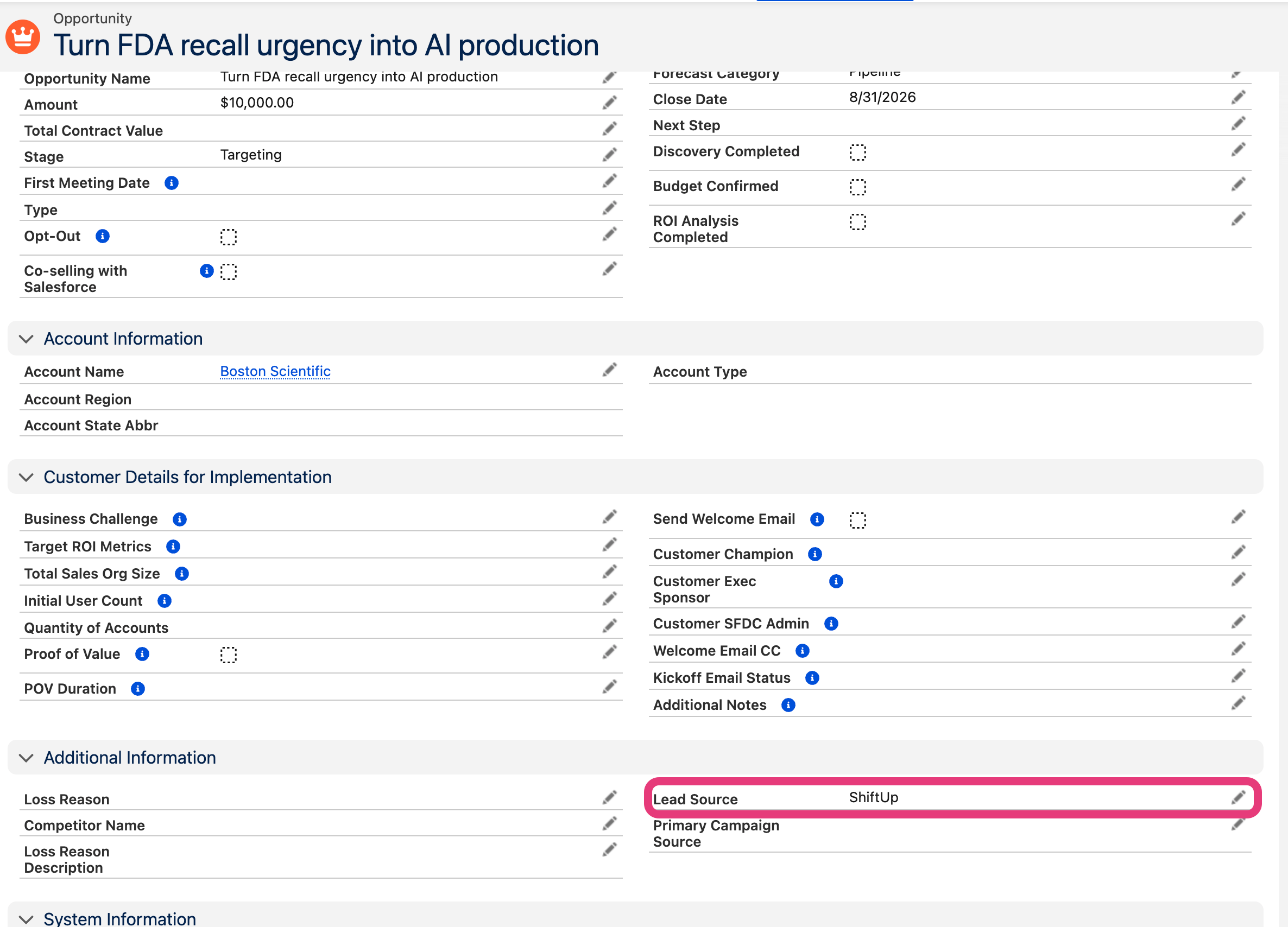
This guide uses adding the Opportunity `Lead Source` field as an example. It assumes you are already familiar with Salesforce Flow Builder. For help building Screen Flows, see the [Salesforce Screen Flow documentation](https://help.salesforce.com/s/articleView?language=en_US\&id=platform.automate_flow_build_get_started_screen_flows.htm\&type=5).
> Before you begin, confirm that you have permission to manage and activate flows. Users who convert Strategies must also have access to the custom flow and any fields it uses.
# Clone the standard ShiftUp flow
In Salesforce Setup, go to `Process Automation` > `Flows`.
Locate `ShiftUp Opportunity for AI Strategy`, then click its label to open it in Flow Builder.
This form is implemented as a Salesforce Screen Flow. You can override the standard ShiftUp flow with a custom flow to support additional Opportunity fields or business requirements.
This guide uses adding the Opportunity `Lead Source` field as an example. It assumes you are already familiar with Salesforce Flow Builder. For help building Screen Flows, see the [Salesforce Screen Flow documentation](https://help.salesforce.com/s/articleView?language=en_US\&id=platform.automate_flow_build_get_started_screen_flows.htm\&type=5).
> Before you begin, confirm that you have permission to manage and activate flows. Users who convert Strategies must also have access to the custom flow and any fields it uses.
# Clone the standard ShiftUp flow
In Salesforce Setup, go to `Process Automation` > `Flows`.
Locate `ShiftUp Opportunity for AI Strategy`, then click its label to open it in Flow Builder.
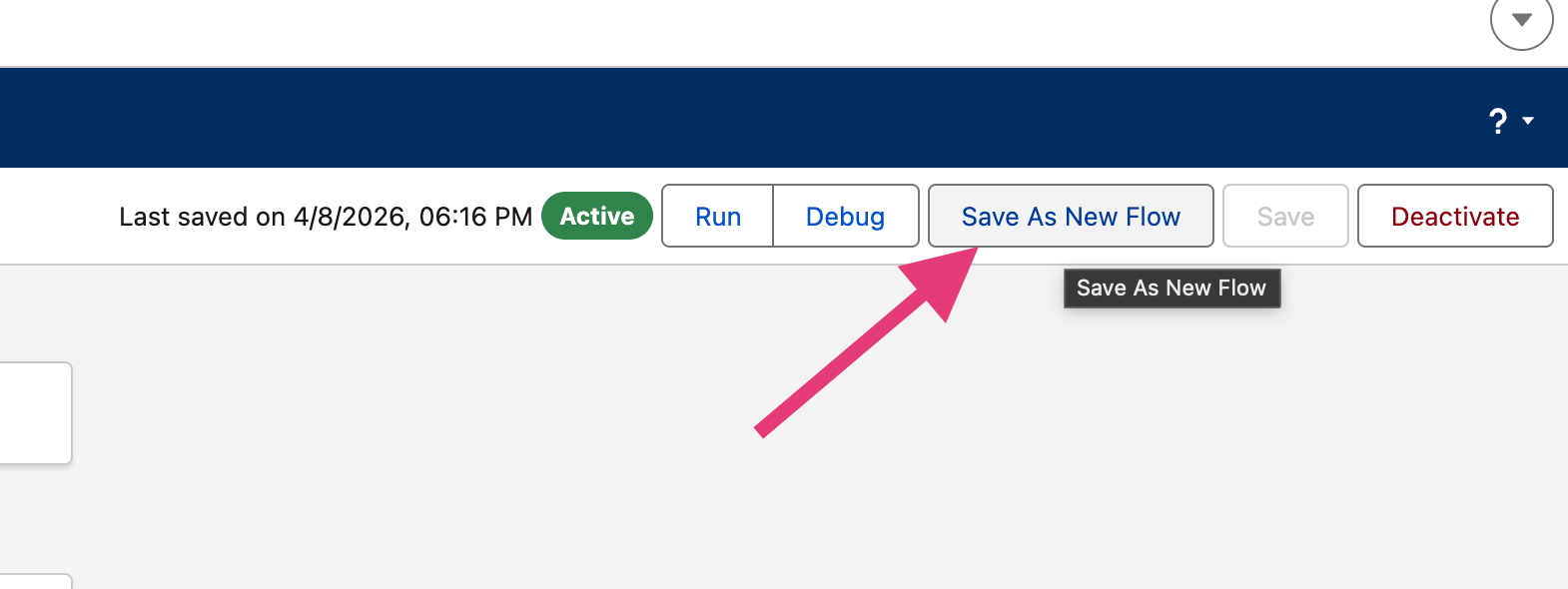
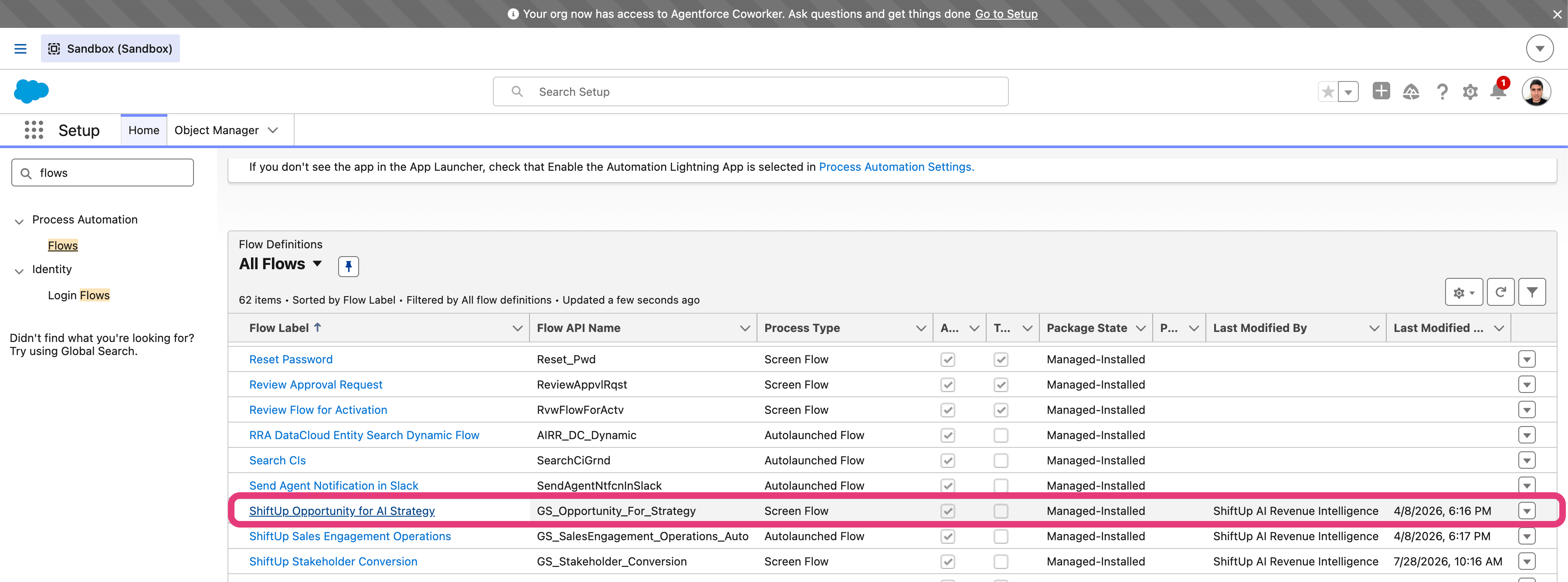 Click `Save As New Flow`.
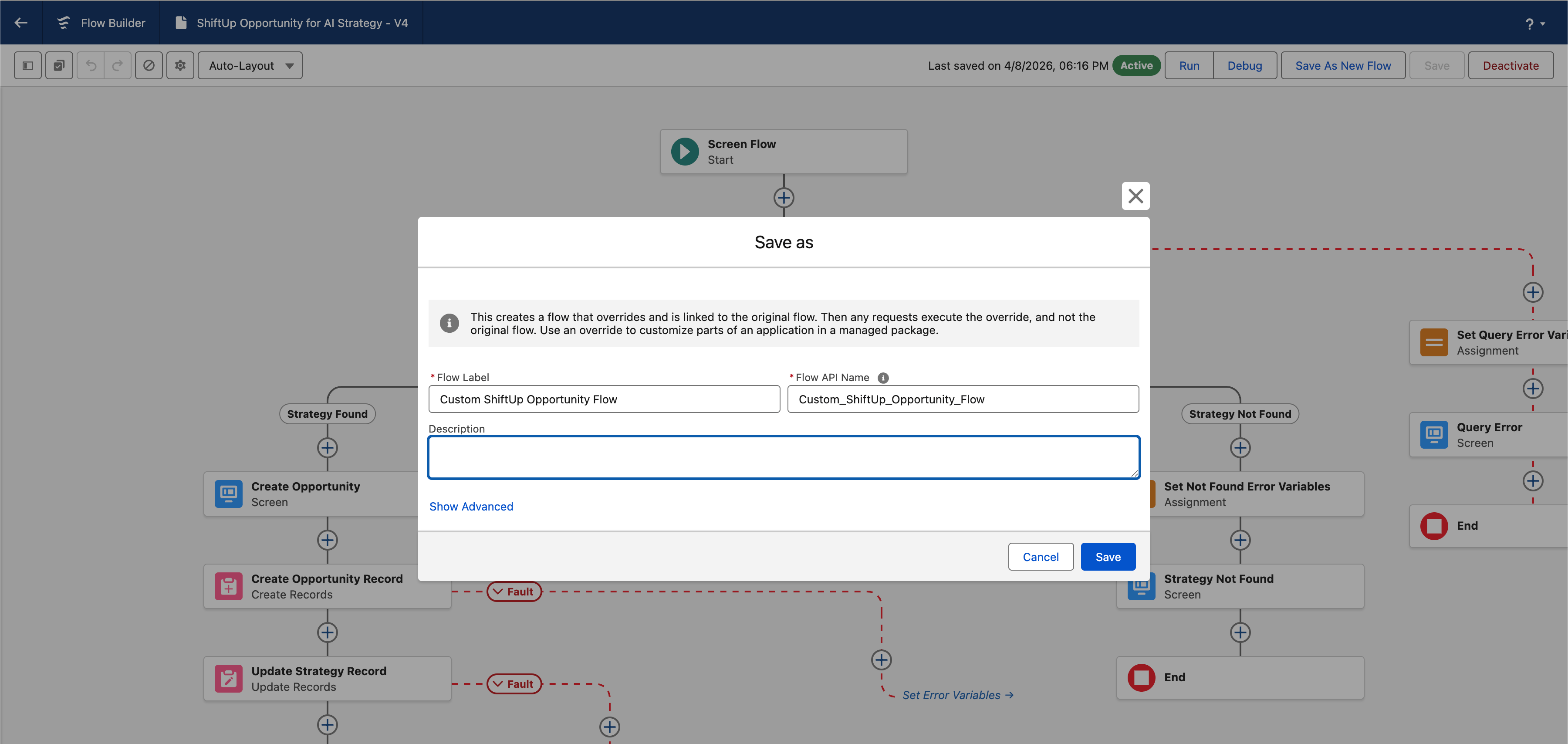
 Enter a descriptive label and API name for the custom flow.
 > Keep the existing flow inputs, outputs, and conversion logic unless your customization specifically requires changing them. ShiftUp depends on this interface to start the conversion correctly.
## Modify your custom screen based flow
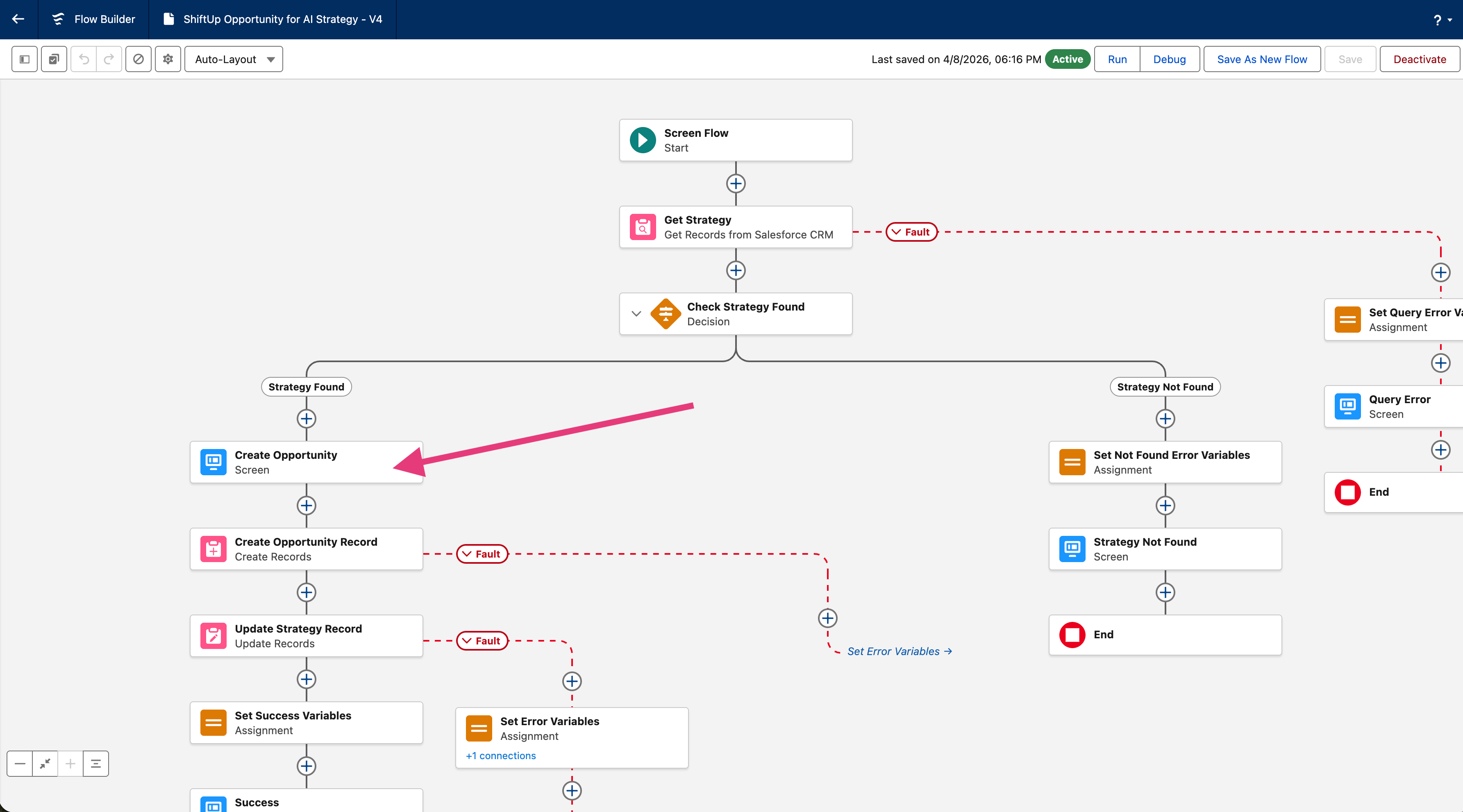
Open the cloned flow and select the `Create Opportunity` screen element.
In this example, add an input for `Lead Source` and configure its choices from the Opportunity `Lead Source` picklist.
> For more info on how to use screen based flow you can reference [salesforce documentation](https://help.salesforce.com/s/articleView?language=en_US\&id=platform.automate_flow_build_get_started_screen_flows.htm\&type=5).
> Keep the existing flow inputs, outputs, and conversion logic unless your customization specifically requires changing them. ShiftUp depends on this interface to start the conversion correctly.
## Modify your custom screen based flow
Open the cloned flow and select the `Create Opportunity` screen element.
In this example, add an input for `Lead Source` and configure its choices from the Opportunity `Lead Source` picklist.
> For more info on how to use screen based flow you can reference [salesforce documentation](https://help.salesforce.com/s/articleView?language=en_US\&id=platform.automate_flow_build_get_started_screen_flows.htm\&type=5).
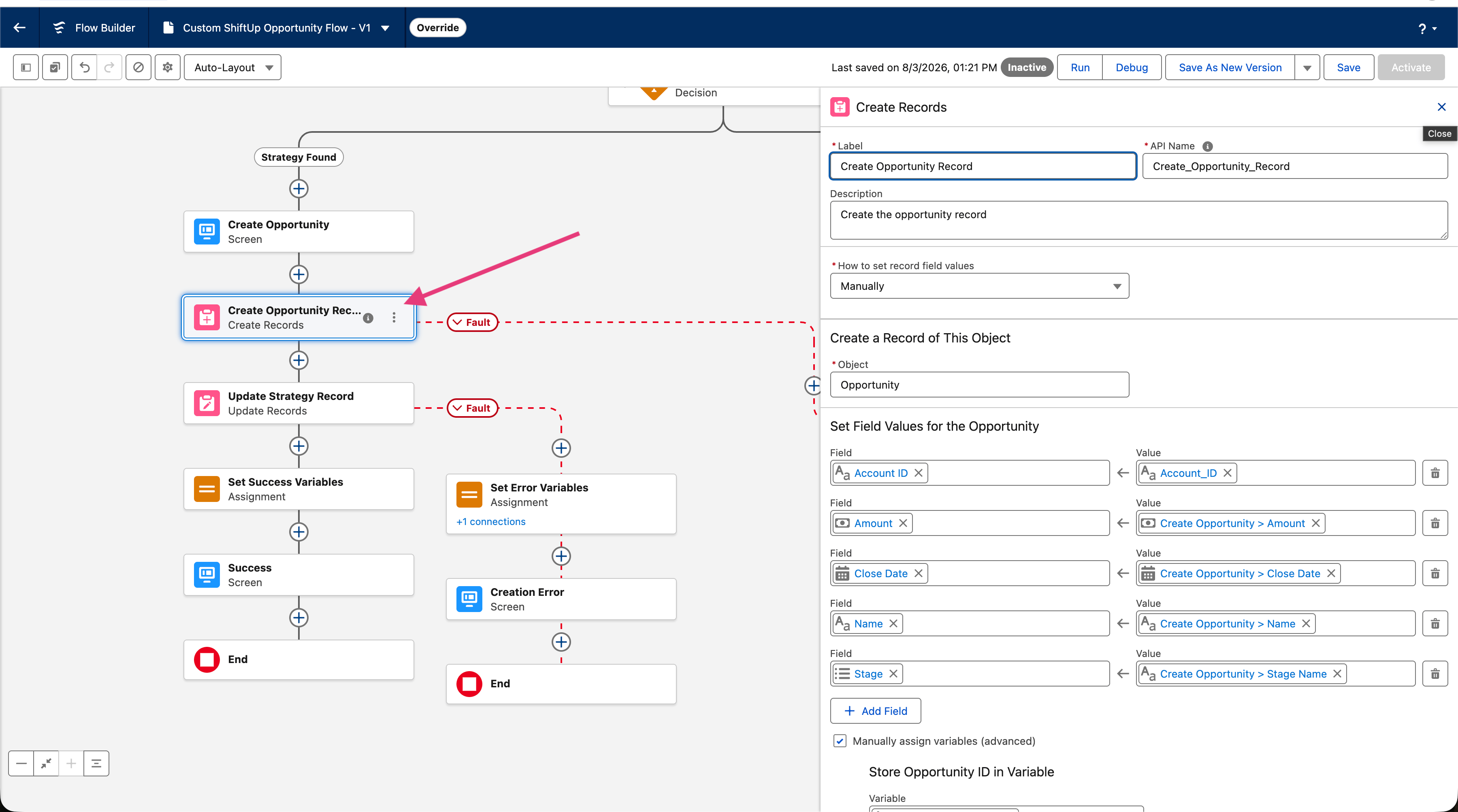
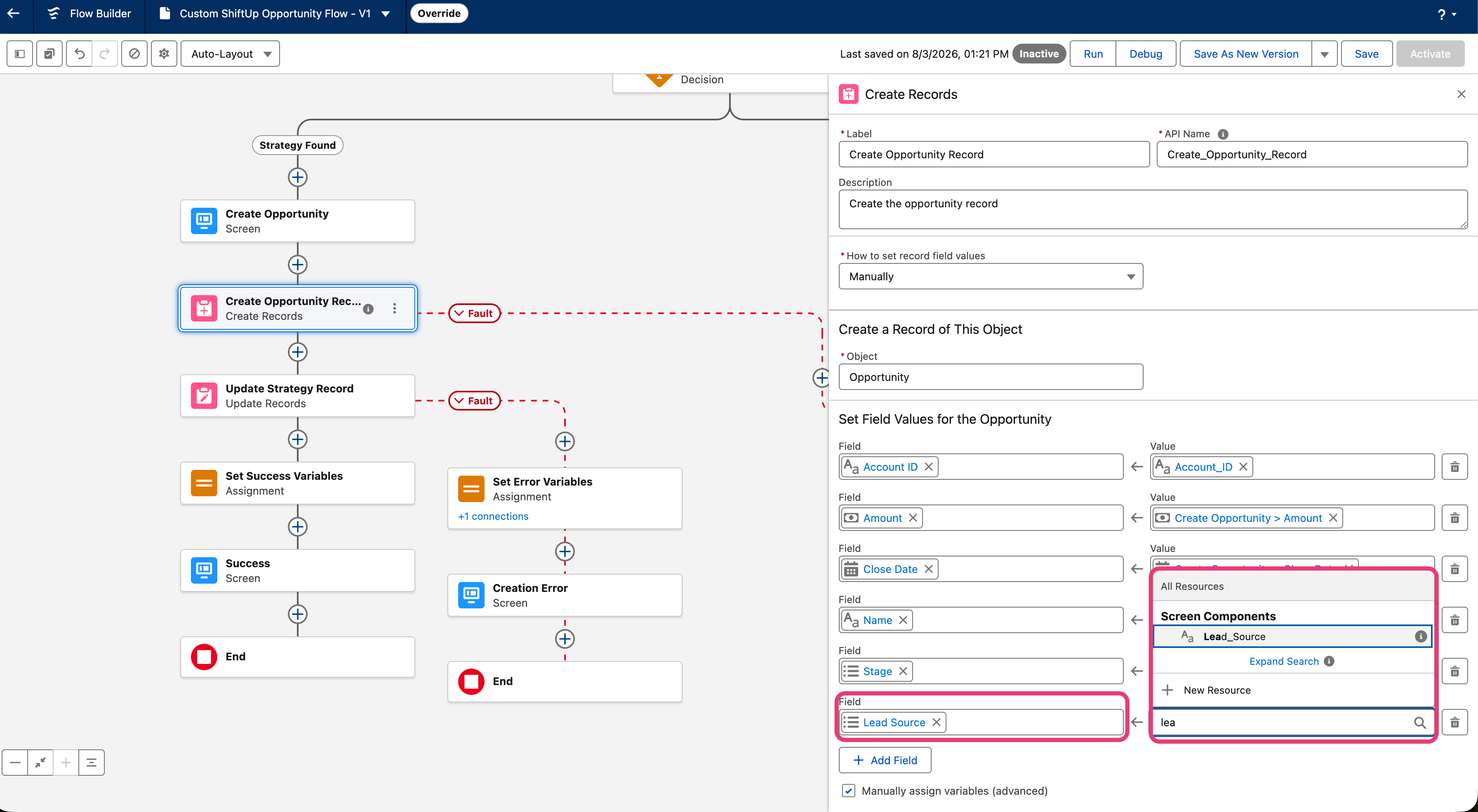
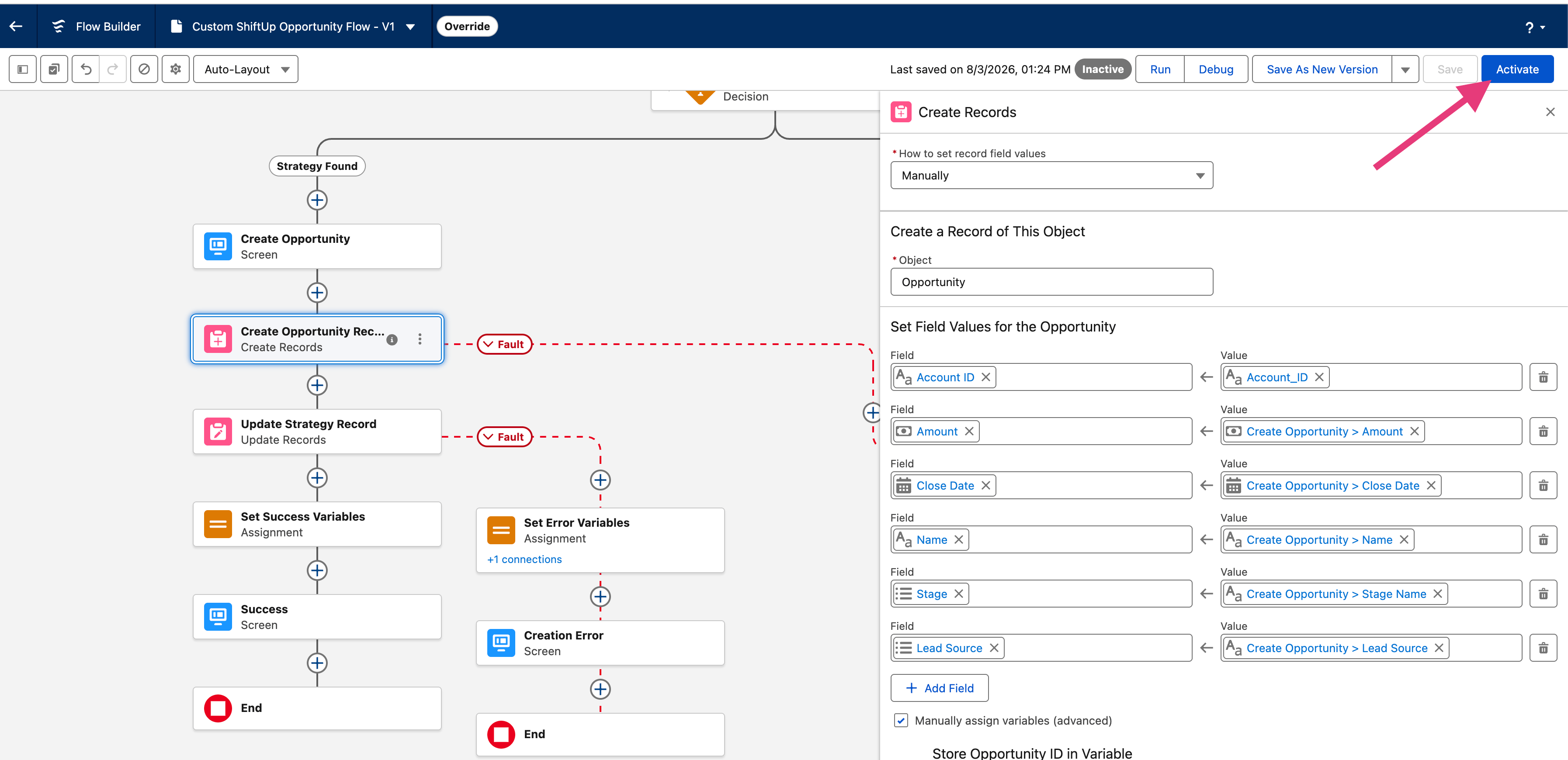
 Next, open the `Create Opportunity Record` element. Map the value entered on the screen to the Opportunity `Lead Source` field.
Clicking on the component will bring up the property editor for the screen component. For this example, we will add a new field called `Lead Source` which will import its choices from a picklist field also called `Lead Source` in the Opportunity object.
Next, open the `Create Opportunity Record` element. Map the value entered on the screen to the Opportunity `Lead Source` field.
Clicking on the component will bring up the property editor for the screen component. For this example, we will add a new field called `Lead Source` which will import its choices from a picklist field also called `Lead Source` in the Opportunity object.
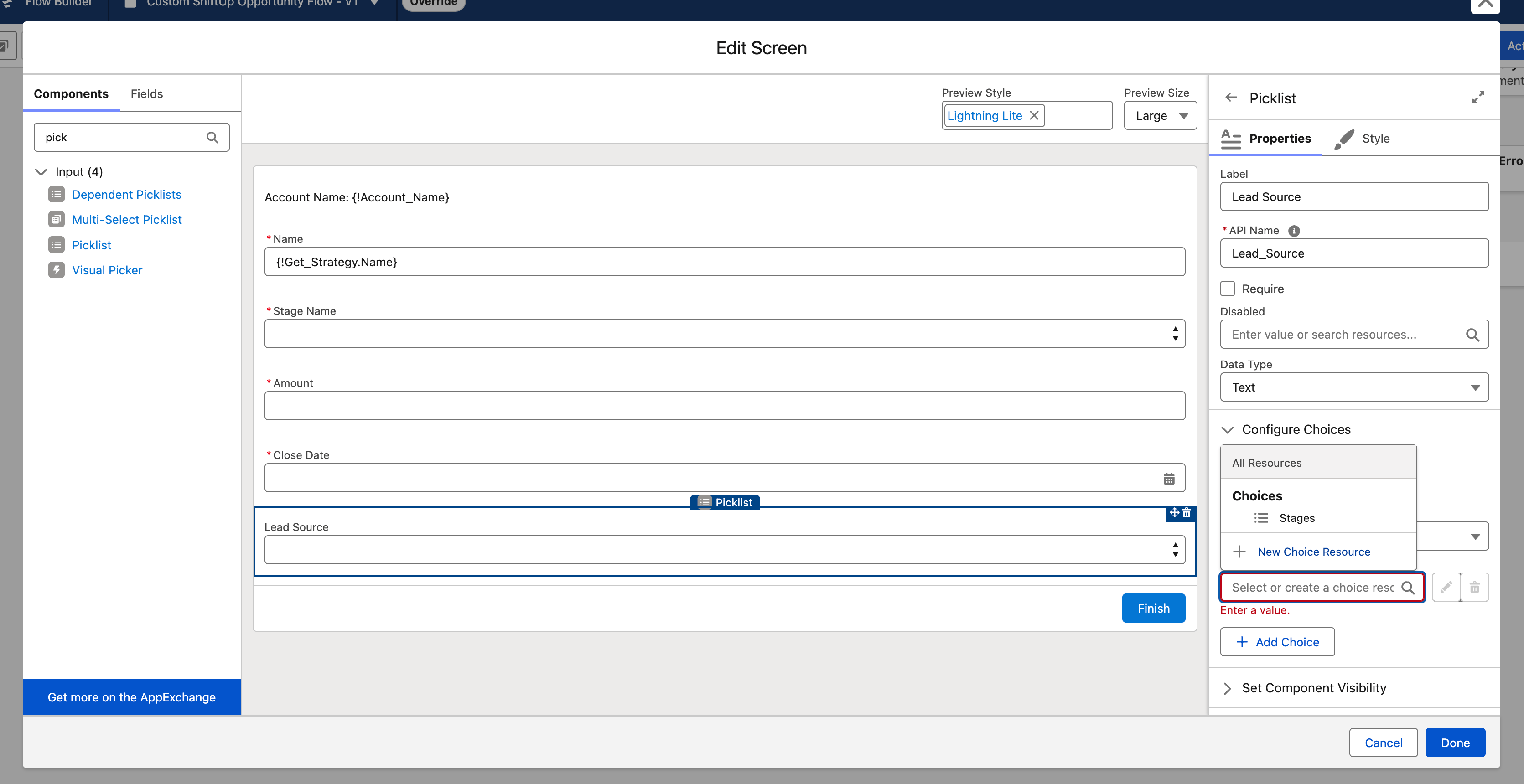
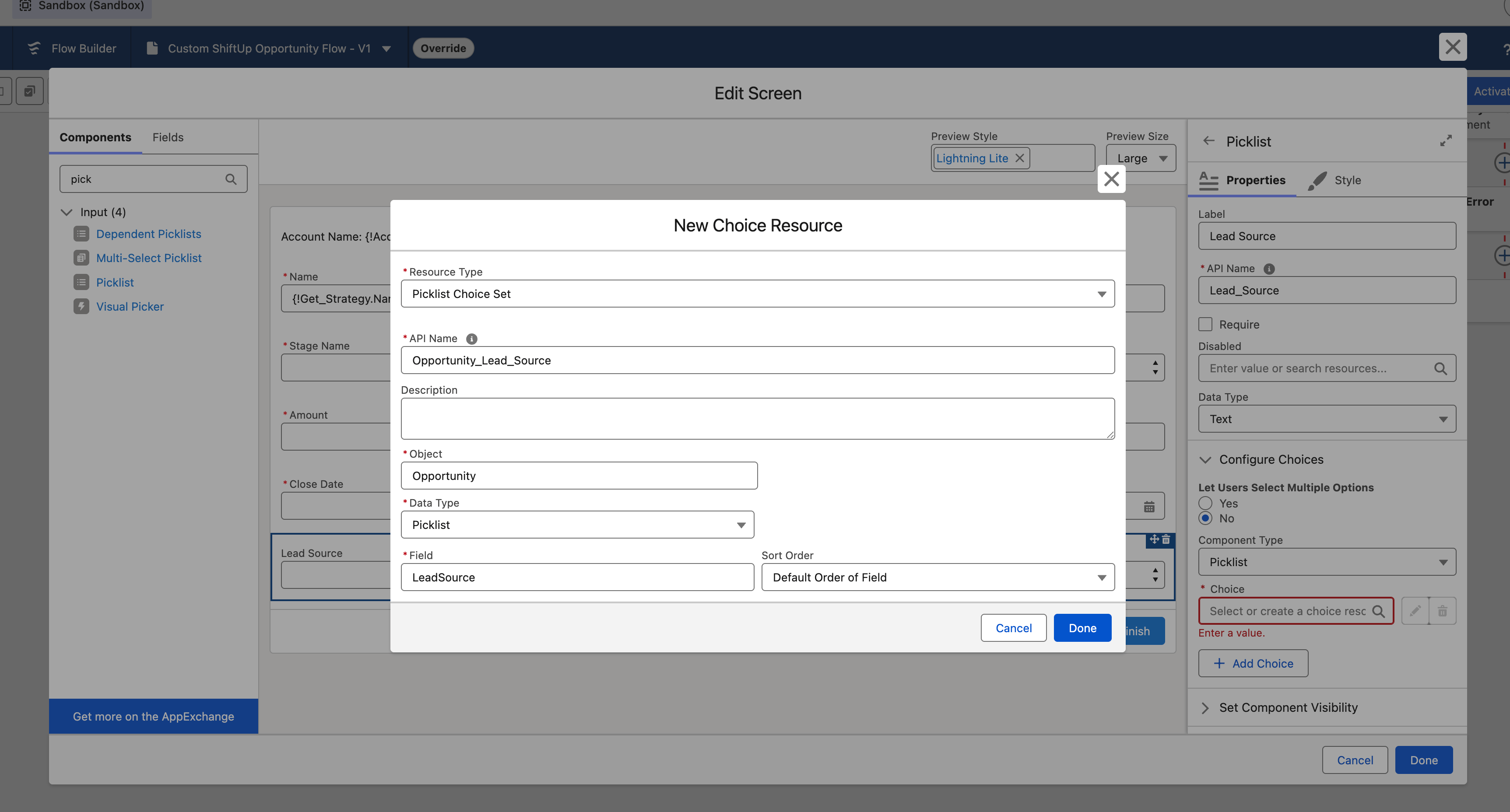
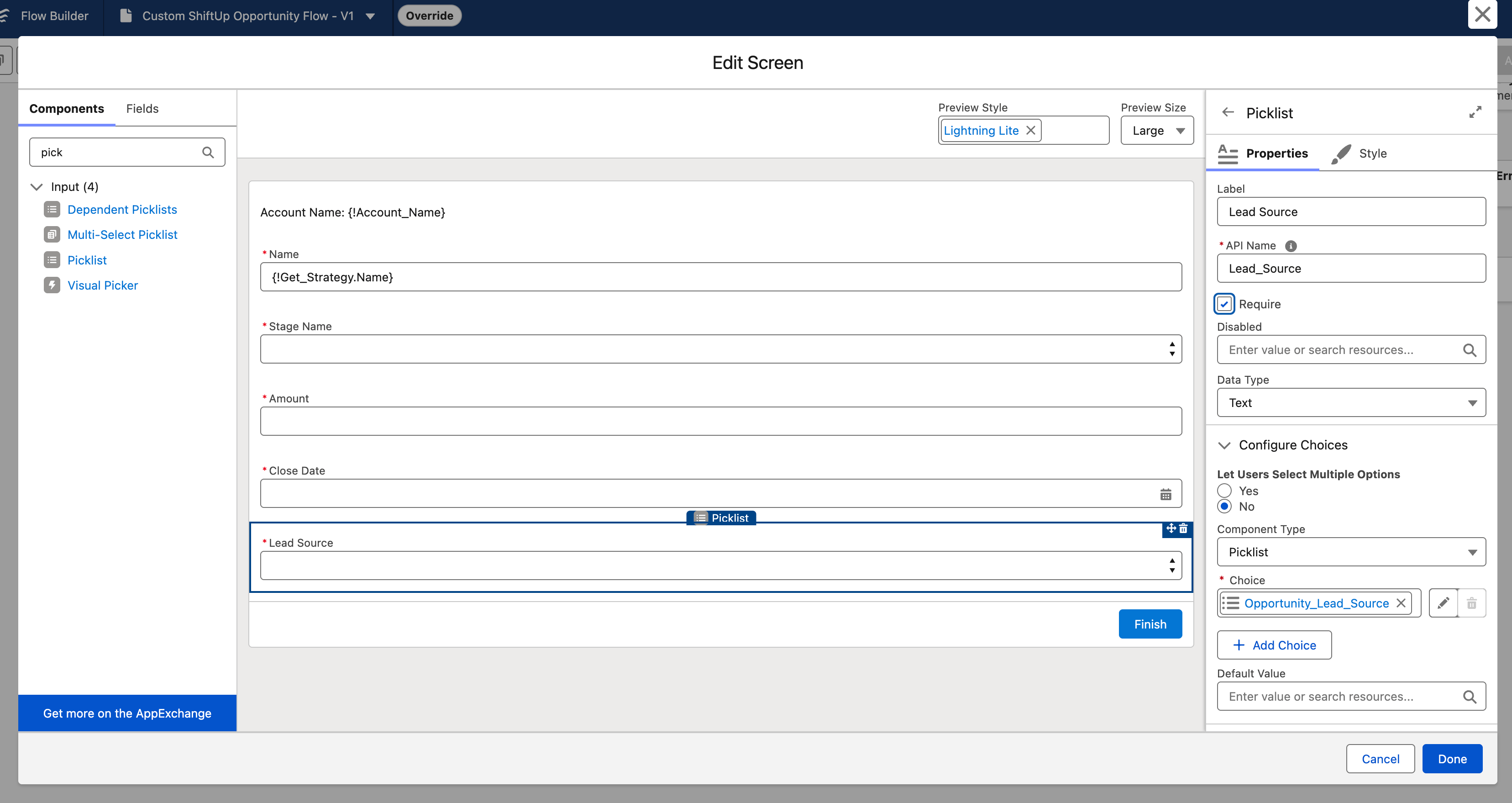 Next, we will update the `Create Opportunity Record` action to map the new Lead Source field from the previous screen to the `Lead Source` field in the Opportunity record that will be created.
 ## Activate your custom flow and validate
Finally, we will Activate the new flow by clicking the `Activate` button on the top right.
## Activate your custom flow and validate
Finally, we will Activate the new flow by clicking the `Activate` button on the top right.
 To validate the new flow is working as expected, open a Strategy record in ShiftUp that hasn't been converted to an Opportunity and click on the `Convert to Opportunity` record. Your new screen based flow should be displayed and work as expected.